Purpose: This guide helps you navigate the Support Center to find solutions, explains the fastest way to submit a technical ticket, and outlines the expected response time from the Help Desk team.
| IMPORTANT: Account Access & "Inactive Account" Messages Support agents can only activate accounts for verified SAM.gov Points of Contact (POCs) as Administrators. For security and data privacy, Support cannot activate staff accounts or reveal who your company's internal Administrators are. The "One Email, One Company" Access Rule (For Admins, Staff, & Consultants): In Symphony, each email address functions as a single key linked to only one company UEI per portal.
|
Table of Contents
1. Find Answers in the Knowledge Base
2. When to Submit a Support Ticket
Before You Start
Make sure you know the following crucial facts before contacting support:
- You must know your Contract Vehicle (the specific website URL (Uniform Resource Locator)) and your company's UEI (Unique Entity Identifier) for account-related issues.
- There is no direct phone number available for support.
- If you need to log in to Symphony, click here to find the correct URL.
Self-Service Troubleshooting Matrix
| What problem are you experiencing? | Immediate Solution / Next Step |
| "Account Inactive" / Cannot log in after registering | Review the 'Is your account Inactive?' banner above to determine if you need SAM.gov verification (Admins) or internal activation (Staff). Review the Symphony Sign-In Guide. |
| Forgotten Password / MFA Reset | Use the Forgot Password link on your portal login page or review MFA Setup & Security Guide: Authenticator Apps and Access Codes. |
| Need to add a team member | Administrators cannot "invite" users. Each user must self-register first. Review Administrator Guide: Activating Users and Assigning Permissions. |
| Registering for multiple companies | Each company profile requires a unique individual email address (hyphenated aliases permitted; plus signs + prohibited). |
| Cannot find the right portal link/not authorised to access this portal | Ensure you are not attempting to log into the Support Help Desk header link, which is restricted to internal support agents. The Knowledge Base is outside Symphony. Check official contract vehicle web addresses in Portal Links and Access Requirements. |
Steps
1. Find Answers in the Knowledge Base
The fastest way to find an answer is to use keywords in the search bar.
- Access the Support Center: Go to the Help Desk portal (Help and Information/Support).
- Enter Keywords: Enter a keyword in the search box. For example, searching for "Multi-Factor Authentication (MFA)" or "Password" yields many useful results.
- Refine Search: The search uses a "starts-with" mechanism, displaying exact matches first. Do not type a full question.
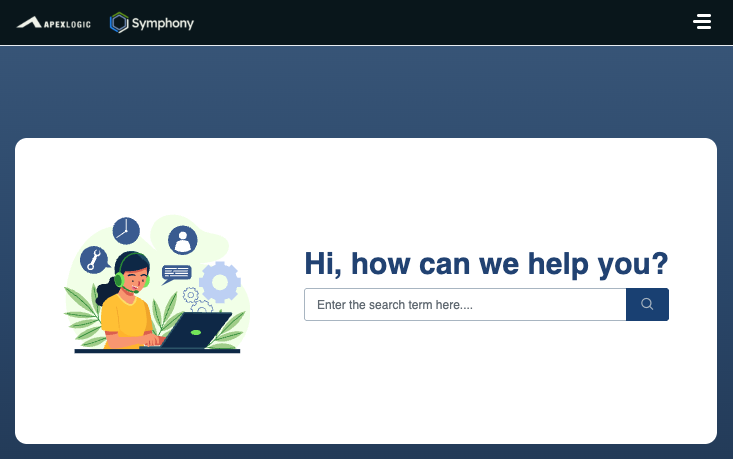
The Knowledge Base search bar showing a convenient keyword-based searching mechanism.
2. When to Submit a Support Ticket
Please open a ticket with Symphony Support if you need assistance with:
- SAM.gov Administrator Verification: You are a listed SAM.gov Point of Contact requesting initial Administrator activation.
- MFA Reset Requests: You lost access to your authenticator app and need your security token reset.
- Technical Questions: You encounter an error message during proposal submission or document upload. The Symphony Support Center provides technical platform support only.
Technical Boundary Notice:
Support agents cannot evaluate adequacy, interpret compliance, or offer policy and legal procurement determinations regarding vendor submissions.
(For security and data privacy, Support agents cannot grant staff permissions, confirm who your company's internal Admins are, or bypass internal approval workflows).
If you cannot find a solution, submit a ticket for a guaranteed response within the service window.
- Click the Submit a Ticket button in the top right corner of any help page.
- Fill out the form completely, providing your email, name, and the contract vehicle you are using.
- Describe the Issue: Explain your problem clearly. Include the Contract Vehicle, the Symphony feature that is failing, and a screenshot of any error message.
- Click the final Submit button.
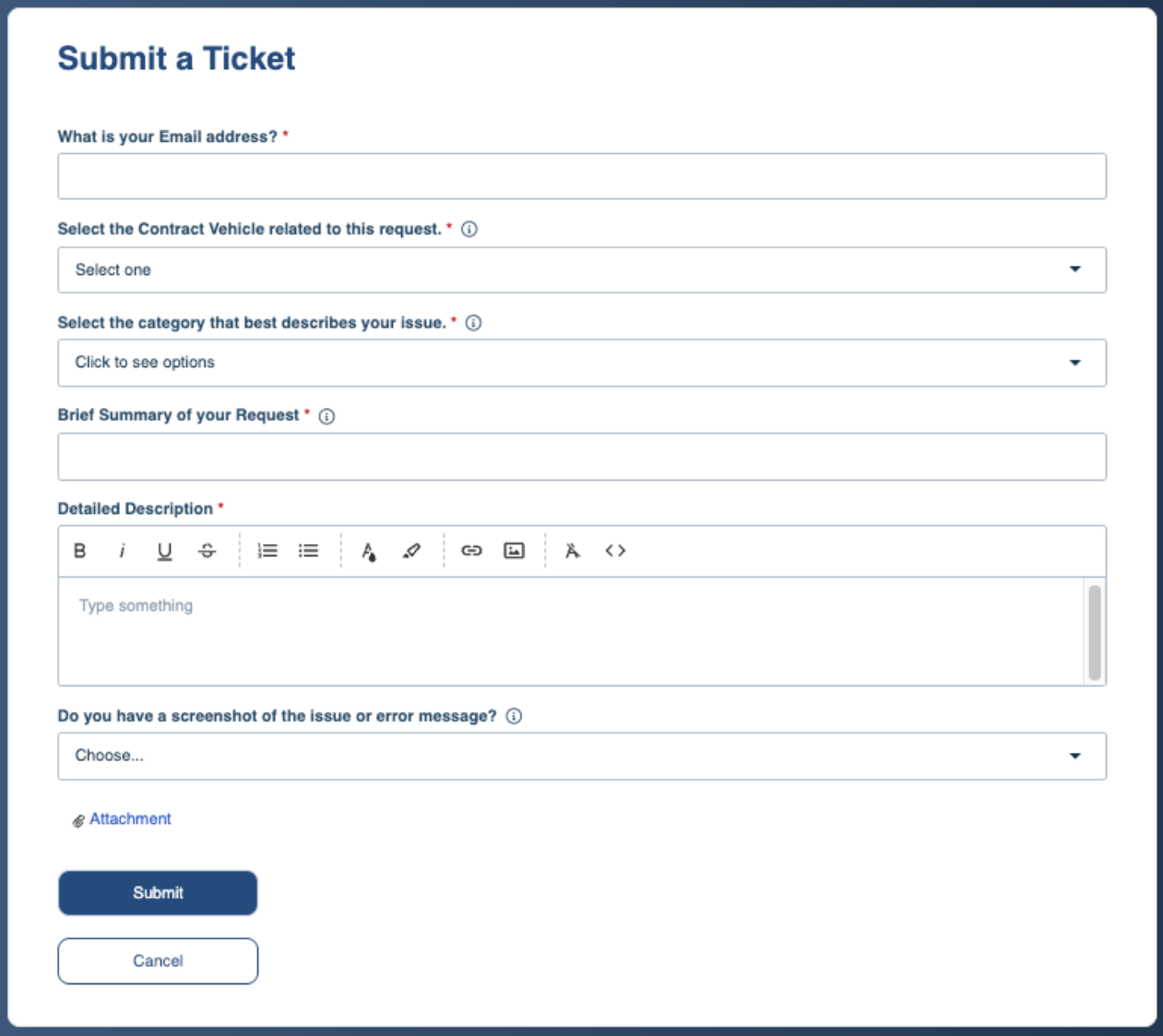
Ticket submission form showing fields for contact information and issue description.
3. Track Response Times
Responses are provided only during business hours.
- Check Service Window: Responses are provided within four business hours (8:00 am - 8:00 pm ET) from Monday to Friday, excluding Federal Holidays.
- Check Spam: If more than four hours pass during a regular business week, check your junk/spam folders for the client.support@apexlogic.com email address.
- Video Conference: If your issue requires a meeting, submit a ticket requesting a video conference, and the team will set up a meeting via Google Meet or another tool.
 Email inbox showing a new message from the support team.
Troubleshooting
Issue | Fix |
You submitted a ticket but didn't get a response within 4 business hours. | Check your Spam or Trash folders for an email from client.support@apexlogic.com. |
You are having an issue that requires a phone call or meeting. | There is no direct phone number. Submit a ticket and request a video conference; the team will set up the meeting. |
Your search is returning poor results. | Use keywords (e.g., "MFA," "UEI") instead of typing a full question, as the search mechanism works best with partial matches. |
Related Articles / Links
- Submit a Ticket to the Symphony Help Desk—The direct link to our Customer Service Representatives and Technicians
- SAM.gov Data in Symphony: Access Requirements and Refreshing Entity Data—For verifying your UEI
- Portal Links and Access Requirements—For available contract vehicles
Was this article helpful?
That’s Great!
Thank you for your feedback
Sorry! We couldn't be helpful
Thank you for your feedback
Feedback sent
We appreciate your effort and will try to fix the article