Purpose: This guide helps you upload and certify the cost/price information for your proposal. It ensures you use the correct template format, adhere to strictly required file combinations, and resolve validation errors before final submission.
Table of Contents
1. Go to Cost/Price in My Company
3. Review Validation Messages in Live Score
Before You Start
Make sure you know the following essential facts before proceeding:
- Solicitation-Specific Requirements: Cost/Price requirements (such as the Basis of Estimate or Labor Rate Attestation) are unique to each contract vehicle solicitation.
- Strict File Pair Rules: Symphony requires exactly one Excel template (.xlsx file type) and one accompanying document for validation.
- No Modifying Template Structures: Do not remove, rename, or reorder any columns or rows in government-provided pricing spreadsheets (e.g., OASIS+ templates), as structural alterations trigger hard file-parsing validation errors.
- No Unencrypted/Password-Protected Files: Pricing files must not be zipped, encrypted, or password-protected.
- Shared Workspace Access: All active users registered under your company's UEI and CAGE code have full access to view pricing assets. To safeguard proprietary pricing data prior to final submission, upload your final pricing files as your last step before certifying. They can be safely removed after submission.
Steps
1. Go to Cost/Price in My Company
You must configure and claim your pricing documents within your company's master asset library prior to finalizing your proposal submission.
- Go to the My Company screen from the top or left navigation bar.
- Select the Cost/Price tab from the left navigation menu.
- Set the Solicitation Preference Filter dropdown to your target solicitation (e.g., OASIS+ or Alliant 3) before adding or editing claims.
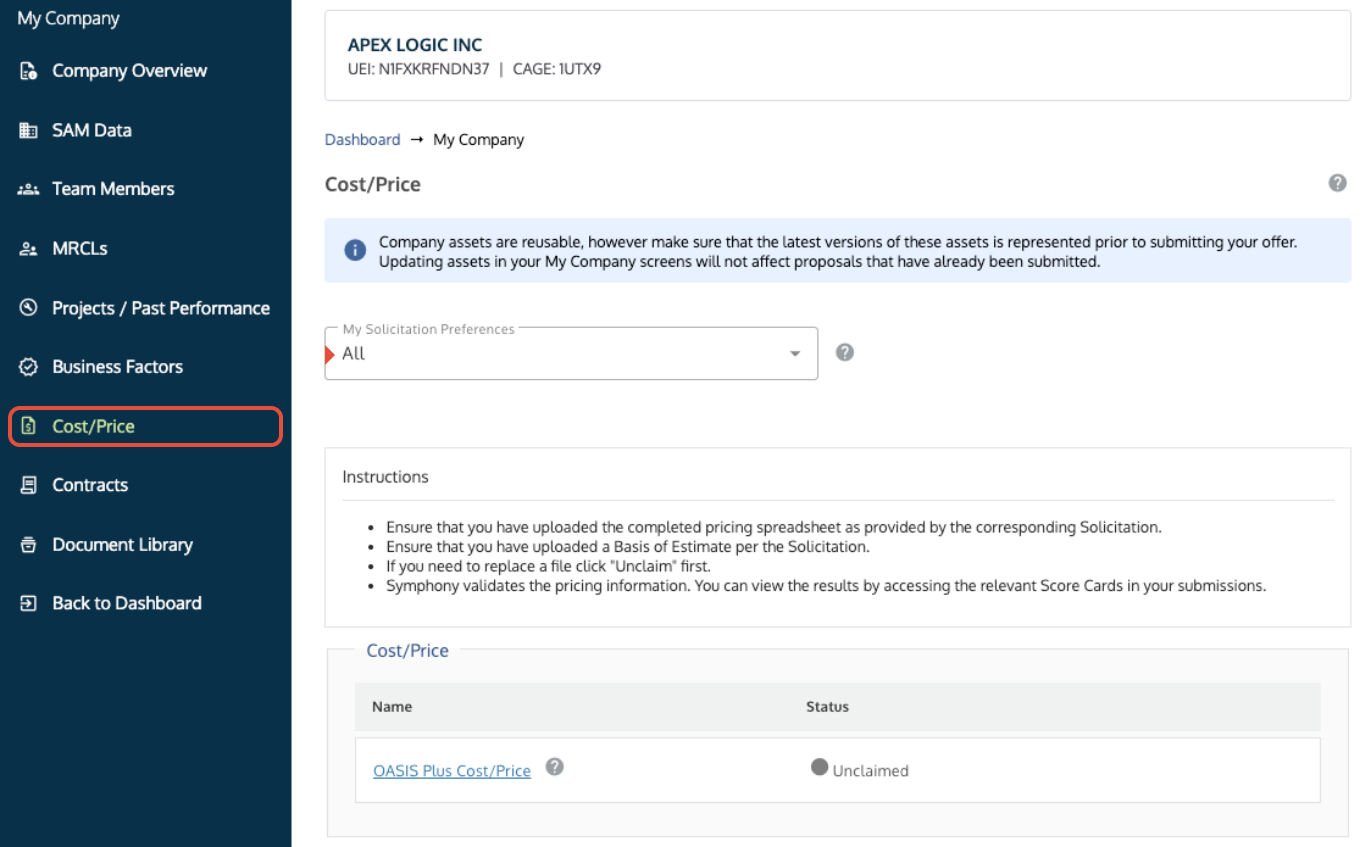
My Company screen where users select Cost/Price to upload pricing templates alongside the Solicitation Preference filter dropdown.
2. Upload Pricing Documents
- Click on the solicitation pricing claim name (e.g., OASIS+ Cost/Price).
- Upload the Excel Spreadsheet: Attach the completed government pricing spreadsheet (.xlsx format).
- Upload the Supporting Documentation: Attach one required supporting document (such as a Basis of Estimate for OASIS+ or a Labor Rate Attestation for Alliant 3).
- Certify and Save: Check the certification box stating "I certify the claim of Solicitation Required Cost/Price" and click Save and Claim.
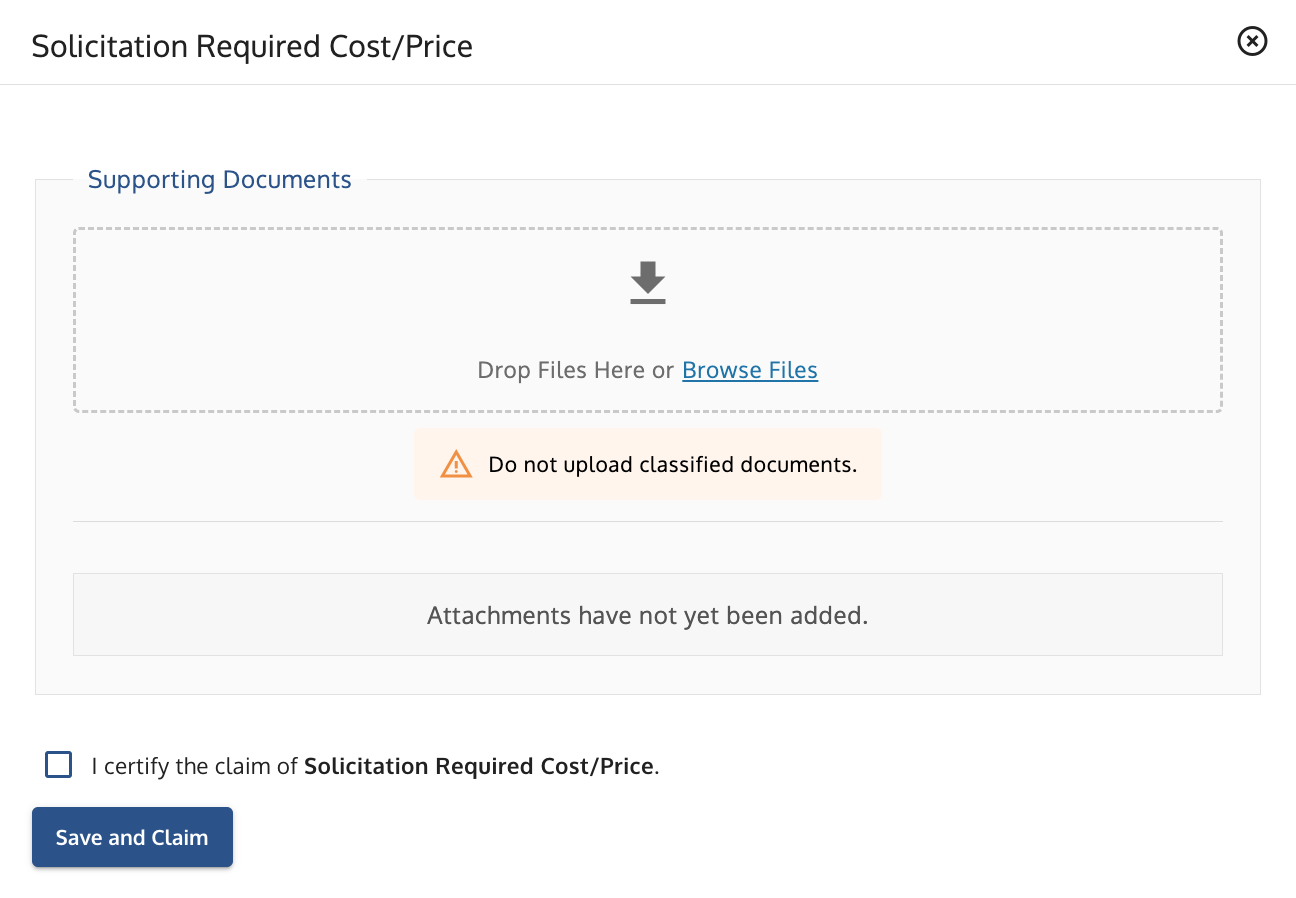 Pricing Information Upload modal showing the drag-and-drop file upload zone, unclassified data warning, certification checkbox, and Save and Claim button.
3. Review Validation Messages in Live Score
Use the Live Score feature or Review screen to check for pricing validation alerts before final submission.
- Open Live Score or navigate to the Review & Submit tab inside your submission workspace.
- Review any visible validation messages regarding missing spreadsheets or missing supporting documents.
Note on Validation Messages: Validation banners (whether red or orange) are advisory reminders to verify your files; they do not lock out an Administrator or Open Market Proposal Manager (OMPM) from certifying and submitting the proposal.
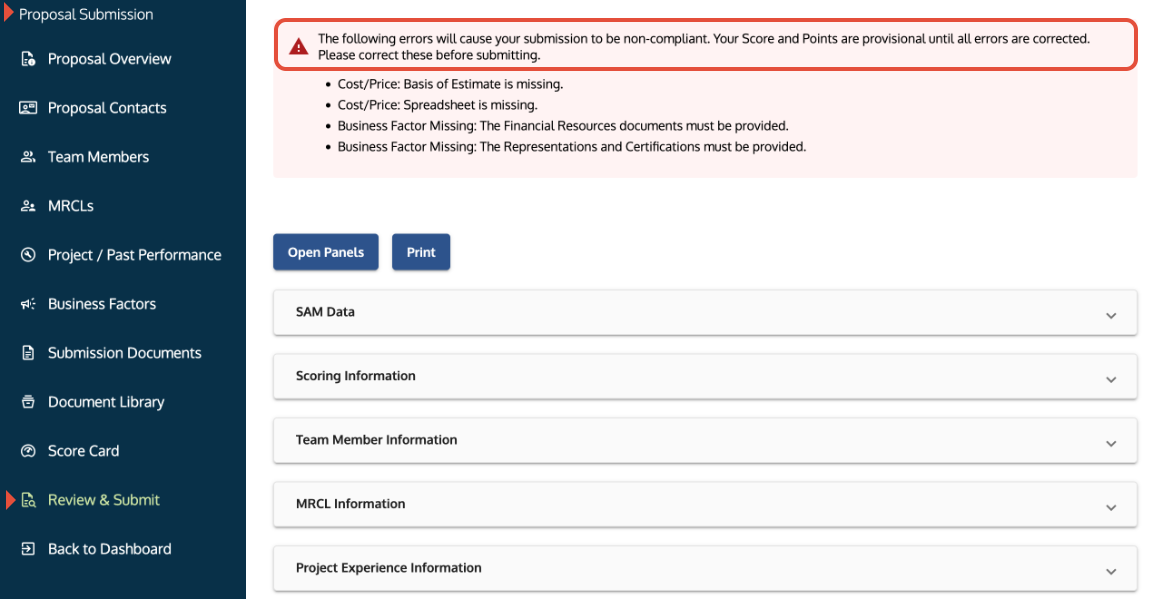
Review & Submit tab showing top advisory validation banners highlighting missing Cost/Price files alongside expandable section panels.
Troubleshooting
Issue | Root Cause | Fix |
| Template Validation Failure after uploading. | Columns or rows were deleted or re-ordered in the government-provided pricing template. Note: Bookmarked links to SAM.gov or solicitation portals can load outdated historical snapshots instead of current amendment releases. | Do not rely on browser bookmarks that may link to older solicitation versions. Re-download a fresh copy of the official RFP pricing spreadsheet directly from the active solicitation page (verifying latest amendment attachments), copy your data into it without altering header structures, and re-upload. |
"Cost/Price: Spreadsheet is missing" or wrong file type error. | Uploaded file is not in .xlsx format, or multiple spreadsheets were attached. | Ensure you upload exactly one Excel file in .xlsx format. Remove any secondary spreadsheets or legacy .xls files. |
"Cost/Price: Basis of Estimate is missing" error. | Missing the mandatory supporting PDF attachment required for the solicitation. | Attach the required supporting PDF document (e.g., Basis of Estimate or Labor Rate Attestation) alongside your Excel file. |
"Unable to load the Pricing File" error. | The Excel file is encrypted, password-protected, or corrupted. | Open the spreadsheet in Excel, remove all password protection/encryption settings, save as a clean .xlsx file, and re-upload. |
| Template Validation Failure after uploading. | Columns or rows were deleted or re-ordered in the government-provided pricing template. | Re-download a fresh copy of the official RFP pricing spreadsheet, copy your data into it without altering header structures, and re-upload. |
Unintended calculation errors or unexpected scorecard math. | Formatting glitches introduced by copy-pasting values into template cells. | Paste values as plain text (Match Destination Formatting) to preserve template cell formulas and prevent hidden database script errors. |
Related Articles / Links
- Administrator Guide: Activating Users and Assigning Permissions
- Company Assets: Certifications, Systems, and Business Factors Guide—Guide to managing other company claims
- Document Upload & Submission Security: File Types, Limits, and Verification—Guide on document restrictions
- Proposal Assembly & Submission Guide: Master Workflow and Order of Operations—Guide to the final submission steps
Was this article helpful?
That’s Great!
Thank you for your feedback
Sorry! We couldn't be helpful
Thank you for your feedback
Feedback sent
We appreciate your effort and will try to fix the article