Purpose: This guide shows you how to update your profile, change your email, and manage your MFA (login security code). To manage other users, see Administrator Guide: Activating Users and Assigning Permissions.
Table of Contents
1. Update Your Personal Profile (Self-Service)
2. Change Your Password or MFA Method (Self-Service)
3. Change Your Email Address (Self-Service)
4. Update Your Organization Link (Non-Self-Service)
Before You Start
Make sure you know the following essential rules for account maintenance:
- You must be able to sign in to complete self-service profile updates.
- If your company name or address changes but the UEI (Unique Entity Identifier) remains the same, the team can do a quick data refresh.
- If your company merged with or was bought by another company, your account may need to move. An acquisition often requires a Novation — a formal legal transfer of your contract to the new company. Submit a ticket so the team can help.
Steps
1. Update Your Personal Profile (Self-Service)
You can easily change your job title and phone number after signing in.
- Click the Profile Icon in the top right corner.
- Select the My Information tab.
- Update your job title or phone number (for display purposes only).
- Click the Save the Contact Information button.
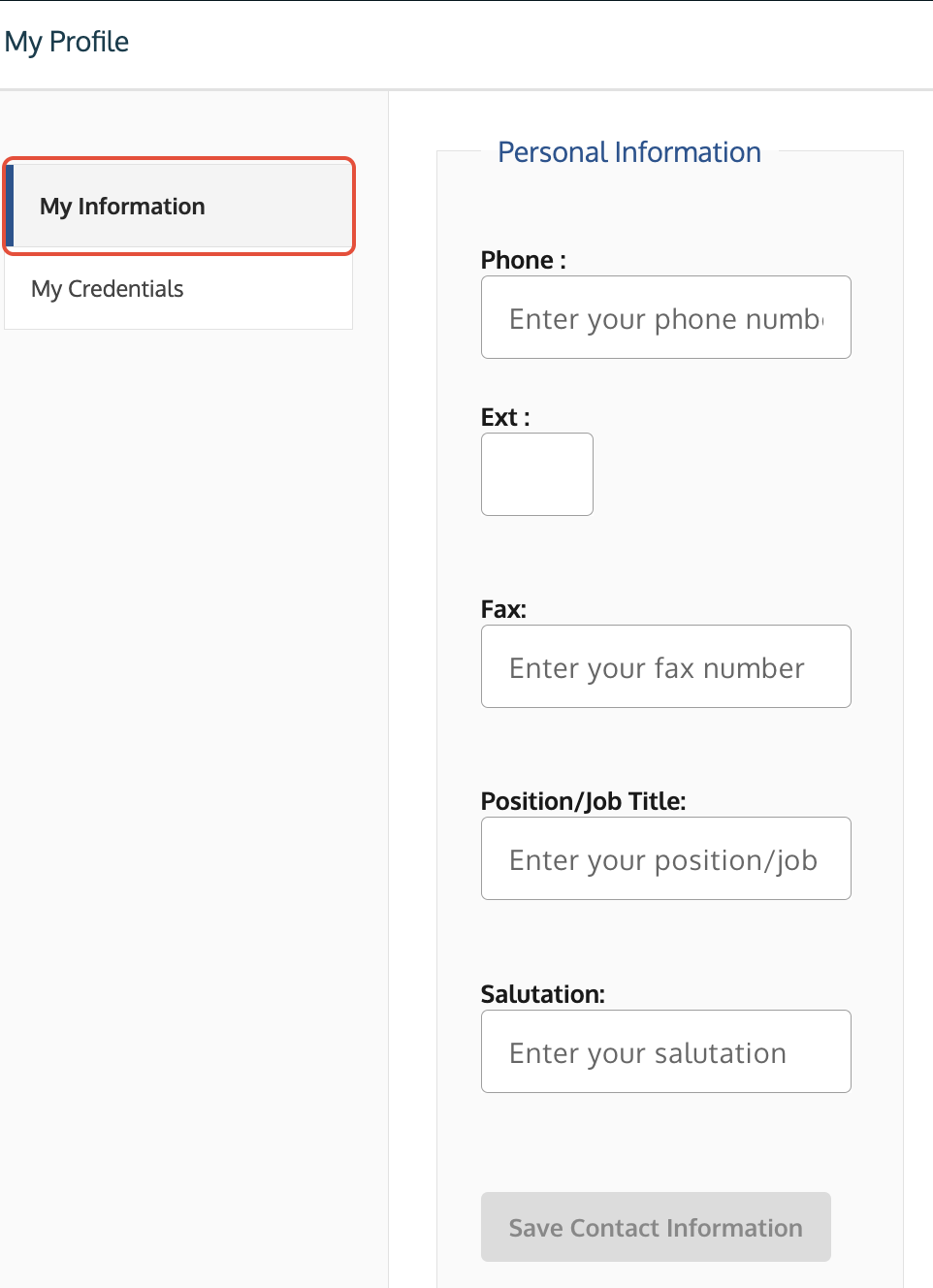
My Profile screen showing the My Information tab highlighted.
2. Change Your Password or MFA Method (Self-Service)
You can change your password or set up a new authenticator app from your profile.
- Click the Profile Icon in the top right corner and select the My Credentials tab.
- To change your password:
- Enter a new password that meets the security requirements.
- Click Change Password to save the update.
- Enter a new password that meets the security requirements.
- To update your MFA method:
- Add or update an authenticator app to your device.
- Scan the QR code.
- If you have multiple accounts, rename the codes to tell them apart.
- Add or update an authenticator app to your device.
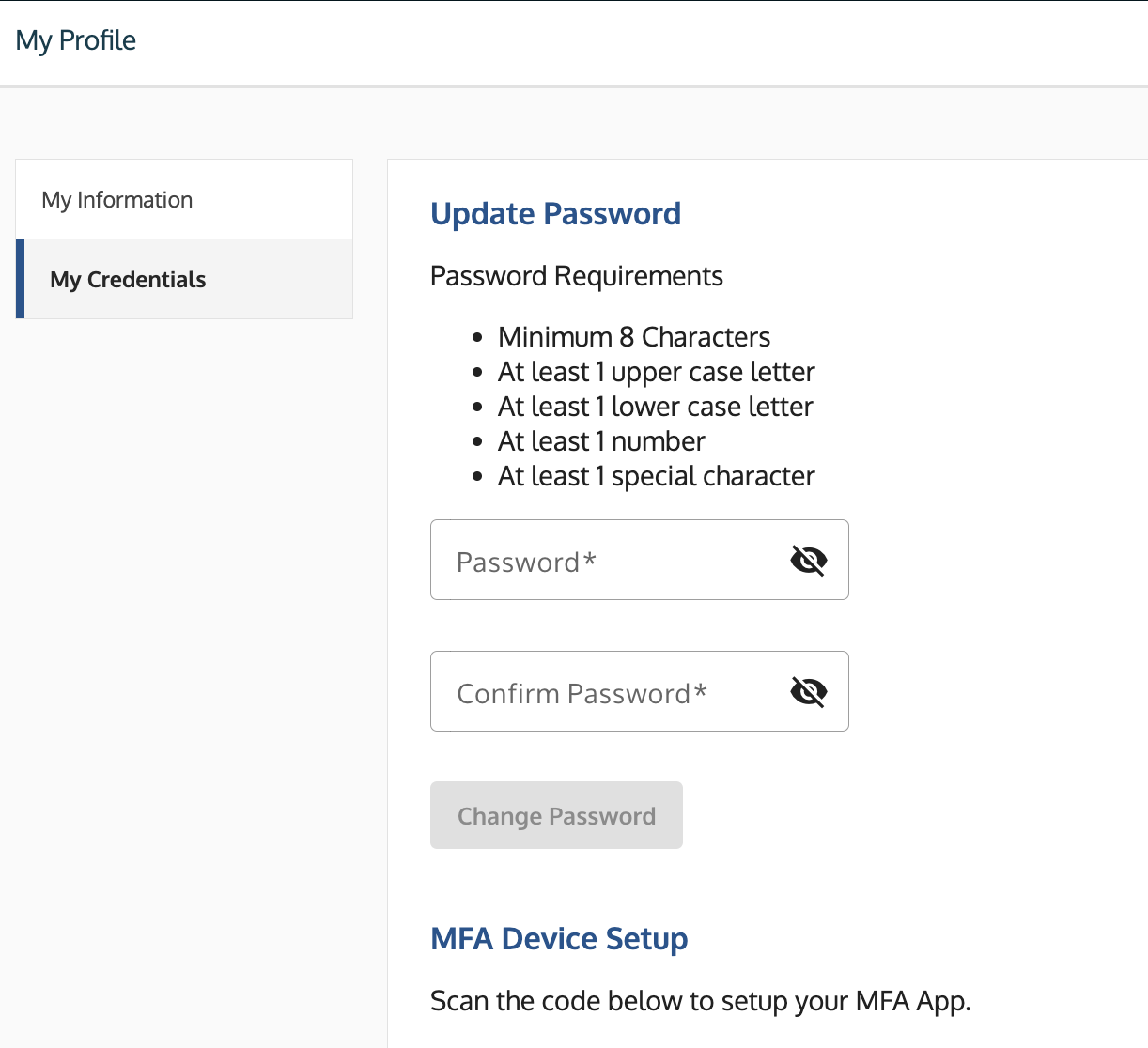
The My Credentials screen showing the password change and QR code sections.
3. Change Your Email Address (Self-Service)
Email addresses cannot be directly edited on an existing account profile.
- For Vendors/Contractors/Offerors: Register a new account using your new email address.
Once active, ask your company's Symphony Administrator to assign your roles and delete the old email from the Administration tab.
- For Government Users: Register a new account using your new official .gov or .mil address.
Once active, contact your Agency Administrator or Program Office to assign your system roles.
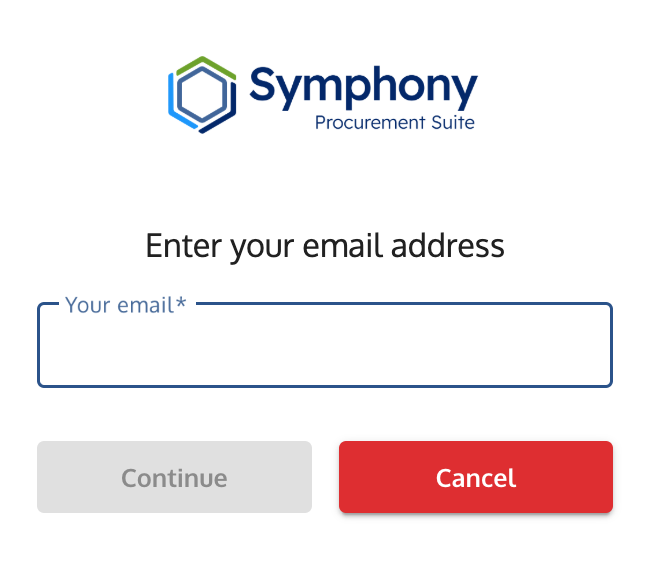
Registration screen showing the email entry field for a new registration.
4. Update Your Organization Link (Non-Self-Service)
If your company's legal name, address, AAC or UEI/CAGE code is incorrect, you must submit a ticket for the change.
- Submit a Ticket to the Help Desk.
- Include your email address and the correct AAC or UEI and CAGE (Commercial and Government Entity) code.
- For businesses, the Symphony team will determine if the change requires a SAM refresh or full account move. They will complete the required action.
Note: You must use a unique email address for each company when registering for multiple companies.
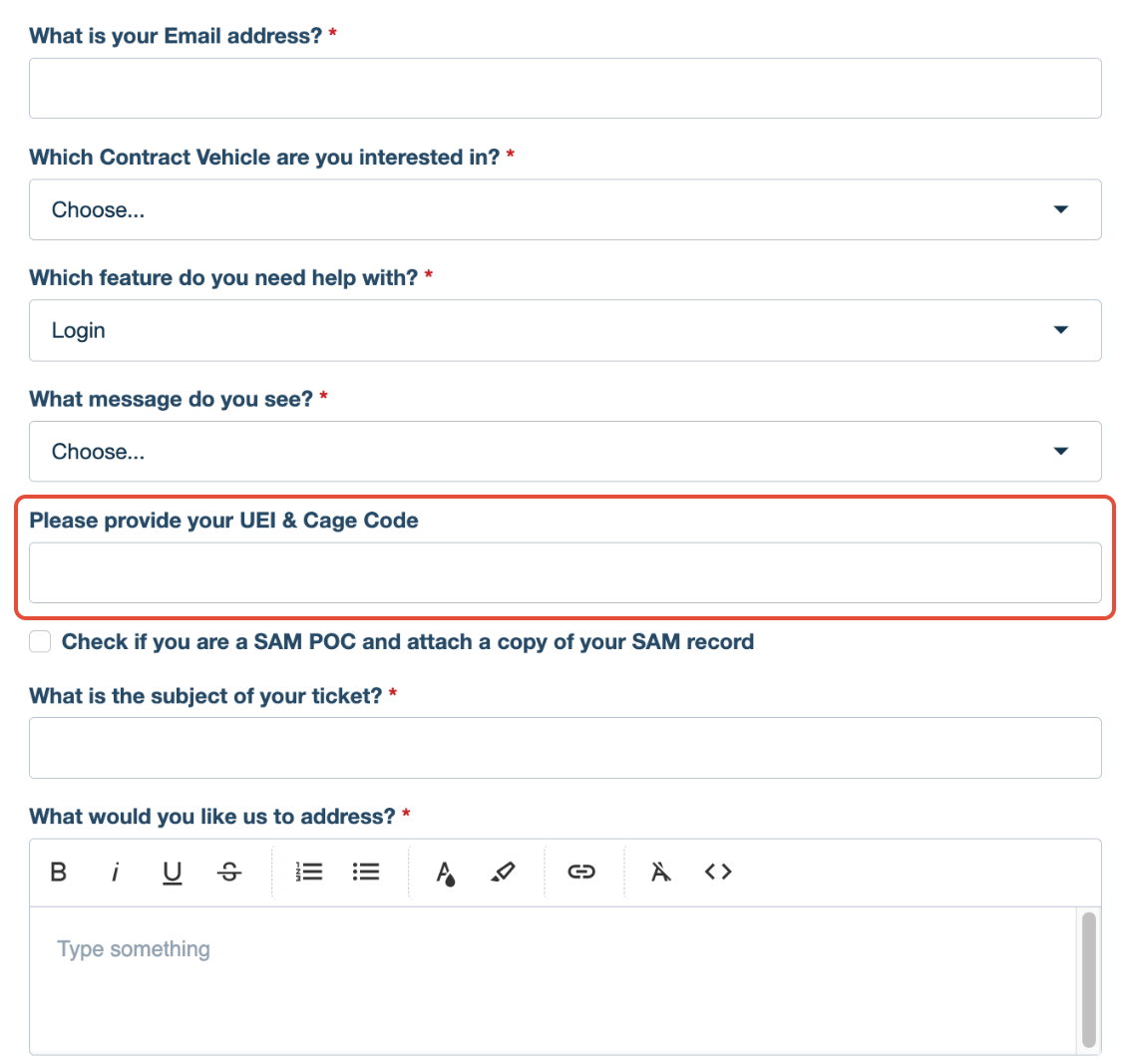
Help desk ticket submission form showing the fields for company details.
Troubleshooting
Issue | Fix |
You cannot access multiple companies with one login. | Your email can only be linked to one company per Contract Vehicle. You must register with a unique email address for each company. |
You need to change your name on the account. | You cannot change your name yourself. Submit a Ticket to the Help Desk for a name correction. |
Your old email is still linked to the company. | Ask your Symphony Administrator to remove your old email address from the Administration screen. |
Your profile information is not saving. | Ensure all fields (phone number, job title) are complete and within the character limit. Click the Save the Contact Information button. |
Related Articles / Links
- MFA Setup & Security Guide: Authenticator Apps and Access Codes—MFA troubleshooting
- Symphony Sign-In Guide: Credentials, Password Resets, and Account Activation—How to check if your account is active
- Administrator Guide: Activating Users and Assigning Permissions—Guide for Administrators on how to remove an old email address
- Submit a Ticket to the Symphony Help Desk—For technical account issues
Was this article helpful?
That’s Great!
Thank you for your feedback
Sorry! We couldn't be helpful
Thank you for your feedback
Feedback sent
We appreciate your effort and will try to fix the article