Purpose: This is your complete roadmap for using Symphony. It shows you the steps to register, gain active access, and find the correct guides for your daily work.
Table of Contents
1. Confirm Your Prerequisites and Portal
2. Register, Authenticate, and Activate
Before You Start
Make sure you know the following crucial facts and have the correct items ready:
- SAM Data: Industry users must have an active SAM.gov record. Symphony uses this data to validate your UEI, CAGE code, and Points of Contact.
- Correct Website: You must register and sign in at the exact website URL for your specific contract vehicle (e.g., Polaris, OASIS+).
- MFA Readiness: You will need an Authenticator App or a cell phone for Multi-Factor Authentication (MFA) setup.
Steps
1. Confirm Your Prerequisites and Portal
The first step is verifying your registration details and finding the correct portal.
- Check the data elements your organization needs for your account.
- Industry Reference: SAM.gov Data in Symphony: Access Requirements and Refreshing Entity Data
- Industry Reference: SAM.gov Data in Symphony: Access Requirements and Refreshing Entity Data
- Locate the correct website URL for your solicitation or contract vehicle.
- Review your role's specific requirements (e.g., unique Alliant 3 rules or portal distinction).
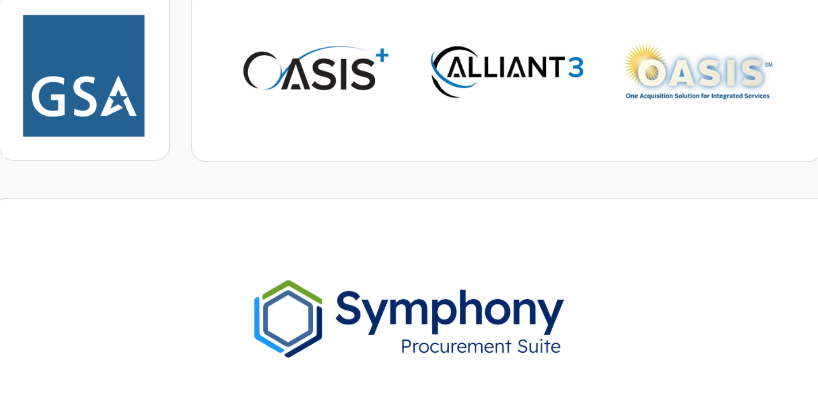
The Symphony home page with contract vehicle logos, where users identify the portal.
2. Register, Authenticate, and Activate
After finding your portal, follow these steps to create your account and gain full access.
- Complete the registration process based on your organizational role.
- Commercial Vendors & Bidders: Reference: Register Your Symphony Business Account
- Official government users (.gov / .mil): Reference: Government Account Registration: Contracting Officials, Program Offices, and Evaluators
- Commercial Vendors & Bidders: Reference: Register Your Symphony Business Account
- Set up your Multi-Factor Authentication (MFA) right away.
- After you register, your administrator must approve your account before activation.

Diagram illustrating the Symphony access process: registration → MFA setup → activation.
3. Start Your Workflow
Once your account is active, use this workflow to find the guides you need. These cover your day-to-day tasks, such as building assets or submitting proposals. Users needing formal submission rights must be granted Proposal Manager or Administrator roles to complete formal actions.
- If you are preparing a bid (Offeror):
- Start by setting up your company assets: Company Profile Guide: UEI, SAM.gov Details, and Corporate Settings.
- Review the final bidding process: Proposal Assembly & Submission Guide: Master Workflow and Order of Operations.
- Start by setting up your company assets: Company Profile Guide: UEI, SAM.gov Details, and Corporate Settings.
- If you are a Contract Holder (Post-Award):
- Monitor tasks and manage your contract: Awarded Contracts: Post-Award Setup, Contact Assignments, and Notifications.
- Track active opportunities: Task Orders and Market Research: Monitoring Opportunities, Submitting Q&A, and Proposal Bidding.
- Monitor tasks and manage your contract: Awarded Contracts: Post-Award Setup, Contact Assignments, and Notifications.
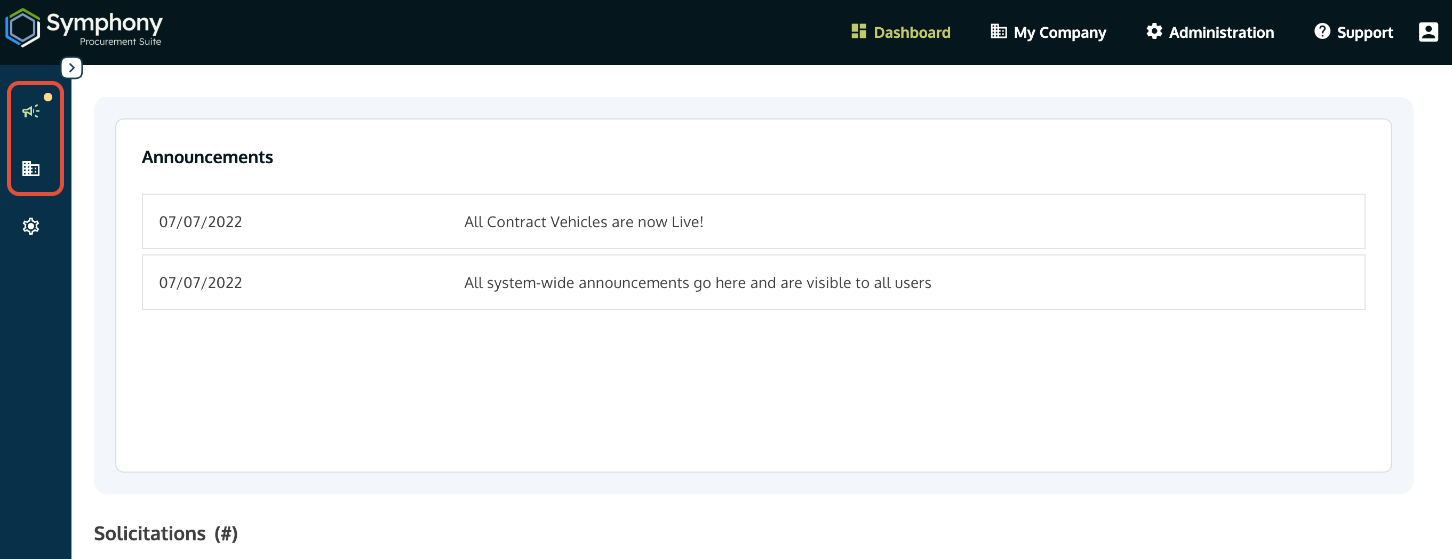
Dashboard with the My Company and Solicitations icons highlighted for navigation.
Troubleshooting
| Issue | Fix |
| Account Inactive after registration. | Contact your company's Symphony Administrator. Ask them to change your status from Initial to Active. Note: If you are the Administrator/SAM POC, submit a ticket to the Help Desk with your SAM documentation. |
| MFA code is not working or I lost my phone. | See the MFA Setup & Security Guide: Authenticator Apps and Access Codes guide for troubleshooting, or Submit a Ticket to the Symphony Help Desk (for lockouts). |
| I cannot find my contracts or company assets. | Check your registration was on the correct Contract Vehicle website (URL) and that your company's UEI is correct. |
Related Articles / Links
- Submit a Ticket to the Symphony Help Desk—General Support
- Discover the Symphony Platform and Developer—Platform Context
- Proposal Assembly & Submission Guide: Master Workflow and Order of Operations—Industry Partner's main workflow
- Awarded Contracts: Post-Award Setup, Contact Assignments, and Notifications—Contract Holder's main workflow
Was this article helpful?
That’s Great!
Thank you for your feedback
Sorry! We couldn't be helpful
Thank you for your feedback
Feedback sent
We appreciate your effort and will try to fix the article