Purpose: This guide walks offerors through the step-by-step proposal submission process in Symphony—from selecting reusable assets and assigning proposal contacts to auditing claims, managing submission documents, and certifying final bids.
Table of Contents
1. Monitor Solicitations and Review Q&A
2. Begin Submission, Select Assets, and Assign Proposal Contacts
3. Claim Performance Factors & Map Tagged Evidence **
4. Upload Documents and Audit the Proposal
5. Certify, Submit, or Modify the Proposal
Before You Start
Make sure you know the following essential facts before assembling and submitting your proposal:
- Two-Stage Asset Utilization: Assets stored in My Company serve as your reusable master library. Storing assets in My Company does not automatically claim points on a bid. You must enter the active Submission Workspace, link the assets, and complete/certify performance claims.
- System Security Timeout: Symphony enforces a strict 15-minute security timeout. Save your work frequently while drafting text or assigning scoring factors.
- Advisory Live Score: The Live Score provides guidance on submission completeness but is purely advisory. Red error messages will not prevent you from submitting your proposal, but submitting with unresolved errors may cause non-compliance during government evaluation.
- Submission Permissions: Only active (SAM POC) Administrators or designated Proposal Managers have system permissions to certify, submit, modify, or retract proposals.
- Proposal Snapshot Security: Formally submitting a proposal captures an immutable snapshot of all proposal data, contacts, and uploaded files as they existed at submission time.
Steps
1. Monitor Solicitations and Review Q&A
- Go to the Solicitations tab on your main dashboard to track active opportunities, review deadlines, and monitor released Q&A documents.
- If the Q&A window is open and you need to submit formal inquiries to the government program office, refer to our dedicated guide on Reviewing Opportunities and Asking Questions for step-by-step instructions.
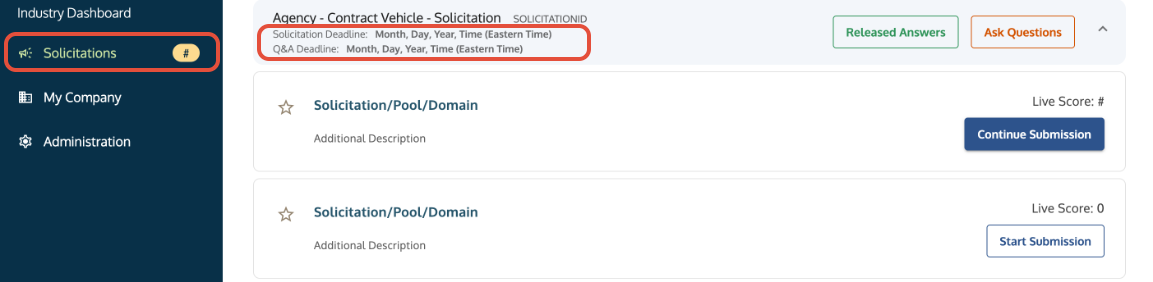
Solicitations tab showing an open RFP and highlighted deadlines for submission and Q&A.
2. Begin Submission, Select Assets, and Assign Proposal Contacts
When the submission period opens, start your proposal draft, pull in your library assets, and assign proposal contacts.
- Click Begin Submission (or Continue Submission) on the target solicitation card.
- Assign Proposal Contacts: In the Proposal Contacts section, assign the Contract Manager and Program Manager and Authorized Negotiator or Signatory when available. These contacts answer official evaluation inquiries during proposal review and manage the contract post-award.
- Proposal Contact Snapshot Rule: Proposal Contacts cannot be changed inside a proposal after submission because they are locked within the historical submission snapshot. To update contact information post-submission, users must contact the government program office directly and manage user permissions via the Administration tab.
- (Note: Proposal contacts must be active, self-registered users under your company in Symphony).
- Proposal Contact Snapshot Rule: Proposal Contacts cannot be changed inside a proposal after submission because they are locked within the historical submission snapshot. To update contact information post-submission, users must contact the government program office directly and manage user permissions via the Administration tab.
- Select Library Assets: On the Asset tabs, select the specific Projects, Team Members, and MRCLs you want to include in this bid.
- (Business Factors and Cost/Price assets populate automatically based on their applicability to the specific submission, rather than the active solicitation filter).
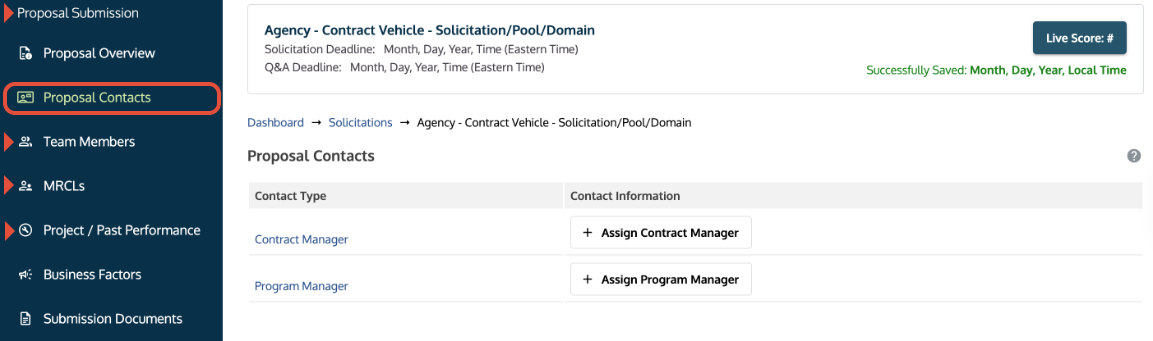
Proposal Assembly screen where users select assets and assign proposal contacts.
3. Claim Performance Factors & Map Tagged Evidence
Connecting assets to proposal scoring factors is the final handshake that earns proposal points.
- Navigate to the Projects / Past Performance section within the proposal submission menu.
- Click Begin or Modify under Performance Factors next to each selected project.
- Select applicable scoring claims (e.g., Relevance, Qualifying Project).
- Enter Location in File: Type the exact tag keyword used in your PDF comment (e.g., POP, TCV, NAICS) into the Location in File field. This directs government evaluators directly to the supporting evidence in your uploaded documents.
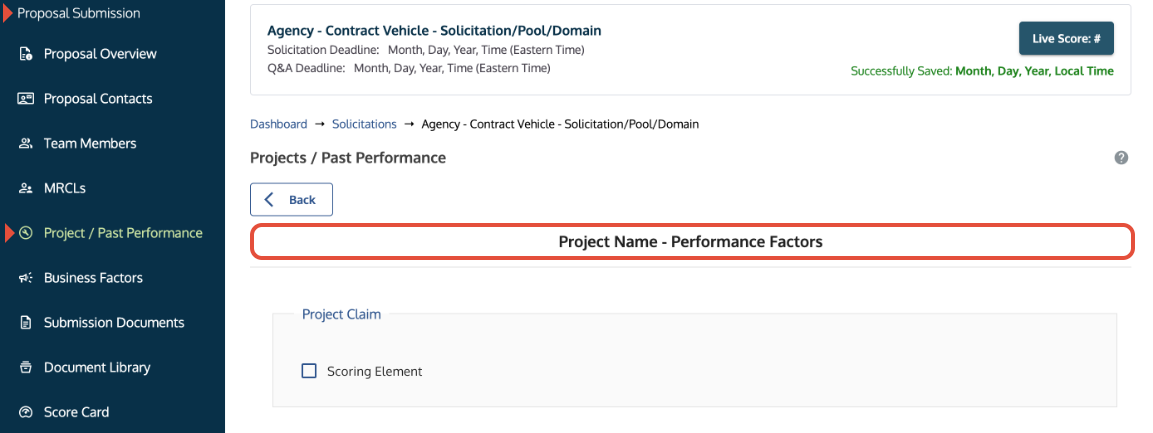
Submission screen showing the Performance Factors section where scoring claims are made.
4. Upload Documents and Audit the Proposal
Finalize your submission documents and perform a compliance audit before certifying.
- Upload Submission Documents: Go to the Submission Documents section and upload required contract documents (e.g., Cover Letters, SF-33s, and SF-30 Amendment Acknowledgments).
- (Note: The Submission Documents section accepts SF-33s and SF-30s under the same document label).
- File Verification Rules: All uploaded files must comply with system file constraints (under 20MB, filenames under 250 characters, and no encryption). For full details, see our guide on Document Upload & Submission Security: File Types, Limits, and Verification.
- (Note: The Submission Documents section accepts SF-33s and SF-30s under the same document label).
- Audit the Proposal: Depending on the solicitation configuration (such as OASIS+), navigate to the Review tab or inspect the Live Score summary to verify that all data fields, documents, and points are complete.
- Address Advisory Errors: Review any red warning messages. While red messages do not block submission, missing mandatory items (e.g., missing Cost/Price spreadsheet or BOE) will cause your proposal to be flagged as non-compliant during government evaluation.
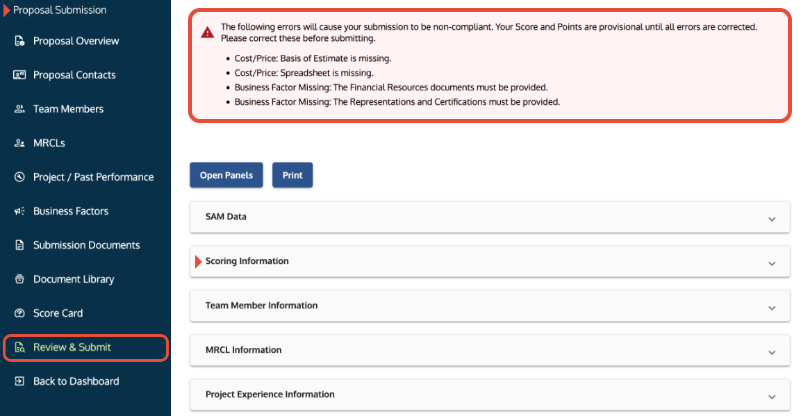
Review tab showing the Live Score summary and messages indicating missing data.
Understanding Proposal Validation Messages |
5. Certify, Submit, or Modify the Proposal
- Navigate to the final submission tab (Submit or Review & Submit) if available.
- Note: Standard staff profiles cannot submit proposals.
- Note: Standard staff profiles cannot submit proposals.
- Check the mandatory acknowledgement and certification box to confirm that you are an authorized representative submitting accurate information on behalf of your company.
- Click Submit Proposal.
- Important: Symphony does not issue automated confirmation emails upon submission.
- Important: Symphony does not issue automated confirmation emails upon submission.
- Save Confirmation Receipt:Print or save the submission confirmation screen displaying the official timestamp for your corporate records.
- Changes made to My Company after submission will not modify already submitted proposals.
- Deadline Enforcement: All submission actions must be finalized prior to the exact solicitation closing time. Once closed, the submission workspace automatically locks.
- Changes made to My Company after submission will not modify already submitted proposals.
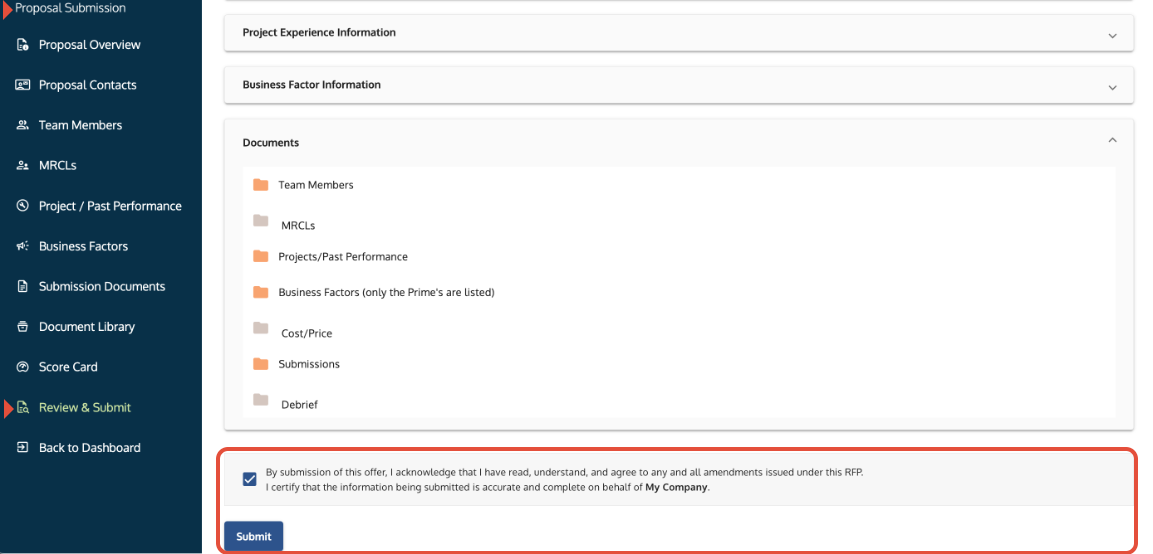
Review & Submit tab where users certify and click Submit to finalize submission.
Modifying or Retracting a Proposal (Before Deadline)
If you need to replace a document, update project claims, or edit proposal data after submitting:
- Return to your Dashboard before the official solicitation deadline passes or before government evaluation begins.
- Depending on the solicitation portal configuration, click Modify Proposal or Retract Submission on the proposal summary card.
- Make your required updates in the submission workspace or your library assets.
- Return to the submission tab, re-certify, and click Submit Proposal again. (The government will only receive the final successfully submitted offer timestamped prior to the deadline).
Troubleshooting
Issue | Fix |
| An uploaded submission document is incorrect or needs replacement. | Click Modify Proposal or Retract Submission, upload the correct document in the submission workspace or Company library, re-certify, and Resubmit before the deadline or before evaluation begins. |
| The Live Score displays red errors, but the Submit button is active. | System error messages do not prevent submission. However, submitting with unresolved red errors may result in proposal disqualification by the government evaluation board. |
| You cannot assign a Proposal Contact. | Proposal contacts must be active, registered users under your company's UEI in Symphony. Have an Administrator activate the self-registered user on the Administration tab. |
| How do I cancel or delete a draft proposal started in error? | Draft proposals cannot be deleted. If you do not certify and submit the draft, no data is sent to the government, and the draft will simply expire when the solicitation closes. |
| File upload fails or throws an error during upload. | Verify file constraints using Document Upload & Submission Security: file size under 20MB, name under 250 characters, and no password protection or encryption. |
| Submit button is disabled or missing. | Confirm you hold SAM POC Administrator or Proposal Manager permissions. The submit button is also disabled during active Q&A windows to prevent premature submissions prior to government RFP amendments. |
Related Articles / Links
- Company Profile Guide: UEI, SAM.gov Details, and Corporate Settings
- Past Performance: Adding Projects, Experience, and Performance Data—Guide to preparing your project and past performance data
- Company Assets: Certifications, Systems, and Business Factors—Guide to claiming certifications and capabilities
- Document Upload & Submission Security: File Types, Limits, and Verification—Guide on document restrictions
- Administrator Guide: Activating Users and Assigning Permissions—Guide for Administrators on how to remove an old email address
- Post-Submission Guidance: Handling Advisory Banners, Clarifications, and Government Exchanges—Guide for post-submission inquiries
- Reviewing Opportunities and Asking Questions
- Submit a Ticket to the Symphony Help Desk—For technical issues
Was this article helpful?
That’s Great!
Thank you for your feedback
Sorry! We couldn't be helpful
Thank you for your feedback
Feedback sent
We appreciate your effort and will try to fix the article