Purpose: This guide helps you define the requirements, add necessary contacts, configure the schedule, and successfully post your Task Order (TO) or Market Research Request (RFI) to eligible contract holders.
Table of Contents
2. Configure Contacts, Schedule, and Opportunity
3. Attach Documents and Post the Order
Before You Start
Make sure you know the following before starting a new request:
- You must sign in to Symphony as an authorized Government user (Program Officer or Contracting Officer).
- The process begins on your Dashboard in the Quick Actions section.
- The Title of the order can only be changed before the order is released.
Steps
1. Create the Request
Begin the process by creating a new order and saving the title to unlock the configuration steps.
- From the Quick Actions section of the Dashboard, click Create a Task Order or Conduct Market Research.
- Enter a title for the request and Save.
Note: Contact the Program Office outside Symphony to request a Scope Review.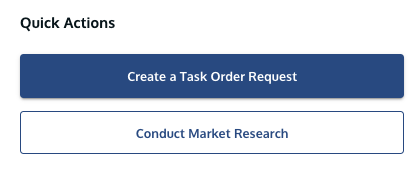
Quick Actions section of the Dashboard showing Create a Task Order button.
2. Configure Contacts, Schedule, and Opportunity
Use the left navigation menu to set your solicitation requirements.
- Points of Contact (POCs): Add the managing ordering officers. You can only assign registered Symphony users to these roles.
- Contract Types: Select the Contract Type(s) that apply to the order.
- Schedule: Set the Question and Answer (Q&A) deadline and the Submission deadline. Symphony converts your local time entry to Eastern Time (ET) for consistency.
- Fair Opportunity: Filter or select at least one eligible Contract Holder for the Task Order (TO).
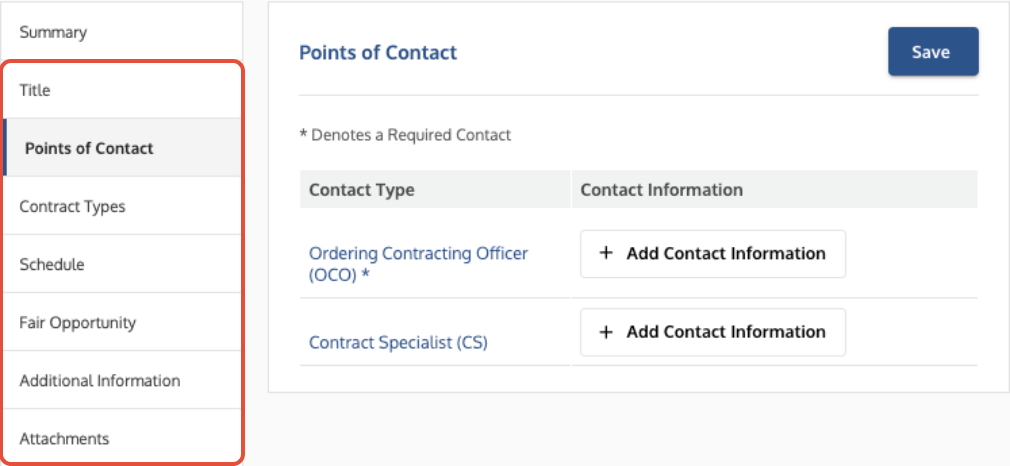 Left navigation menu showing the sections for Points of Contact, Schedule, and Fair Opportunity.
3. Attach Documents and Post the Order
Upload all necessary documents, confirm the order summary, and release the order.
- Use the Attachments tab to upload required documents. Files must be under 20MB in most instances.
- Use the Generate Order PDF button to preview the order summary.
- Only the Contracting Officer (CO) named on the order can Submit the order for approval or release.
- Upon release, notifications are immediately sent to the eligible contract holders' distribution email addresses.
- If you need to stop the process, you can Cancel the order and provide a reason.
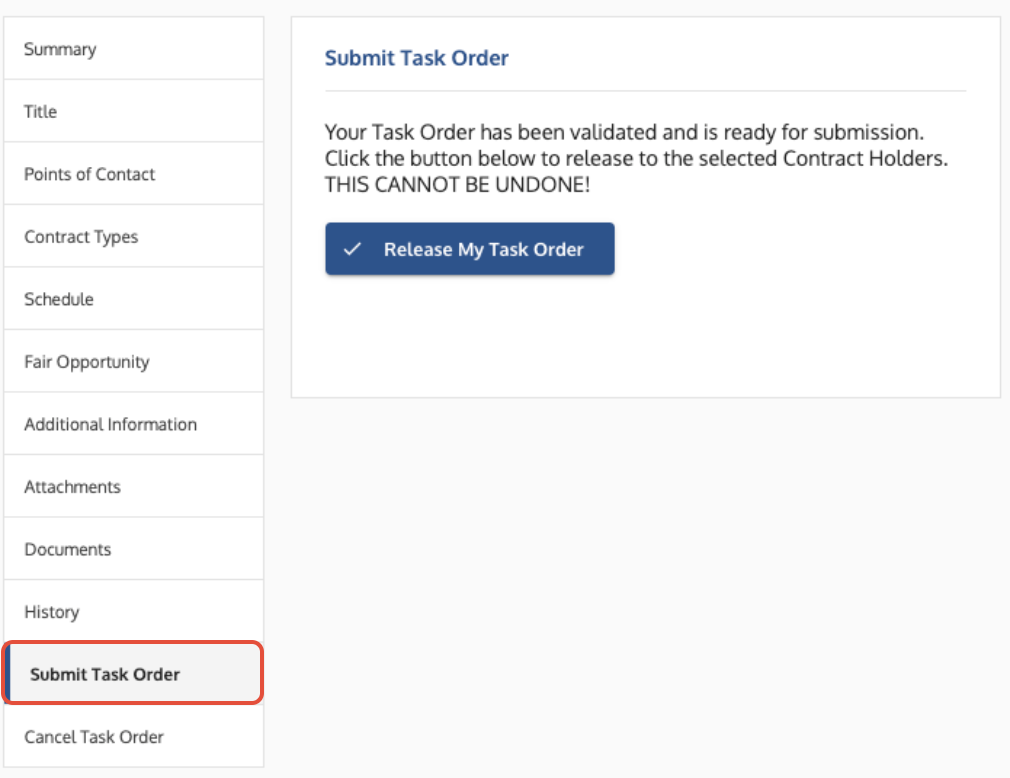
Order posting screen showing the validation messages and the Submit button.
Troubleshooting
Issue | Fix |
Cannot Submit the order. | Symphony will display validation messages if the order is incomplete. The CO must complete all required fields. |
A new user needs to be added as a POC but is not in Symphony. | Ask the user to Register for a Government account using the website link. |
The deadline has passed and the order needs to be reopened. | The CO or CS must contact the help desk for assistance with reopening a passed deadline. |
Contract Specialist needs to be named on the order. | The Contracting Officer (CO) must issue an Amendment (see next guide) to change the existing POC to the new specialist. |
Related Articles / Links
- Manage Order Q&A, Amendments, and Monitoring—The next step in the order lifecycle
- Register Your Symphony Government Account—Guide on how a new POC should register
- Submit a Ticket to the Symphony Help Desk—For technical help, like reopening deadlines
Was this article helpful?
That’s Great!
Thank you for your feedback
Sorry! We couldn't be helpful
Thank you for your feedback
Feedback sent
We appreciate your effort and will try to fix the article