Purpose: This guide helps Contract Holders monitor orders released to your company, submit questions to the Contracting Officer(s), and successfully bid on Task Orders and Market Research Requests.
Table of Contents
2. Submit Questions During Q&A
3. Respond with a Bid or No Bid
Before You Start
Make sure you know the following essential facts about working with orders:
- Orders are available from the Orders tab on your personalized dashboard.
- Only the Contract Holder can see and respond to an order if it is released to your company.
- To change or resubmit a bid, you must first retract the previous submission before the deadline.
Steps
1. Monitor Orders
The Orders tab displays a dynamic table that shows the status of all available opportunities.
- Access the Orders tab to view all Task Orders (TO) and Market Research (RFI) opportunities.
- Filter the table by search term, status, or type of order.
- Click the tracking number to view order details like the Summary, Amendments, and Documents library.
Order Status | Meaning |
RELEASED | The order is open. You should respond by uploading a proposal or submitting a "No Bid." |
EVALUATION | The order submission deadline has passed. You must wait for the award announcement. |
AWARD APPROVED | An award has been made. The Awards tab displays the awarded contract(s). |
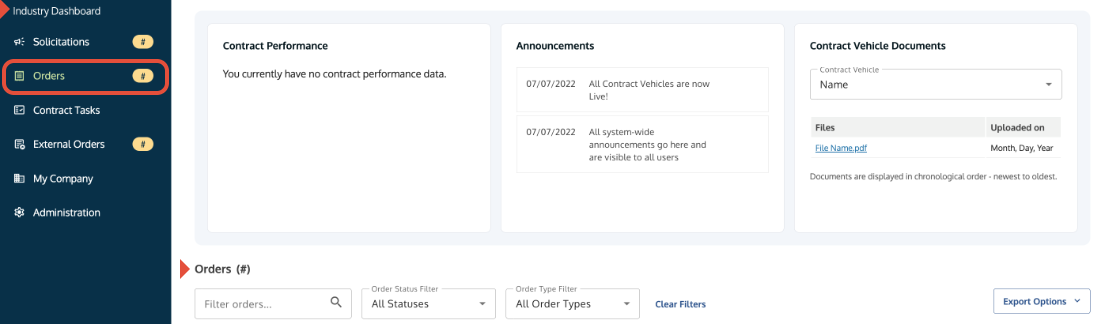 A Contract Holder Dashboard showing the Orders view.
2. Submit Questions During Q&A
When an order is in RELEASED-Pending Questions status, you can request more information before the question deadline.
- Select the Tracking Number of the order you have questions about.
- Select the Ask Questions tab.
- Draft your questions one by one and click Save and Add to the Unsubmitted Questions list.
- Review the complete list.
- Submit the questions as a complete list before the deadline. You cannot recall or make changes after submission.
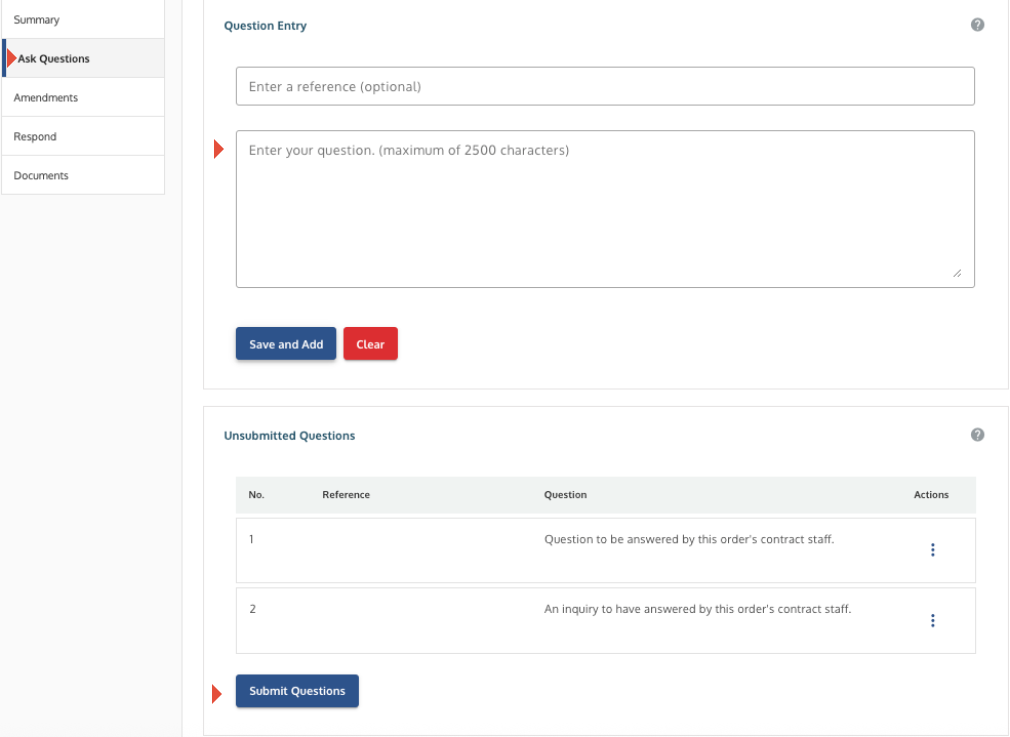 Ask Questions tab showing the field to enter questions and the list of unsubmitted questions.
3. Respond with a Bid or No Bid
When an order is RELEASED–Pending Proposals, you can submit a proposal, submit a "No Bid," or report an outside submission.
- To Bid: Select the Upload Proposal button. Upload your proposal documents, complete the confirmation steps, and Submit the proposal.
- To Submit a No Bid: Click Submit 'No Bid' and enter the reason. You can still submit a proposal up to the deadline.
- To Retract and Resubmit: To change a bid, you must first retract the previous submission and then RESUBMIT the proposal before the deadline.
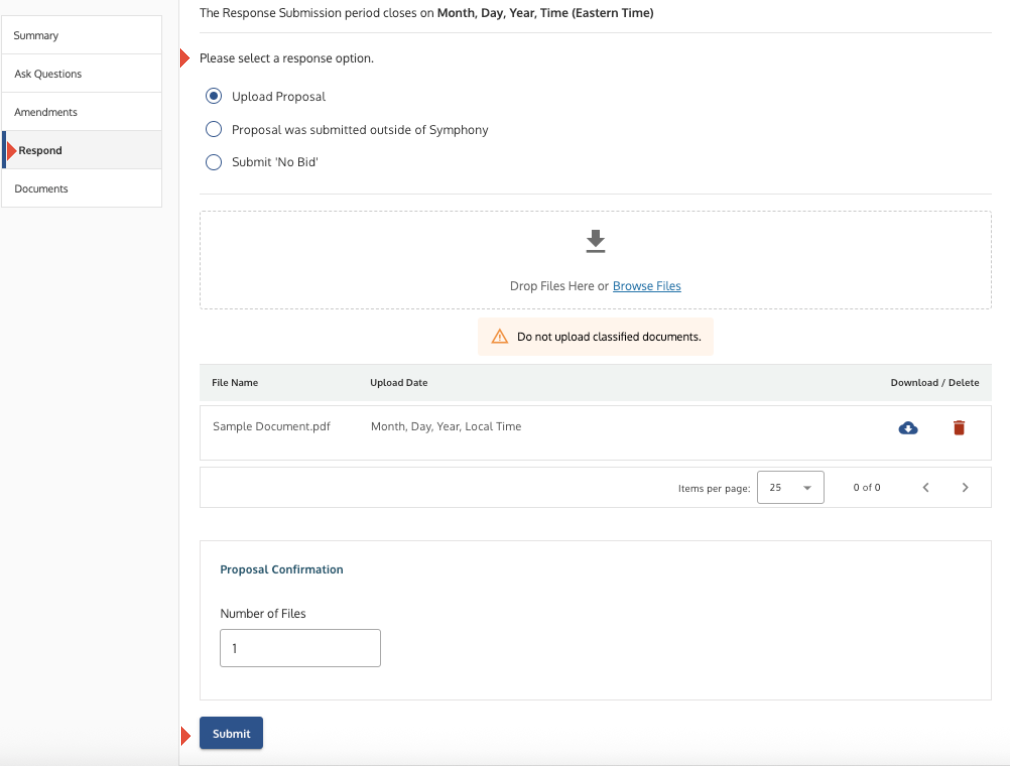
Proposal upload screen showing the confirmation steps and the Submit button.
Troubleshooting
Issue | Fix |
You want to ask a question but the button is missing. | The Q&A function is only available before the Question Deadline. Check the order status and deadline. |
You cannot download order documents (e.g., PDF). | Check your firewall settings. If documents are still missing, Submit a Ticket to the Symphony Help Desk. |
Related Articles / Links
- Manage Your Awarded Contract—Guide on assigning Contract POCs and setting up notifications
- Submit a Ticket to the Symphony Help Desk—For technical firewall help or other issues
Was this article helpful?
That’s Great!
Thank you for your feedback
Sorry! We couldn't be helpful
Thank you for your feedback
Feedback sent
We appreciate your effort and will try to fix the article