Purpose: This supplemental guide assists authorized Contract Holders on Defense Health Agency (DHA) contract vehicles—including Omnibus, HEC, GSP, and MQS2-NG—with managing user accounts, accessing the vehicle-specific portal URL, verifying socioeconomic statuses, and updating contract Points of Contact (POCs).
Table of Contents
1. Manage User Accounts and Permissions
2. Review Contract Details and Documents
3. Update Contract Points of Contact
Before You Start
Make sure you know the following crucial rules:
- Dedicated Portal Access URL: DHA contract vehicles (Omnibus, HEC, GSP, MQS2-NG) are hosted on a dedicated portal environment. You must access and sign in via https://dha-ems.symphonyps.com.
- Solicitation Visibility Rules: Task orders and solicitations appear on your Dashboard only if they were explicitly released to your company by the Ordering Contracting Officer (OCO/KO) and match your awarded socioeconomic tiers and market segments.
- Administrative Access: Account Administrators are responsible for activating new user registrations and maintaining accurate company contact records.
Steps
1. Manage User Accounts and Permissions
Symphony Administrators manage employee onboarding and access deactivation:
- User Registration: New employees must self-register at the dedicated DHA portal URL (https://dha-ems.symphonyps.com). See Register Your Symphony Business Account.
- Activate Accounts: Navigate to Administration, search for the newly registered user, and update their account status from Initial to Active.
- Deactivate Users: To remove access for a former employee, go to Administration, locate the user's account row, and change their status to Delete.
Critical Access Warning: Selecting the Delete option permanently prevents that specific email address from re-registering under your company's directory.

If an employee is changing email addresses or updating credentials, refer to Update Your Symphony Account Details: Individual Account Settings, MFA Setup, and Email Updates.
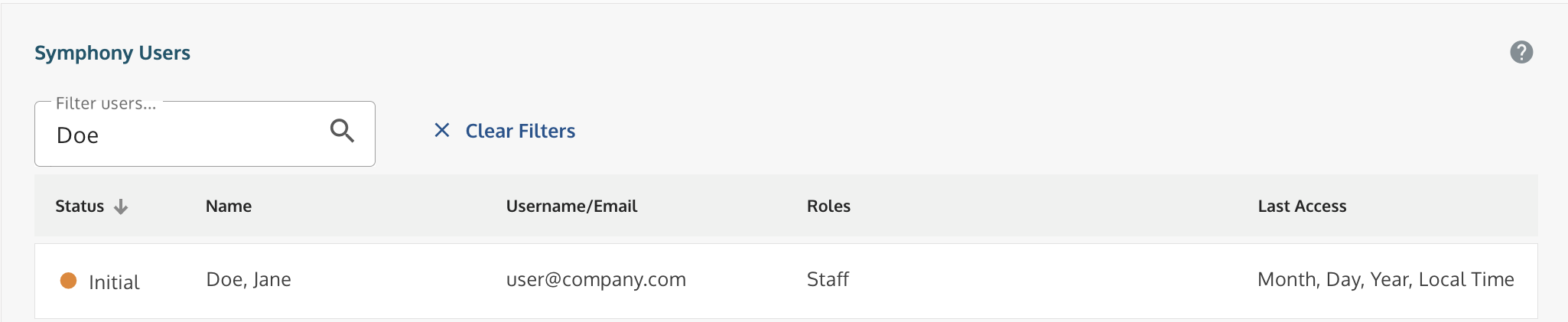
Administration screen showing user list and status.
2. Review Contract Details and Documents
Contract Holders can view general performance details, socioeconomic flags, and official award documents:
- Go to My Company and select the Contracts tab.
- Click your specific Contract Number link.
- Review your contract performance details, business flags, and awarded socioeconomic classifications.
- Access the Contract Documents section to view or download official contract files.
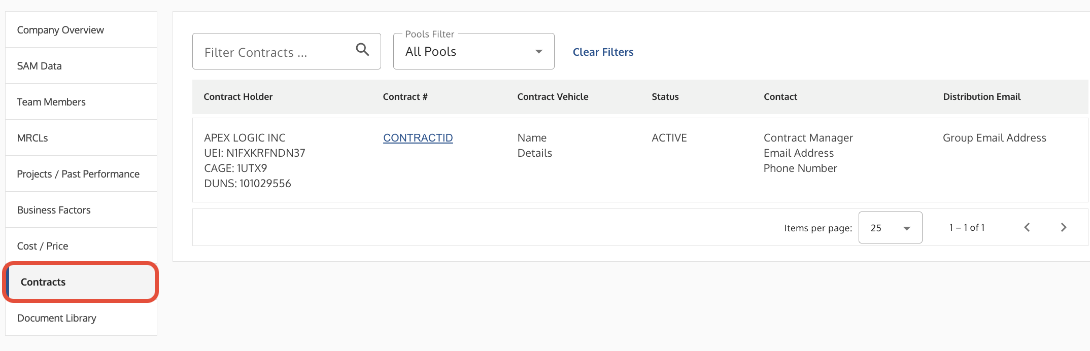 Contracts tab showing contract details and status information.
3. Update Contract Points of Contact
Ensure key management roles and notification addresses remain current:
- Navigate to My Company → Contracts and click your Contract Number link.
- Select the Points of Contact tab.
- Assign active registered users to the Contract Manager (CM) and Program Manager (PM) roles using the dropdown menus.
- Distribution Email: Verify that your corporate listserv address is active and validated.
Handshake Validation Tip: To verify or re-test notification delivery, re-type or re-enter the distribution email address on the Points of Contact tab and click Update. This dispatches a fresh validation code to confirm that external messages are reaching your inbox.
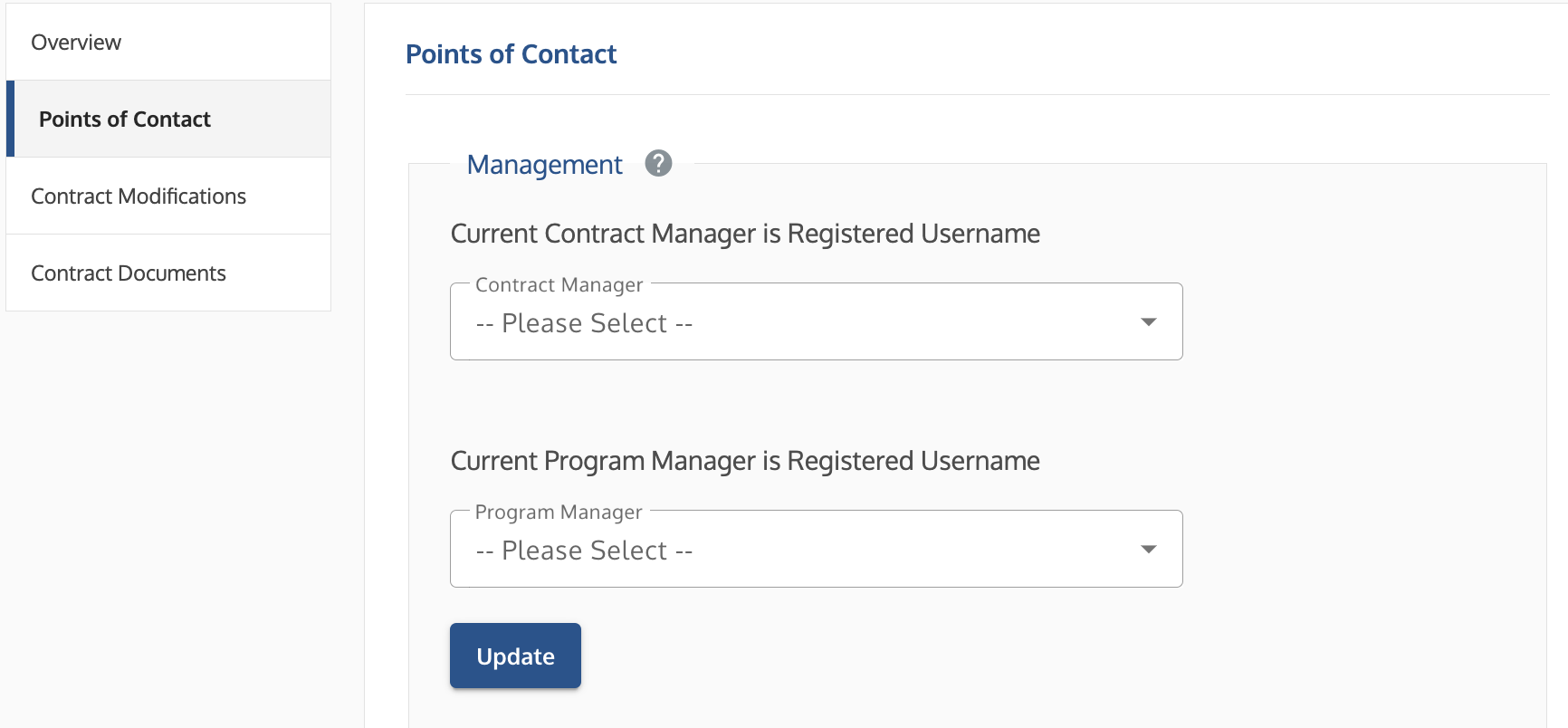 Points of Contact screen showing dropdown menus for assigning Contract Manager and Program Manager roles.
Troubleshooting
| Issue | Root Cause | Fix |
Orders Tab is blank. | User registered under an entity without active contracts or wrong UEI. | Verify you are registered on the correct DHA portal link (https://dha-ems.symphonyps.com) and under the exact company UEI that has an active contract. |
New user cannot log in (Inactive Status). | User account status is set to Initial. | An Administrator must go to Administration and change the user's status to Active. |
An order disappeared from the Dashboard. | The order was officially canceled by the Contracting Officer or Program Office. | Canceled solicitations automatically drop off the Orders dashboard. |
Order numbers appear out of sequence. | Draft or canceled solicitations are omitted from vendor views. | Gaps in numerical order sequences occur naturally when draft or canceled orders are hidden from vendor dashboards. |
Notifications are not received. | Unvalidated email address or corporate firewall block. | Confirm the distribution email status is verified in Symphony and ask IT to allow external messages from Symphony (e.g. symphony@apexlogic.com). |
Related Articles / Links
- Awarded Contracts: Post-Award Setup, Contact Assignments, and Notifications—Guide on contract management
- Administrator Guide: Activating Users and Assigning Permissions—Guide on role assignment and deletion rules
- Task Orders and Market Research: Monitoring Opportunities, Submitting Q&A, and Proposal Bidding—Guide to the task order workflow
- Submit a Ticket to the Symphony Help Desk—For technical support
Was this article helpful?
That’s Great!
Thank you for your feedback
Sorry! We couldn't be helpful
Thank you for your feedback
Feedback sent
We appreciate your effort and will try to fix the article