Purpose: This guide helps you, as a Symphony Administrator, manage other users in your company. It explains their roles, how to activate accounts, and how to fix common administration issues.
Self-Registration Model: There is no "Add User" feature. You cannot manually invite or create accounts. Your staff must register themselves using your company's UEI (Unique Entity Identifier) and CAGE (Commercial and Government Entity) code at the correct website to appear in your list.
Table of Contents
1. Access the Administration Area
2. Activate or Modify a User’s Status
3. Update a User's Group Membership (Role)
Before You Start
Managing users in Symphony works differently than most platforms. Please keep these three rules in mind:
- Administrator Status: You must be an Active Administrator to see the Administration link. If you are in "Initial" status, you must verify your own account before you can activate others.
- One Login = One Company: Your Symphony login is tied to a single legal entity (UEI and CAGE code). You cannot access multiple companies or different UEIs with a single email address.
- Need to manage a second company? You must register a separate account using a different email address.
Steps
1. Access the Administration Area
Once you are an Active Administrator, your team's names will automatically populate in your dashboard as they register for the same company in the same portal.
- Sign in to Symphony.
- Click the Administration link in the sidebar.
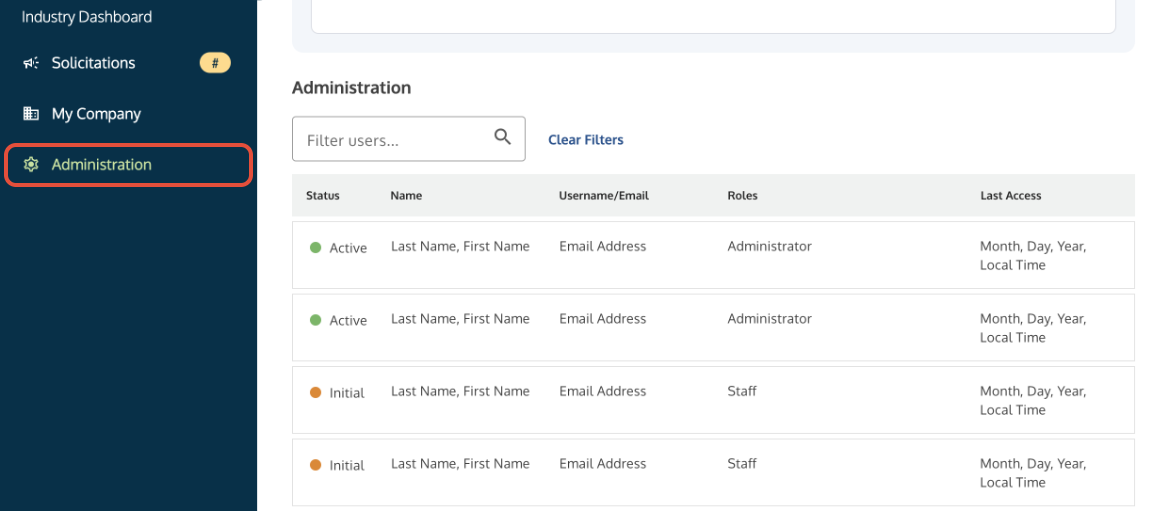
Administration link in the side navigation bar where administrators manage user accounts.
Don't see a colleague's name? If the list is empty or a specific person is missing, it is almost always due to one of the following:
|
2. Activate or Modify a User’s Status
User status controls if an account is active, inactive, or locked.
- Click on the row with the User’s Name.
- Select the user’s status from the pop-up menu and click Save User Status.
Status | Definition (What it means for the user) |
Active | The user has full access to use the system. |
Initial | The user has registered but needs your approval. They will see an "inactive account" message. |
Delete | The user loses access. Warning: This prevents the user from re-registering with the same email address again. |
Suspended | The account is locked due to inactivity or too many failed sign-in attempts. |
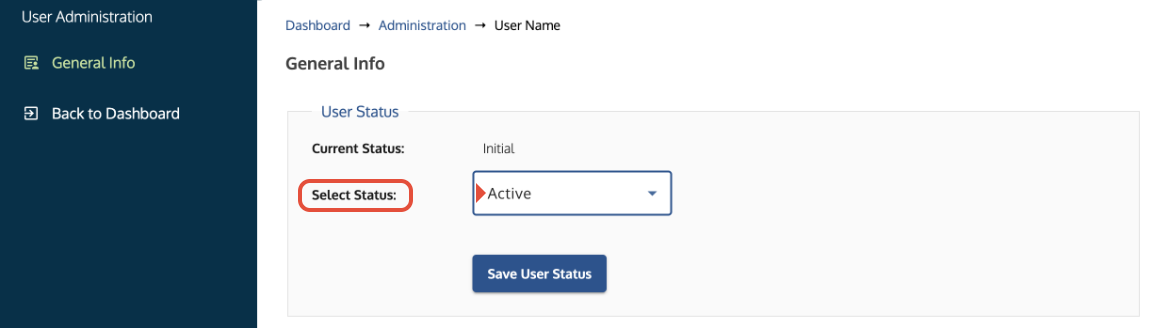
User Administration screen showing the status dropdown menu with 'Active' selected.
3. Update a User's Group Membership (Role)
Group Membership defines the user's permissions. The user's status must be Active for the new role to take effect.
- Modify user permissions within the Administration link by selecting from the Group Membership options.
- Click Save Group Membership
Role | Definition (What the user can do) |
Administrator | Has full management access and can submit proposals. |
Open Market Proposal Manager | Can submit proposals during open solicitations. Cannot access the Administration link. |
Program Manager / Contract Manager | Can submit proposals for their awarded contract vehicle. |
Staff | Can view task order requests. Cannot submit proposals. |
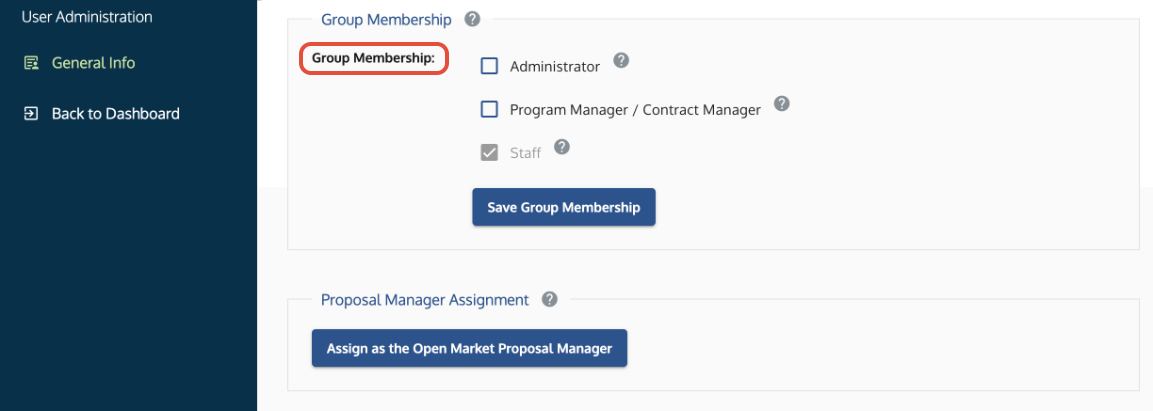
Group Membership menu where administrators assign user roles such as Administrator or Staff.
About Notifications: Only users with communication privileges (i.e., Administrator or Open Market Proposal Manager) receive submission or clarification notifications. Contract notifications (RFPs, Orders, etc.) are managed via a Distribution Email in the My Company → Contracts tab for eligible contract holders. Staff users do not receive these notifications.Troubleshooting
Issue | Fix |
A user cannot be seen in the Administration list. | Confirm that the user registered on the correct Symphony website and for the same company (matching UEI and CAGE code) as you. See Access Symphony-supported Contract Vehicles for the list of URLs. |
Roles are missing (e.g., Contract Manager/Program Manager). | Key roles like Contract Manager are assigned in the proposal submission or contract management sections, not the Administration link. |
An account was deleted, and the user needs to register again. | The Delete status prevents re-registration. You must advise the user to register with a different email address or Submit a Ticket to request the old account be cleared. |
The SAM record for a user was updated, but the role didn't change. | SAM updates do not automatically change roles. You must manually assign the user to the Administrator group. See Update Your Symphony Account Details for sync information. |
| I need to register for and work in multiple companies. | You must use separate email addresses. Each Symphony account is locked to one UEI and CAGE. To manage a different company, register a new account with a different email. |
Related Articles / Links
- Submit a Ticket to the Symphony Help Desk—To reinitialize a deleted account
- Manage Your Symphony Sign-In and Account Activation—For Administrator (SAM POC) verification steps
- Register Your Symphony Business Account—For rules on self-registration
- Assemble and Submit Your Proposal—Industry Partner's main workflow
- Manage Your Awarded Contract—Guide on post-award contract management
Was this article helpful?
That’s Great!
Thank you for your feedback
Sorry! We couldn't be helpful
Thank you for your feedback
Feedback sent
We appreciate your effort and will try to fix the article