Purpose: This guide helps you complete all necessary post-award tasks, including signing your contract, assigning essential Points of Contact (POCs), setting up vital notifications, and preparing for contract modifications.
Table of Contents
2. Assign Contract Points of Contact (POCs)
4. Prepare for Modifications [ASTRO only]
Before You Start
Make sure you know the following rules for managing your awarded contract:
- Scope Warning: Contracts such as the Multiple Award Schedule (MAS/FSS) are managed through separate systems (e.g., GSA eBuy, eMod) and are not managed within the Symphony portal.
- This guide applies only to Symphony-managed contracts.
- Contract management tasks are completed under the Contracts tab within the My Company link.
- Contract Managers and Program Managers must be registered users with accurate contact information.
Steps
1. Sign the Award Documents
After you receive the award notification, sign your contract before taking any other action.
- Go to the My Company link.
- Select the Contracts tab.
- Click the Contract Number link to load the award documents.
- Download the required document.
- Sign the document outside of Symphony.
- Upload the signed documents back to Symphony to complete the task.
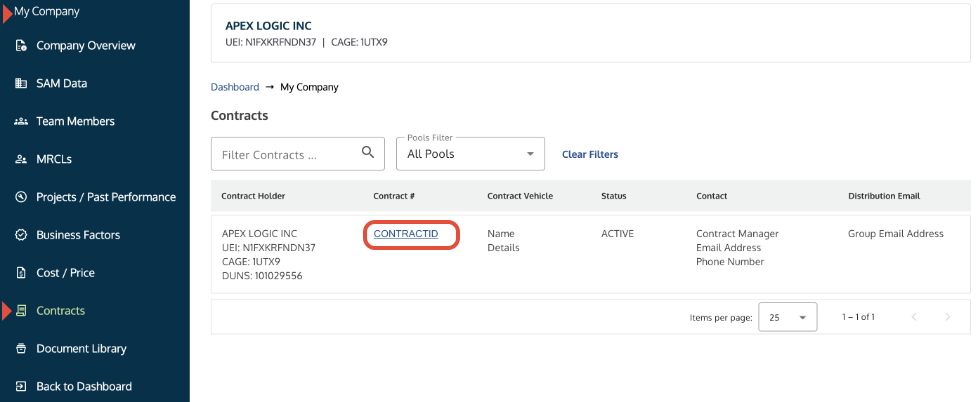
Contracts tab in My Company showing the contract number link highlighted.
2. Assign Contract Points of Contact (POCs)
You must assign specific roles to registered users within the system for each contract.
- Select the contract number that needs updating.
- Go to the Points of Contact (POC) tab.
- Choose registered users to assign to the Contract Manager and Program Manager roles.
Note: These roles are critical for managing the contract and subsequent task orders. 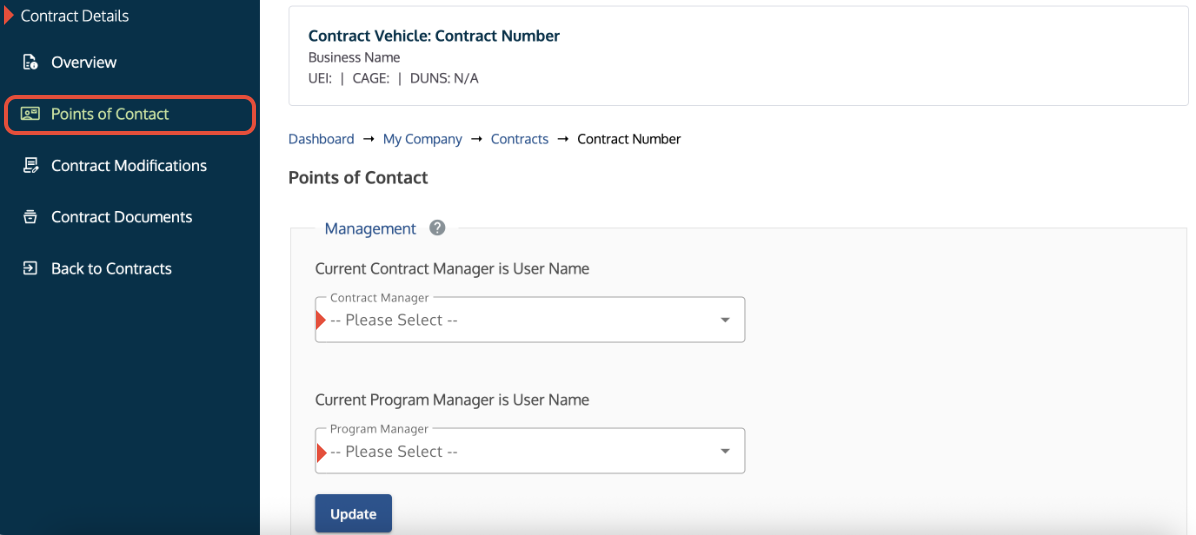
Points of Contact screen showing dropdown menus for assigning the Contract Manager and Program Manager roles.
3. Set Up Notification Emails
A corporate distribution email is required for each contract to ensure notifications are not missed.
- Go to the Points of Contact (POC) tab.
- Enter the Distribution email address (a company mailing list is recommended).
- Symphony will send a validation code to confirm the address. Enter the validation code.
Note: Symphony sends notifications for RFPs, RFIs, Orders, Amendments, and Award Announcements.
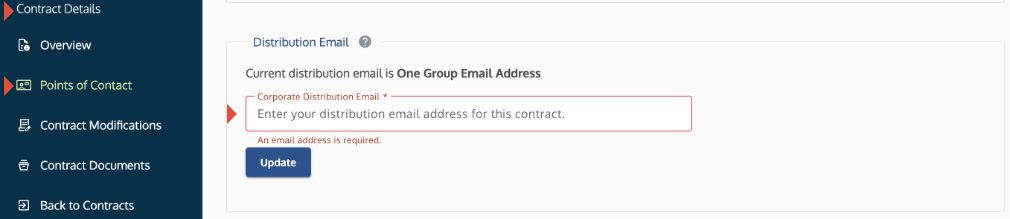
Points of Contact screen showing the distribution email field.
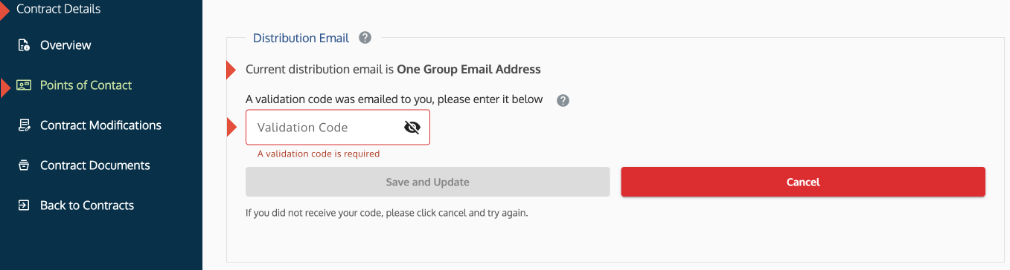
Points of Contact screen showing the validation code prompt.
4. Prepare for Modifications [ASTRO only]
This feature is only available for the ASTRO contract configuration. Only an Administrator can initiate a modification request on behalf of the company.
- A modification (such as Name Change or Option Exercise) must be initiated from the Contract Modifications tab.
- If you need to initiate a request, ensure your account has Administrator permissions. If not, ask your organization's Symphony Administrator to grant you the role.

Contract Modifications tab showing the option to start a modification.
Troubleshooting
| Issue | Fix |
The Contract Holder cannot see their contracts. | Ensure the user registered for the correct company at the right link for the Contract Vehicle. The Contract Manager must have registered first. |
You cannot access the Contract Modification option. | If you are not using the ASTRO contract, the feature is unavailable. If you are using ASTRO, ensure only Administrators are attempting to access it. |
| The validation email for the distribution address is not received. | Check the junk/spam folders and ensure the distribution email is set up to receive external messages. |
| New users need to be added to the system. | Additional users must self-register and be activated by a Symphony Administrator. |
Related Articles / Links
- Use the My Company Component—General guide on accessing the Contracts tab
- Manage Your Symphony Sign-In and Account Activation—How a user self-registers and is activated
- Understand Your Account Roles and Permissions—Guide on how to assign Administrator permissions
Definition of Terms
| Term | Definition |
| FSS | Federal Supply Schedule: A simplified term for the Multiple Award Schedule (MAS) program. |
| RFPs | Request for Proposals: A document issued by a government agency that solicits detailed proposals from potential contractors. |
| RFIs | Request for Information: A preliminary document issued by a government agency to gather data, technical information, or market capability from potential contractors. |
| GSA | General Services Administration: An independent agency of the U.S. government that manages federal property and contract vehicles. |
Was this article helpful?
That’s Great!
Thank you for your feedback
Sorry! We couldn't be helpful
Thank you for your feedback
Feedback sent
We appreciate your effort and will try to fix the article