Purpose: Use this guide to identify the correct Symphony contract vehicle portal, sign in successfully, and avoid access errors caused by using the wrong website.
Table of Contents
1. Identify Your Contract Vehicle
2. Confirm Your Contract Vehicle Portal
3. Register, Sign In, and Activate
4. Use MFA Correctly Across Contract Vehicles
5. Understand Contract Vehicle Data Boundaries
Before You Start
Make sure you have the following ready:
- Your contract vehicle name (example: ASTRO, OASIS+)
- MFA Readiness: You will need an Authenticator App or a cell phone for Multi-Factor Authentication (MFA) setup.
Steps
1. Identify Your Contract Vehicle
Because some sites do not have a special logo (like Polaris) or use a shared agency logo (like DHA), always check the website address (URL) at the top of your browser to make sure you are in the right place. Symphony supports the following contract vehicles:
GSA Contract Vehicles
Contract Vehicle | URL | Description |
Alliant 3 | Symphony is available for existing offerors. The solicitation was released on June 28, 2024, and closed on January 10, 2025. | |
ASTRO | Symphony is available for Contract Holders and Government Customers. The contract’s base ordering period began in November 2021. | |
OASIS Plus | Symphony is open for existing offerors and new offerors interested in continuous on-ramping and rolling awards. Contract Holders and Government Customers can refer to GSA eBuy for ordering activities. | |
Polaris | Symphony is available for existing offerors. The solicitation was released on March 25, 2022, and closed on August 10, 2022. | |
OASIS (Legacy) | Symphony is available for historical data. The OASIS contract is closed and has been succeeded by the Oasis Plus contract. |
Contract Vehicle | URL | Description |
| USSOCOM SOFGSD | ussocom-sofgsd.app.cloud.gov | Symphony is open for offerors. The solicitation was released on March 30, 2026. |
HEC | Symphony is available for Contract Holders and Government Customers. The contract’s base ordering period began in October 2023. | |
MQS2-NG | Symphony is available for Contract Holders and Government Customers. The contract’s base ordering period began in June 2024. | |
Omnibus | Symphony is available for Contract Holders and Government Customers. The contract’s base ordering period began in June 2022. | |
MQS (Legacy) | Symphony is available for historical data. The MQS contract is closed and has been succeeded by the Medical Q-Coded Support and Services-Next Generation (MQS2-NG) contract. |
2. Confirm Your Contract Vehicle Portal
Once you have identified the contract vehicle for your solicitation or award:
- Navigate to the Symphony website tied to that contract vehicle.
- Verify the URL (on the Address Bar) and agency logo on the sign-in page.
- Stop if the URL or logo does not match your contract vehicle.
Warning: Using the wrong website will cause an authentication failed error.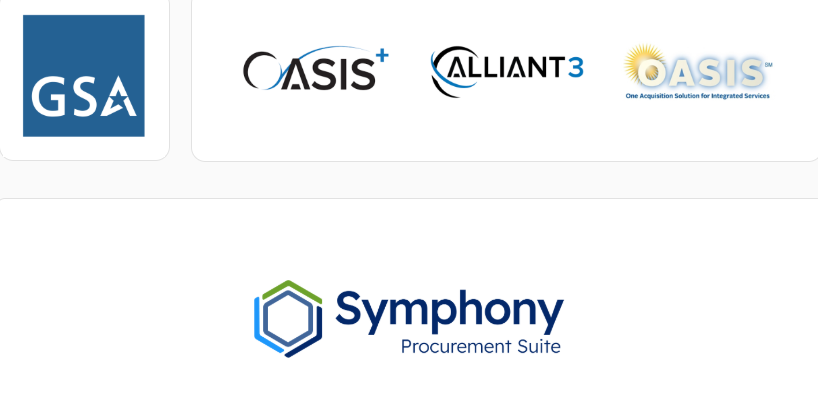 The Symphony home page shows contract vehicle agency logos for confirmation.
3. Register, Sign In, and Activate
Once you are on the correct contract vehicle website, you can either register or sign in to your account.
To Register Your Account
- Click Register Now after accepting the Official Use notice.
- Complete the registration process based on your organizational role.
- Set up a preferred method of Multi-Factor Authentication (MFA).
- After you register, your administrator must approve your account before activation.
Sign in to Your Account
- Open the Symphony website for your contract vehicle.
- Confirm the portal is correct by checking the URL (on the Address Bar) or agency logo on the sign-in screen.
- Enter your email address and password.
- Select Sign In.
Note: If you see Account Inactive, your administrator must approve your account before activation. See Manage Your Symphony Sign-In and Account Activation for more information.
4. Use MFA Correctly Across Contract Vehicles
Each Symphony website needs its own MFA setup.
- Setup: Complete the MFA step for every contract vehicle you use.
- Rename: The default name is always SymphonyPS. Rename the codes in your authenticator app so you know which one belongs to each site (for example: OASIS+ or ASTRO).
- Unique Codes: Use the specific code for the website you are visiting. Codes for one site will not work on another.
5. Understand Contract Vehicle Data Boundaries
Your access and assets are separated by contract vehicle and organization identifiers. You cannot share company assets across different UEIs/CAGE codes or contract vehicles.
Troubleshooting
| Issue | Fix |
| Authentication Failed after entering your password. | Check Your Portal: You are likely on the wrong contract vehicle website. Verify the URL and the Agency Logo on the sign-in page before trying again. |
| MFA code is not working. | Portal Mismatch: The code may be for a different Symphony website. Ensure you are using the code specifically labeled for the URL you are currently visiting. See the Set Up and Use Multi-Factor Authentication (MFA) guide for troubleshooting, or Submit a Ticket to the Symphony Help Desk (for lockouts). |
| I cannot find my contracts or company assets. | Check Data Boundaries: Verify you registered on the correct URL and that your UEI and CAGE code are correct. Data is isolated by contract vehicle and cannot be transferred or viewed across different portals. |
Related Articles / Links
- Register Your Symphony Business Account—How to register as a business user
Register Your Symphony Government Account—How to register as a government user
Set Up and Use Multi-Factor Authentication (MFA)—How to set up MFA
Manage Your Symphony Sign-In and Account Activation—How to sign in to Symphony and get account activation
Submit a Ticket to the Symphony Help Desk—For technical account issues
Definition of Terms
| Term | Definition |
| Contract Vehicle | A pre-established agreement that allows U.S. government agencies to quickly buy specific goods or services. |
| GSA | General Services Administration |
| DHA | Defense Health Agency |
| DOD | Department of Defense |
| MFA | Multi-Factor Authentication. A security step using a one-time code. |
| UEI | Unique Entity Identifier. The alphanumeric code required for all entities registering in SAM.gov. |
| CAGE code | Commercial and Government Entity code. A five-character alphanumeric code used to identify a facility at a specific location. |
| URL | Uniform Resource Locator. The address of a World Wide Web page (i.e., the specific website link). |
| USSOCOM SOFGSD | United States Special Operations Command - Special Operations Forces Global Services Delivery |
Was this article helpful?
That’s Great!
Thank you for your feedback
Sorry! We couldn't be helpful
Thank you for your feedback
Feedback sent
We appreciate your effort and will try to fix the article