Purpose: This guide clarifies contractor responsibilities and system workflows after the Alliant 3 submission deadline has passed, detailing how to monitor and respond to evaluator Exchanges, submit passwords for protected financial documents, and access final debriefs.
Table of Contents
1. Monitor and Respond to Post-Submission Communications
2. Submit Passwords for Protected Financial Records
3. Access Final Determinations and Debriefs
Before You Start
- Proposal Snapshot Lockdown: Once the submission window closes, submitted proposals enter a permanent, read-only state. Edits made under My Company do not cascade to previously submitted offers. Self-service administrative changes (such as updating points of contact or company assets) cannot be made in Symphony while an offer is under evaluation.
- Preserved System Messages: Advisory warnings and notes present on the summary screen at the time of submission remain part of the formal evaluation record and cannot be cleared.
- Formal In-Flight Changes: If critical administrative changes (such as key personnel turnover or company transitions) occur during evaluation, the offeror must notify the GSA Alliant 3 Program Office directly outside of Symphony.
- Dedicated GSA Communication Channels:
- General Evaluation Inquiries & Withdrawals: Contact the GSA Alliant 3 Program Office directly at Alliant3@gsa.gov.
- Password Disclosures for Financials: Email passwords exclusively to the dedicated mailbox A3PSWD@gsa.gov.
- General Evaluation Inquiries & Withdrawals: Contact the GSA Alliant 3 Program Office directly at Alliant3@gsa.gov.
Steps
1. Monitor and Respond to Post-Submission Communications
During evaluation, the Program Office may initiate contact using either the Clarifications tab or the Exchanges tab inside your submitted proposal workspace.
A. Clarifications & Mass Clarifications
Clarifications address clerical ambiguities or distribute mass notices from the evaluation board:
- Navigate to the Clarifications tab inside your submitted proposal.
- Review the communication status:
- Response Required: Read the prompt carefully, enter your formal clarification statement, attach requested supporting documents (if applicable), and click Submit Clarification before the deadline.
- Response Not Required: The message is informational (e.g., general program notices); no vendor response is required.
- Response Required: Read the prompt carefully, enter your formal clarification statement, attach requested supporting documents (if applicable), and click Submit Clarification before the deadline.
Role Authority Restriction: While standard staff users can view received notices, only registered users assigned the Administrator or Open Market Proposal Manager (OMPM) role have permission to draft, sign, and submit formal Clarification responses.
B. Evaluator Exchanges
Exchanges are bilateral message threads initiated by evaluators to address specific proposal elements:
- Navigate to the Exchanges tab and select the active thread (e.g., Area of Responsibility to Update).
- Enter your response in the message field (up to 2,500 characters).
- Uploading Files: If documentation is requested, switch to the Attachments tab within the thread and upload your files.
- Finalize Attachments (Mandatory): You must click Finalize Attachments to release the uploaded documents to the government.
- Click Send to dispatch your message.
Critical Communication Rules:
|
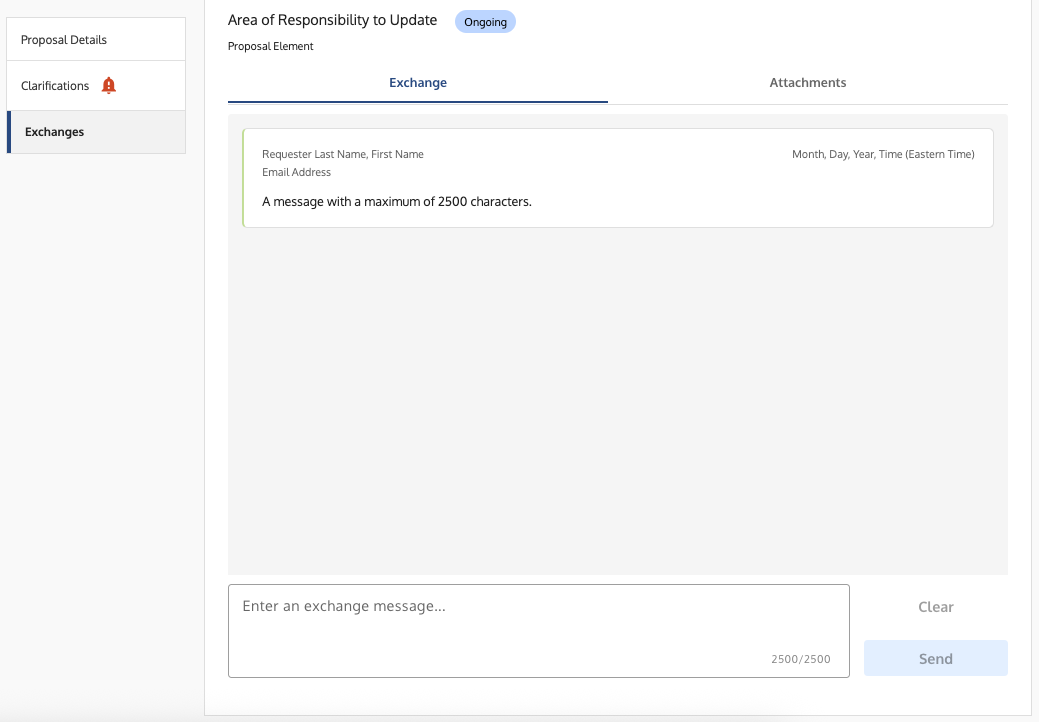
Exchanges screen showing the ongoing message thread and the Attachments tab.
2. Submit Passwords for Protected Financial Records
If your GSA Form 527 or supporting financial capability documents were submitted with password encryption, the password must be provided through external encrypted channels:
- Compose an email directly to the dedicated GSA mailbox: A3PSWD@gsa.gov.
- Include the following mandatory identifying details in the email body:
- Offering Entity Name
- Unique Entity Identifier (UEI)
- Teaming Partner / CTA Member Name (if applicable)
- Exact File Name of the password-protected document
- Document Password
3. Access Final Determinations and Debriefs
When GSA source selection concludes, final award determinations and debrief materials are published:
- Official award notifications and master announcements are distributed by GSA outside of Symphony.
- Once notified, log in to Symphony and click Submitted (view) next to your Alliant 3 proposal record.
- Navigate to the Debrief tab.
- Download the formal Debrief Letter and all attached evaluation documentation.
Troubleshooting
| Issue | Root Cause | Fix |
| Need to correct a mistake in submitted documents | Proposal is locked. | Symphony cannot unlock a submitted bid post-deadline. Email Alliant3@gsa.gov to request direction from the Contracting Officer. |
| Evaluator says attached exchange documents are missing | "Finalize Attachments" was not clicked. | Return to the Exchanges → Attachments tab and click Finalize Attachments. Uploads are not released to evaluators without this action. |
| Advisory messages remain on proposal summary | Read-only audit capture. | Advisories present at the submission deadline are locked as part of the proposal snapshot and cannot be modified or cleared. |
| Need to formally withdraw an offer | Self-service withdrawal is locked post-deadline. | Contact the GSA Program Office directly at Alliant3@gsa.gov to submit a formal withdrawal request. |
| Cannot log in to Symphony | Account lock or password expiration. | Submit a support ticket to the Symphony Help Desk for an access/credential reset. |
| Cannot submit Clarification response | User lacks required role permissions. | Standard users can view clarifications, but only accounts assigned the Administrator or Open Market Proposal Manager (OMPM) role can submit formal clarification responses. |
Related Articles / Links
- Administrator Guide: Activating Users and Assigning Permissions
- GSA Alliant 3 Official Website—Link to official program site
- Symphony Sign-In Guide: Credentials, Password Resets, and Account Activation
- Post-Submission Guidance: Handling Advisory Banners, Clarifications, and Government Exchanges—How to handle government inquiries
- Individual Account Settings, MFA Setup, and Email Updates
- Submit a Ticket to the Symphony Help Desk—For technical issues
Was this article helpful?
That’s Great!
Thank you for your feedback
Sorry! We couldn't be helpful
Thank you for your feedback
Feedback sent
We appreciate your effort and will try to fix the article