Purpose: This guide helps you successfully sign in to Symphony, handle the mandatory Multi-Factor Authentication (MFA) step, and resolve the "Account Inactive" message by following the correct approval path.
Table of Contents
2. Activate an Inactive Account
Before You Start
Make sure you know the following crucial facts before attempting to sign in:
- Your account status must be Active (not Initial) to access the platform beyond the login screen.
- You must have your Multi-Factor Authentication (MFA) tool ready (Authenticator App or text-messaging phone). MFA codes are not allowed via email due to security requirements and users with international or U.S. Territory phone numbers must use an authenticator app.
Steps
1. Sign In and Authenticate
Signing in happens in two steps. First, enter your credentials. Then, enter the MFA security code.
- Verify the URL (Uniform Resource Locator): Ensure the website address or logo matches the correct Contract Vehicle for your account.
- Accept the FOUO Notice: You must click Accept on the mandatory security and privacy warning message displayed on the welcome screen. FOUO stands for For Official Use Only.
- Enter your registered email address and password.
- Click Sign In.
- You will then be prompted to enter the six-digit code from your MFA tool.
Important: SMS (Text Message) support for GSA Contract Vehicles ended April 30, 2026. You must use an app. See Set Up and Use Multi-Factor Authentication (MFA).
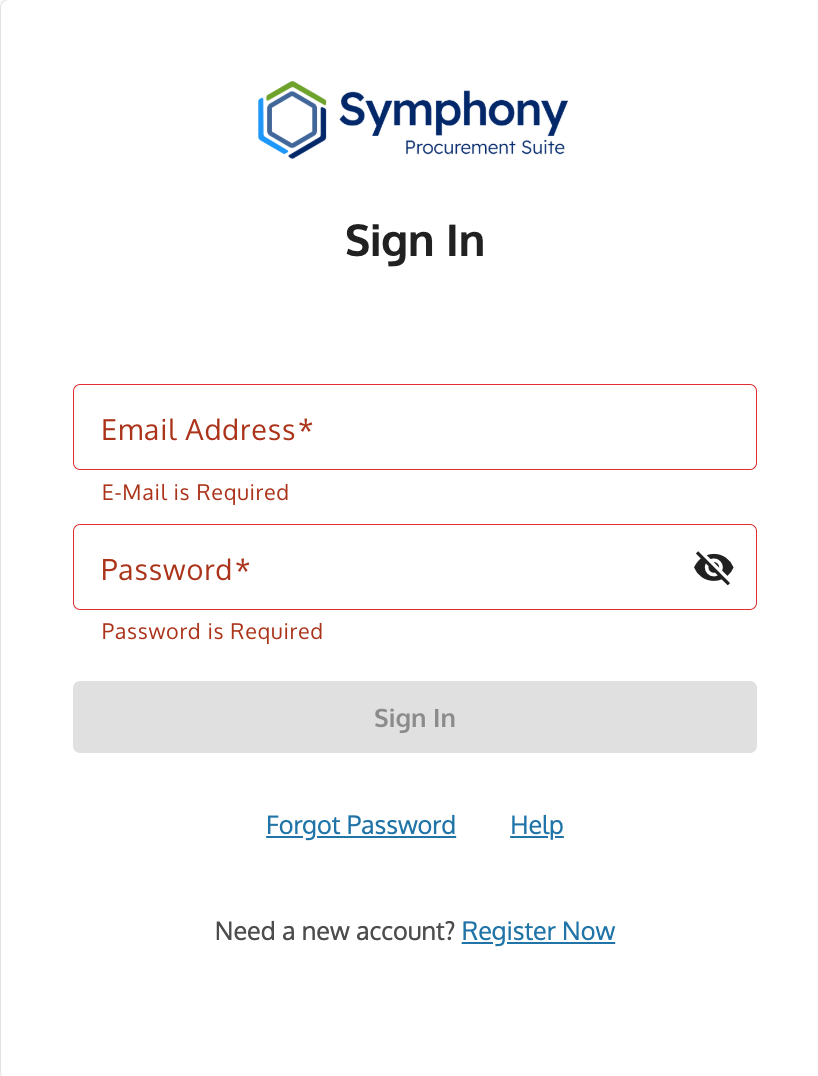
Sign In page showing the email and password fields where users enter credentials.
2. Activate an Inactive Account
If your account is inactive, the next step depends on your role.
- If you are a Business User (Staff)
Your account is in Initial status. You must contact your organization's Symphony Administrator and ask them to register, sign in and change your status from Initial to Active on their Administration screen.
- If you are the SAM POC (Administrator)
To be verified as an Administrator, you must provide proof from SAM.gov.
Steps to get this data:
- Log in to SAM.gov.
- Search for your company and click on the Entity Name.
- Go to the Points of Contact tab on the left-side menu.
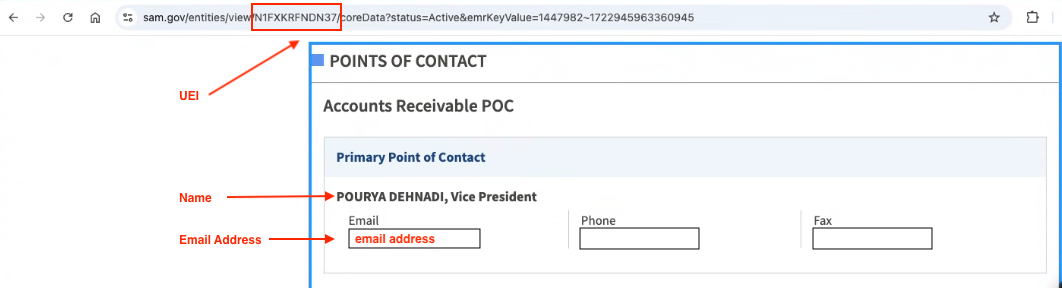
- Take a screenshot (or print to PDF) with the UEI, Your Name, and Email visible.
- Submit a Ticket with this attachment.
⚠️ CRITICAL: Submit the Correct Documentation. You must provide a screenshot from SAM.gov that includes ALL THREE of these items: 1. The UEI (Found in the SAM.gov header) 2. Your Full Name 3. Your Email Address (Important: If this is missing, we cannot activate you) Note: You must be a SAM administrator to make the email visible.Example of the correct SAM.gov Points of Contact screen.
Do NOT send a screenshot of the Symphony "Account Inactive" message. We cannot use it to verify your account.
3. Reset Your Password
If you receive an "Authentication Failed" message after entering your password, use the reset option.
- Click the Forgot Password link on the Sign In page.
- Enter your registered email address and click Submit.
- Check your email (including spam/trash folders) for the reset link.
- Follow the link to create a new password that meets the security requirements.
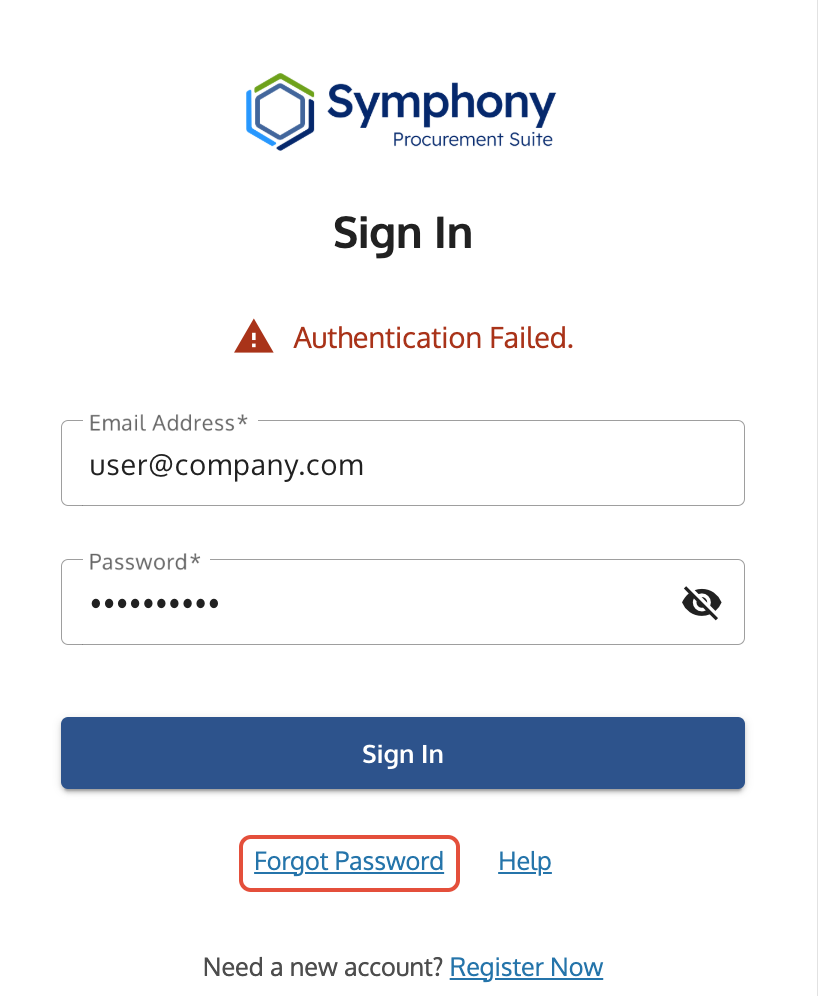
Screen displaying the 'Authentication Failed' status message and the Forgot Password link to reset credentials.
Troubleshooting
Issue | Fix |
| You are seeing an error message after entering credentials. | Verify your URL first. You may be trying to sign in to the wrong Contract Vehicle portal. If the URL is correct, use the Forgot Password link. |
| Account Inactive after registration. | You must contact your company's Symphony Administrator to change your status from Initial to Active. Note: If you are the Administrator/SAM POC, submit a ticket to the Help Desk with your SAM documentation. |
| MFA code is not working or expired. | The code has expired or is incorrect. Check your phone's time synchronization. If the issue continues, see the Set Up and Use Multi-Factor Authentication (MFA) guide for troubleshooting. |
| No password reset email received. | Check your spam or trash folders and the website address. The email may come from noreply@gsa.gov or symphony@apexlogic.com. If the email doesn't arrive, your account may not be registered at that email address; try registering a new account. |
Related Articles / Links
- Set Up and Use Multi-Factor Authentication (MFA)—Detailed troubleshooting for MFA issues
- Submit a Ticket to the Symphony Help Desk—For SAM POC verification or technical lockouts
- Register Your Symphony Business Account—If you need to start a new registration
- Understand Your SAM and Symphony Access—Guide to verify the correct URL for your account
Was this article helpful?
That’s Great!
Thank you for your feedback
Sorry! We couldn't be helpful
Thank you for your feedback
Feedback sent
We appreciate your effort and will try to fix the article