Purpose: This comprehensive guide helps you successfully add, manage, and verify all your Team Members (CTAs) and Meaningful Relationship Commitment Letters (MRCLs) — relationships with associated entities — within your company's reusable asset library.
Table of Contents
1. Add a New Team Member or MRCL
2. Claim Business Factors and Upload Documents
3. Update or Delete an Existing Entity
Before You Start
Make sure you know the following crucial facts about associated entities:
- Solicitation Preference Filter: Set the filter to the correct solicitation (e.g., OASIS+) before adding or editing Team Members and MRCLs. OASIS+ stands for One Acquisition Solution for Integrated Services Plus.
- Team Members and MRCLs are both entity relationship assets. They must be added before you start a proposal submission.
- Before making changes, check that the entity is not linked to any submissions or projects.
- If a Team Member or MRCL has incorrect SAM data, delete and re-add them.
Steps
1. Add a New Team Member or MRCL
Start by verifying the associated entity using its SAM (System for Award Management) data.
- Go to My Company, then select the Team Member tab or the MRCLs tab.
- Click +New Team Member or +New MRCL.
- Enter the associated entity's SAM UEI (Unique Entity Identifier).
- If adding an MRCL, select the type of Meaningful Relationship from the drop-down menu.
- Click Confirm.
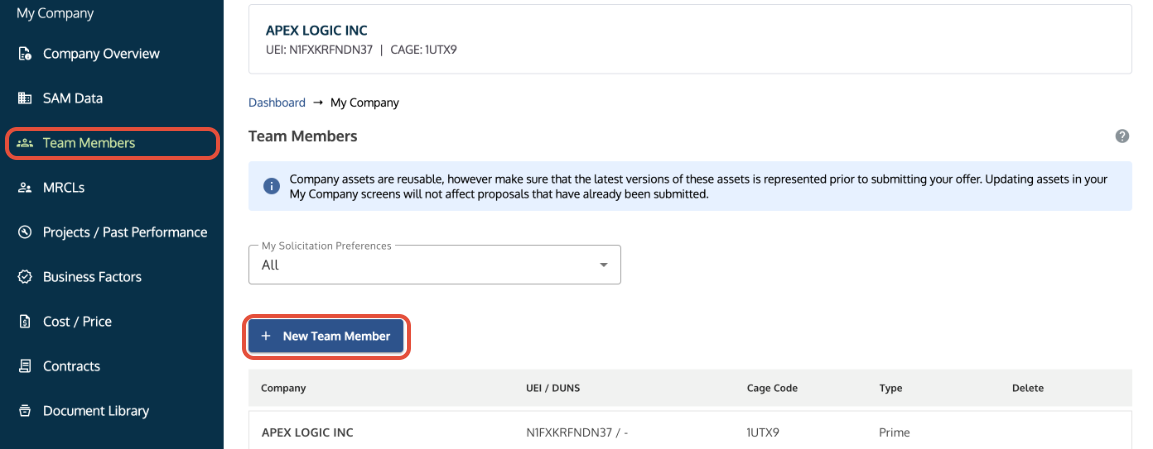
Team Member tab in My Company showing the +New Team Member button highlighted.
2. Claim Business Factors and Upload Documents
Define the associated entity's contributions and upload commitment documents.
- Claim the entity's Business Factors (certifications, systems, etc.).
- Upload the required teaming agreement or commitment letter in the Documents tab.
- Click Save and Complete to add the partner.
Note: Team Member Business Factors will not show claimed on your Company Overview. They only display on the Proposal Overview after being added as half-shaded circles.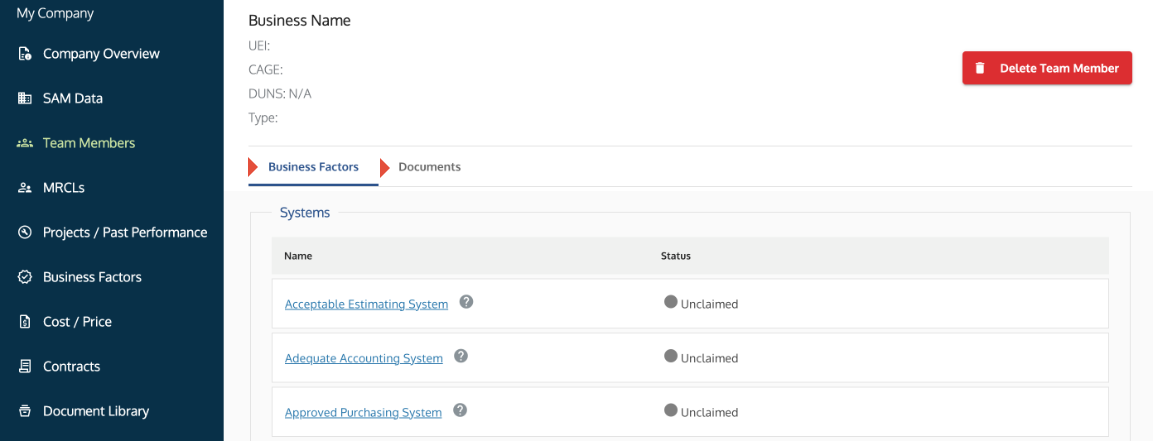
Team Member profile showing the Business Factors section and Documents tab.
3. Update or Delete an Existing Entity
Updates are handled through editing the record. Deletion requires a specific, complex workflow if an active proposal is involved.
To Edit: Click the associated entity's row to make changes to their claims or documentation.
To Delete:
- Check Submissions: Go to the Solicitations tab and withdraw the entity from any active proposal submission.
- Check Projects: Go to the Projects/Past Performance tab. Edit any linked Project and replace the entity with the prime contractor or another Team Member/MRCL.
- Final Action: Un-claim all Business Factors, delete all supporting documents, and then click Delete on the entity's record.
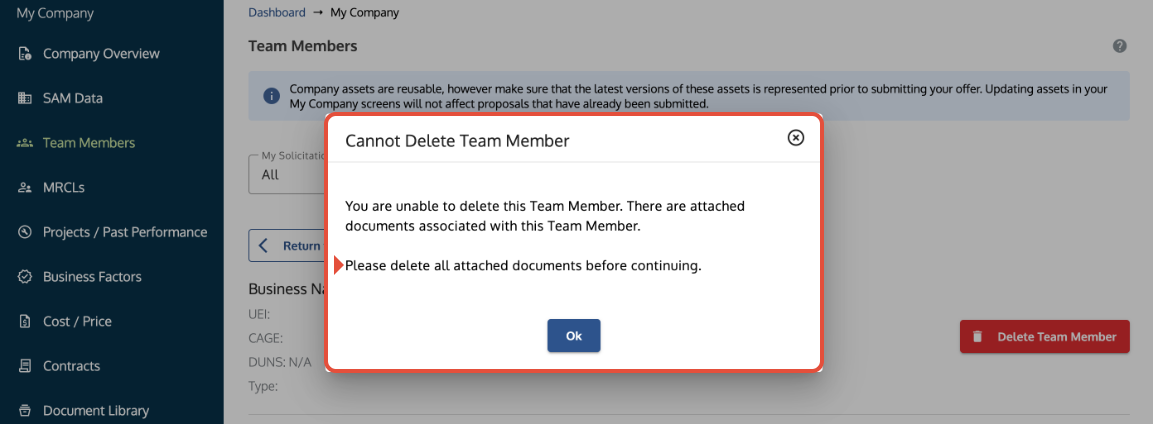
Message box directing the user to remove all documents before deleting a Team Member.
Troubleshooting
Issue | Fix |
You cannot delete a document. | The document is still linked to a Business Factor claim. You must remove the claim before deleting the document. |
You need to update an associated entity's SAM data or relationship type. | You must delete and re-add the Team Member/MRCL completely, as SAM data cannot be refreshed once linked. |
A new Team Member or MRCL cannot be added. | The entity may have an "ID assigned," meaning it does not have an active SAM record yet. You must wait for their SAM status to be active. |
The Team Member's Business Factors do not show on my Company Overview. | This is correct. Team Member assets only display on the Proposal Overview in the submission section. |
You are checking the Company Overview but don't see the Team Member's data. | Team Member's Business Factors will not show claimed on the Company Overview. They will only show on the Proposal Overview. |
Related Articles / Links
- Use the My Company Component—General guide to the central hub
- Manage Your Company's Projects and Tagging—Guide for past performance claims
- Submit a Ticket to the Symphony Help Desk—For technical issues
- Understand Your Account Roles and Permissions—Guide for Administrators on user management
Was this article helpful?
That’s Great!
Thank you for your feedback
Sorry! We couldn't be helpful
Thank you for your feedback
Feedback sent
We appreciate your effort and will try to fix the article