Purpose: This guide covers the end-to-end process of managing Project assets, using the Solicitation Filter, and correctly mapping tagged evidence to your proposal for scoring.
Table of Contents
1. Set Your Solicitation Preference Filter
3. Tag and Upload Supporting Evidence
4. Mapping Tags to Your Proposal Submission
Before You Start
Understand these four pillars of Symphony Asset Management:
- Reusable Assets: Projects are "Master Templates" stored in My Company. You create them once and can use them across multiple different solicitations (e.g., OASIS+, Alliant 3).
- The Solicitation Filter: Project requirements (fields and tags) change based on the solicitation. You must select the correct Solicitation Preference to see the data relevant to your specific bid.
- Mapping is Manual: Uploading a tagged PDF does not "auto-score" your proposal. You must manually tell Symphony which tag proves which claim during your submission.
- Snapshot Security: Once you submit a proposal, Symphony "freezes" the project data and documents for that bid. You can safely update or delete files in My Company for a future bid without changing what was already submitted.
Note: My Company is for Asset Creation, and your Submission is for Asset Utilization.
Steps
1. Set Your Solicitation Preference Filter
Before adding or editing data, tell Symphony which "rulebook" to use (when applicable).
- Go to My Company → Projects.
- Locate the Solicitation Preference dropdown.
- Select your target solicitation (e.g., OASIS+ Total SB).
Note: If you don't see your projects, check this filter first! Projects created under one preference may be hidden if a different one is selected.
2. Add or Edit Project Experience
- Click +New Project Experience or click a Project Title to edit an existing one.
- Select the Contract Type: Choose the type that matches your Prime contract. If the Federal agency is not listed, use a Commercial Project Type.
- Complete Performance Data: Fill in the Project Reference and Details.
Note: If you changed your Solicitation Preference, you may see new fields required for that specific bid.
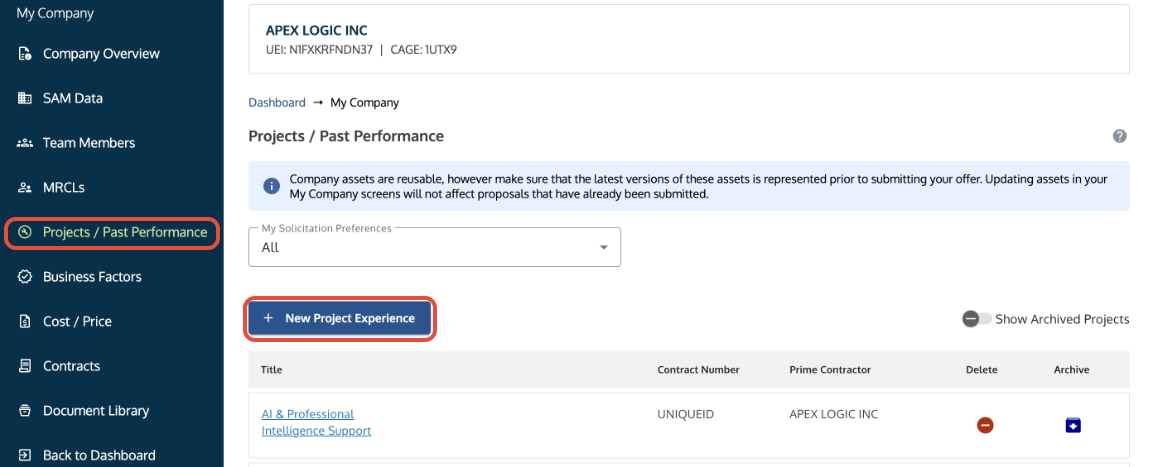
Projects/Past Performance tab showing the +New Project Experience button highlighted.
3. Tag and Upload Supporting Evidence (CRITICAL STEP)
Tags guide evaluators to the exact location of the supporting evidence in your PDF documents.
- Tag Outside Symphony: Open your PDF in a tool like Adobe Acrobat. Add a "Comment" or "Sticky Note" at the exact location of the evidence.
- Use Standard Keywords: Use tags like TCV for value, POP for dates, or NAICS. You are not required to use all Symphony tags.
- Upload to Documents Tab: Upload the tagged PDF to the project record in Symphony.
Tag Legend and Configuration
Recommended Tag | Description | Solicitation |
| COSTS | Other Direct or Indirect Costs | Evolve |
| CR | Cost Reimbursement | All |
| FOREIGN | Foreign Country/Location(s) | Alliant 3 |
| FTE | Full-Time Equivalents | OASIS+ |
| LOCATIONS | Number of locations | All |
| NAICS | North American Industry Classification (NAICS) code | OASIS+ |
| OCONUS | Outside of the Continental United States Work | All |
| POP | Period of Performance | All |
| PSC | Product and Service Code (PSC) | OASIS+ |
| TCV | Total Contract Value | All |
| TEAMING | Subcontractor/Teaming | All |
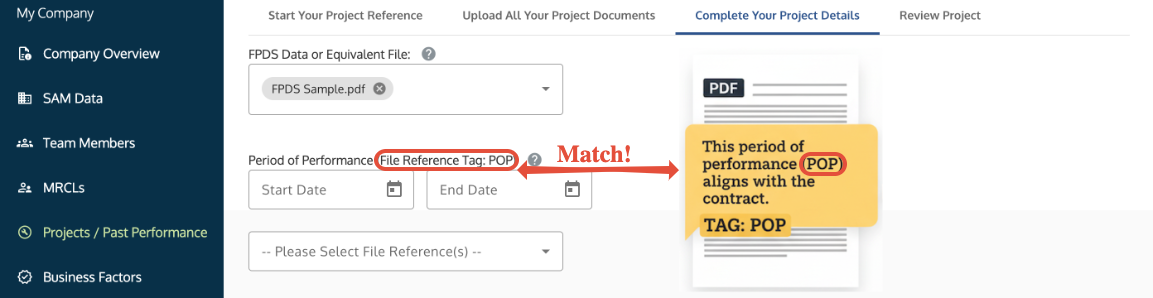
How to match the 'POP' tag in a PDF comment with the Period of Performance field in Symphony.
4. Mapping Tags to Your Proposal Submission
This is the "handshake" that gives you points.
- Go to the Solicitations tab and enter your Submission.
- Navigate to your project and click Begin or Modify.
- Assign a Performance Factor (e.g., Relevant Experience) to the project.
- Location in File: You must type the exact tag used in your PDF (e.g. POP) into this field. This tells the evaluator exactly where to look in your 50-page document.
- Reference: Assemble and Submit Your Proposal
5. Asset Maintenance: Archiving vs. Deletion
Symphony protects your data integrity by preventing the deletion of any project that is part of a Submitted proposal. If you want to clean up your dashboard without losing historical records, use the Archive feature.
When to Archive
- You have a project from a past solicitation (e.g., OASIS) that you no longer use for active bids.
- You want to "hide" a project from your main list but cannot delete it because it is part of a submitted record.
- You want to create a "fresh" version of a project for a new solicitation without modifying the original asset.
How to Archive a Project
- Go to My Company → Projects.
- Locate the project in your list.
- Click the Archive icon ("down arrow" icon) in the Archive column.
- To View Archived Projects: Use the filter at the top of the table to toggle from "Active" to "Archived." You can Restore a project at any time if you need to use it again.
The Deletion Process (For Drafts Only)
If a project has not been submitted and you want to remove it entirely:
- Withdraw from Drafts: Go to your Submission, find the project, and Withdraw the project.
- Delete from My Company: Return to the Projects tab and click the Delete icon.
| Action in "My Company" | Impact on DRAFT Proposals | Impact on SUBMITTED Proposals |
| Edit Text/Data | Live Update (Reflected in Draft) | None (Snapshot is locked) |
| Delete/Replace PDF | Live Update (Draft will use new file) | None (File is locked) |
| Archive Project | None (Project stays in Draft) | None (Snapshot is safe) |
| Delete Project | N/A (Must withdraw from draft first) | N/A (System prevents deletion) |
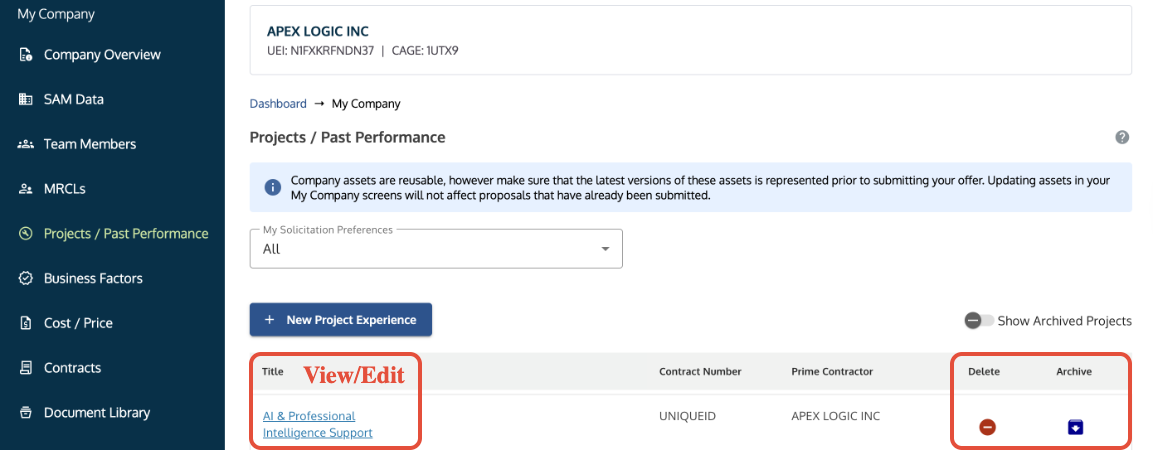
Projects/Past Performance table showing the option to view, edit, or delete a project.
Troubleshooting
| Issue | Fix |
| My projects disappeared! | Check your Solicitation Preference filter at the top of the Projects tab. |
| I updated a project, but my submission didn't change. | Submitted proposals are "Snapshots." You must retract, update the project in the submission, and re-submit. |
You are unable to delete a project. | You must first remove the project from any proposal submissions. You cannot delete a project used in a submitted proposal. |
| You are claiming a Joint Venture (JV) project. | Claim the project for the company that did the work. You must not claim projects for a partner that did not have a direct contract with the government. |
| The Project Title is too long. | The project title is limited to 250 characters. Shorten the name to save the record. |
| You need to use a project from Alliant 3 for OASIS+. | You cannot use the exact same project name. Archive the Alliant 3 project and upload a new version with a different project name for OASIS+. |
| Will updating a project delete it from my past submission? | No. Submitted proposals are locked. Any changes you make in My Company (including deleting or replacing documents) will only apply to new or draft submissions. |
| Can I use one project for two different UEIs? | Projects are tied to the company (UEI) that created them in My Company. |
Related Articles / Links
- Manage Team Members and MRCLs—Guide for adding subcontractors and JVs
- Submit Documents and Understand Security—Guide on document restrictions
- Submit a Ticket to the Symphony Help Desk—For technical help
Was this article helpful?
That’s Great!
Thank you for your feedback
Sorry! We couldn't be helpful
Thank you for your feedback
Feedback sent
We appreciate your effort and will try to fix the article