Purpose: This guide helps you successfully upload and certify the cost/price information for your proposal. It ensures you use the correct template and follow strict document requirements for system validation.
Table of Contents
1. Go to Cost/Price in My Company
3. Review and Submit Pricing Data
Before You Start
Make sure you know the following crucial facts before you proceed:
- Cost/Price requirements (like the Basis of Estimate or Labor Rate Attestation) are unique to each solicitation.
- Symphony requires one Excel template (.xlsx file type) and one accompanying PDF document.
Warning: There are no restricted viewing roles. Manage active user accounts accordingly. To limit access, upload sensitive information as your final step before submission.
Warning: Do not remove any columns or rows from the OASIS+ template, as this will cause validation errors. OASIS+ stands for One Acquisition Solution for Integrated Services Plus.Steps
1. Go to Cost/Price in My Company
You must complete this claim within your company's asset library before submission.
- Begin in My Company.
- Select the Cost/Price button from the left navigation menu.
- Set the Solicitation Preference Filter to the correct solicitation (e.g., OASIS+) before adding or editing projects.
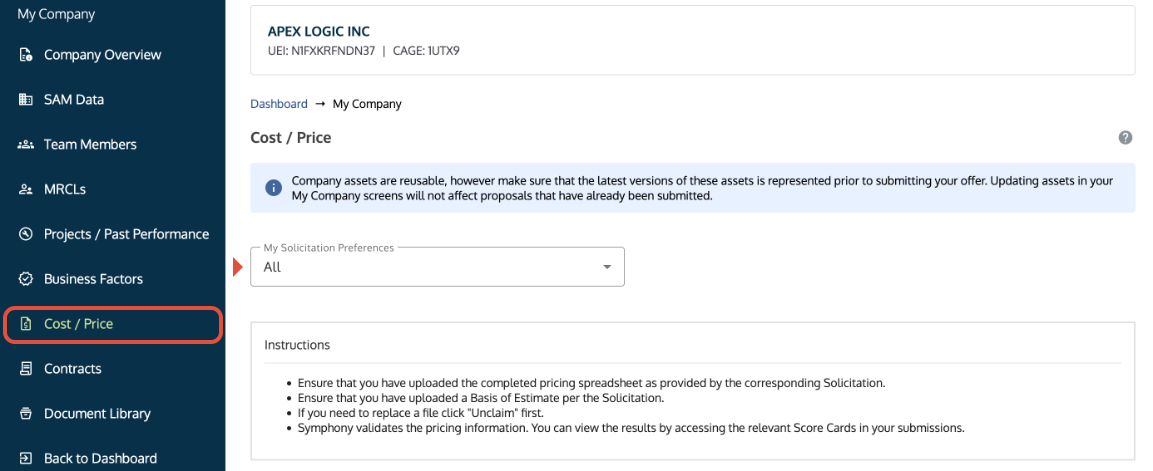
My Company screen where users select Cost/Price to upload pricing templates.
2. Upload Pricing Documents
You must upload the completed pricing spreadsheet provided by the corresponding solicitation.
- Upload the completed pricing spreadsheet. Symphony requires a .xlsx file type for validation.
- Upload only one Excel spreadsheet.
- Upload the required supporting documentation, such as the Basis of Estimate or the Labor Rate Attestation (if required).
- Certify the claim by selecting the checkbox and save your changes.
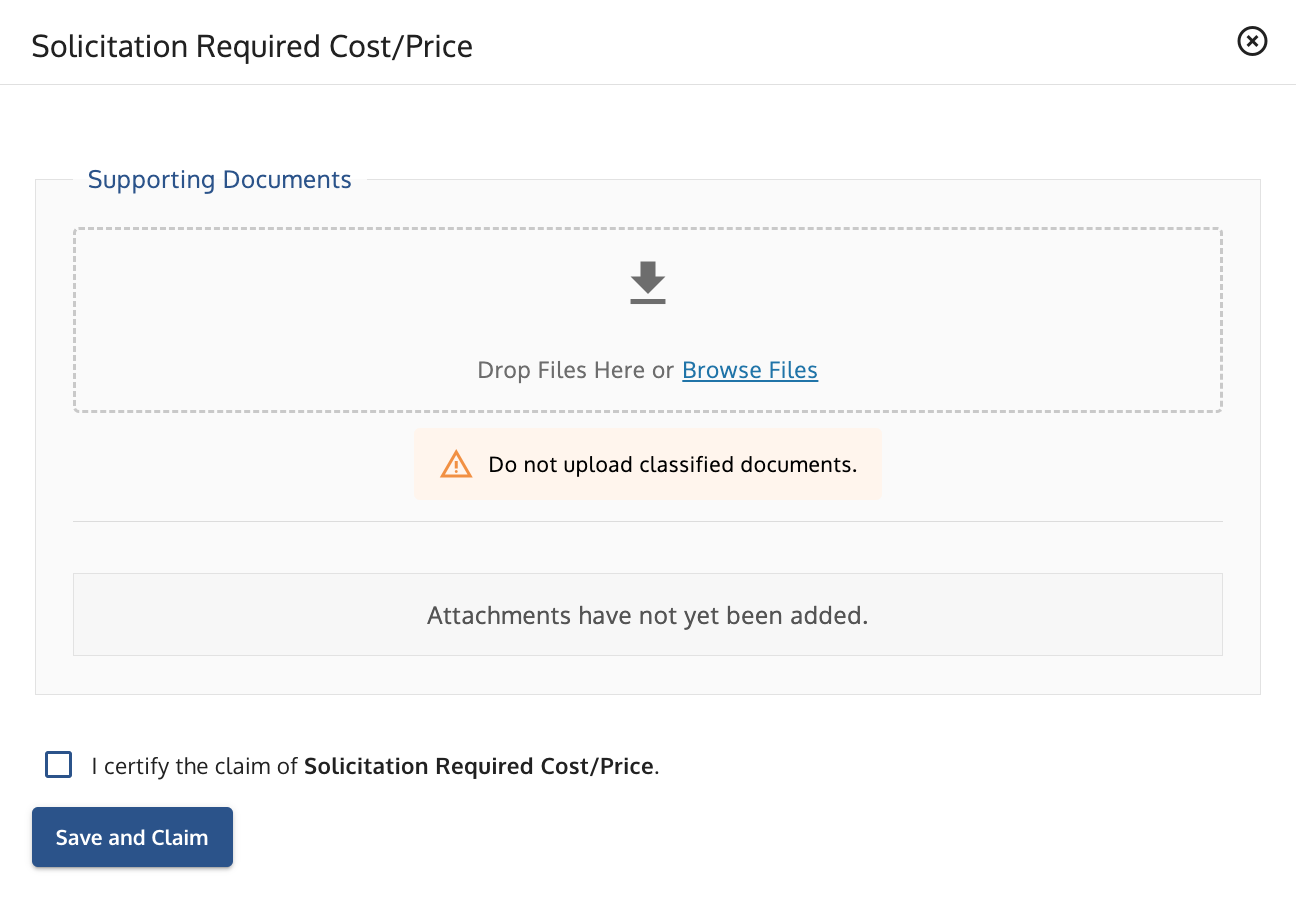 Pricing Information Upload window where users attach the required Excel and PDF documents.
3. Review and Submit Pricing Data
Use the Live Score feature to check for errors before you certify and submit your proposal.
- Access the Live Score or Review tab to check if your proposal is ready.
- Review all validation error messages.
Note: Error messages are only advisories. They will not prevent submission.
You can find fixes for common errors in the Troubleshooting table below.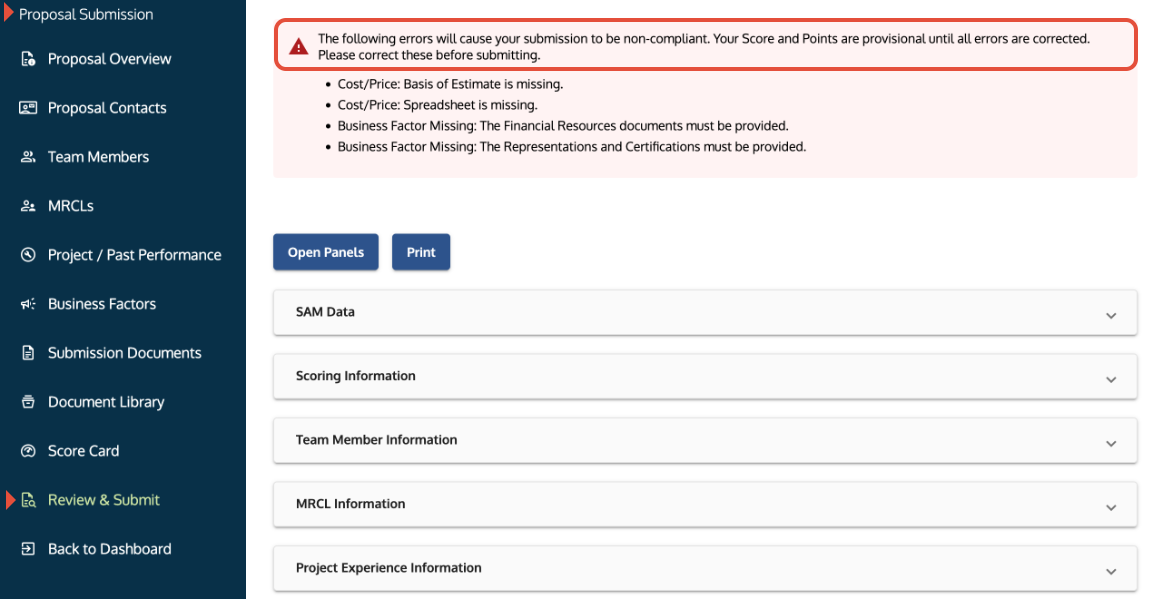
Review tab where users check validation messages before final submission.
Troubleshooting
Issue | Fix |
Spreadsheet is missing or the wrong file type. | Verify the file type is .xlsx. The submission requires one Excel file and one PDF file. |
Incorrect number of files/sheets or missing data. | Upload only one Excel spreadsheet. Check that no columns or rows were removed from the template. |
Missing Basis of Estimate (OASIS+) or Labor Rate Attestation (Alliant 3). | Upload the required supporting PDF documentation for the contract vehicle. |
The system displays an Unable to load the Pricing File error. | The file is likely password-protected or encrypted. Remove the protection. |
Other data validation issues are visible. | Check for unintended formatting changes (especially if copy/pasting was used) and ensure data is complete in accordance with the solicitation. |
Related Articles / Links
- Assemble and Submit Your Proposal—Guide to the final submission steps
- Manage Your Business Factors—Guide to managing other company claims
- Submit Documents and Understand Security—Guide on document restrictions
Was this article helpful?
That’s Great!
Thank you for your feedback
Sorry! We couldn't be helpful
Thank you for your feedback
Feedback sent
We appreciate your effort and will try to fix the article