Purpose: This guide walks you through the final assembly. You will learn to complete mandatory tasks on the Submission Dashboard, upload pricing files, resolve validation alerts, and perform the final submission as an authorized user.
Pro-Tip: Use this guide alongside the Master OASIS+ RFP to Symphony Crosswalk to perform a final compliance audit of your Live Score before submitting.
The OASIS+ Submission Series. Follow these steps in order to submit a compliant proposal:
- Part 1: Set Up Your OASIS+ Assets
- Part 2: Score and Verify Your Projects
- Part 3: Finalize and Submit Your Proposal (Current)
Table of Contents
2. Upload Solicitation Documents
5. Modifying or Withdrawing Your Proposal
Before You Start
- Authorized Roles: Only users with Administrator or Open Market Proposal Manager (OMPM) permissions can see the Submit Proposal or Modify Proposal button. Note: To modify a rejected proposal or add a domain to a Continuous Open award, you must contact the Help Desk for assistance.
- Contract Readiness: Ensure your Contract Manager (CM), Program Manager (PM), and Authorized Negotiator (AN) are self-registered and assigned to each solicitation before submission.
- Pricing Files: You must have one Excel (.xlsx) file and one matching PDF document.
- Deadlines: Proposals cannot be changed once evaluation starts.
- Amendment 0009 (If applicable): If you submitted an offer before Amendment 0009 was issued, and you have not received an award or unsuccessful notice, you must acknowledge it (Deadline: July 15, 2026).
- Action: Sign the Amendment 0009 SF-30 form.
- Where: Upload the signed form to the Business Factors section of My Company for each applicable RFP.
- Responsibility: Ensure the uploaded SF-30 matches the exact RFP pool you are targeting in My Company > Business Factors. Missing this step will endanger your pending offer.
Tip: Show All Solicitations—On the Main Dashboard, Symphony may default to your Favorites view. If you cannot see the solicitation you are looking for, click the Show All button to display every available OASIS+ RFP. Favorites allow you to save the solicitation(s) to a filtered view for quick access.
Steps
1. Assign Proposal Contacts
You must assign specific roles for each solicitation you target. These are managed within the Solicitation Details/Domain Overview Dashboard.
- Navigate to your Dashboard and locate the relevant solicitation (e.g., Small Business Continuous Open).
- Click Show All if you do not see your solicitation in the Favorites view.
- Click Start/Continue Submission to reach the Solicitation Details > Overview.
- In the Points of Contact section on the right, click the User Icon (+) next to CM, PM, and AN (Authorized Negotiator).
- Select the correct registered user from the dropdown and click Assign.
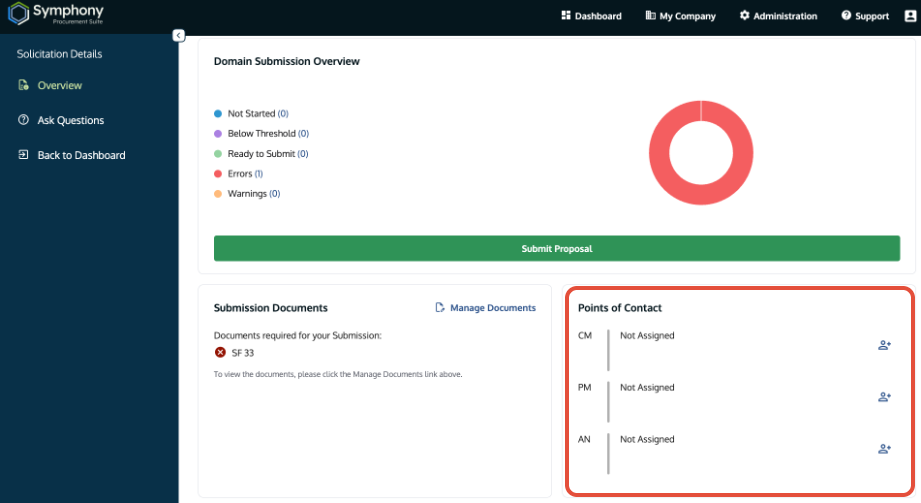
Points of Contact section showing fields for CM, PM, and AN assignment.
2. Upload Solicitation Documents
Upload required administrative forms for the solicitation. Reference: Master OASIS+ RFP to Symphony Crosswalk.
- In the Submission Documents section, click Manage Documents.
- Select the document type (e.g., SF-33/SF-30 or Cover Letter/Response to Debrief).
- Upload the signed PDF(s).
3. Upload Pricing Documents
Cost/Price Template: The Program Office has released updated versions of the pricing spreadsheet. Using older versions will cause error messages to display. Check SAM.gov to verify you are using the most recent version.
Upload financial data in the required formats. Reference: Manage Your Cost/Price Submission.
- Open Cost Section: Navigate to the Cost/Price section in My Company.
- Upload Excel: Attach your pricing spreadsheet in .xlsx format.
- Upload PDF: Attach your supporting PDF document, such as a Basis of Estimate.
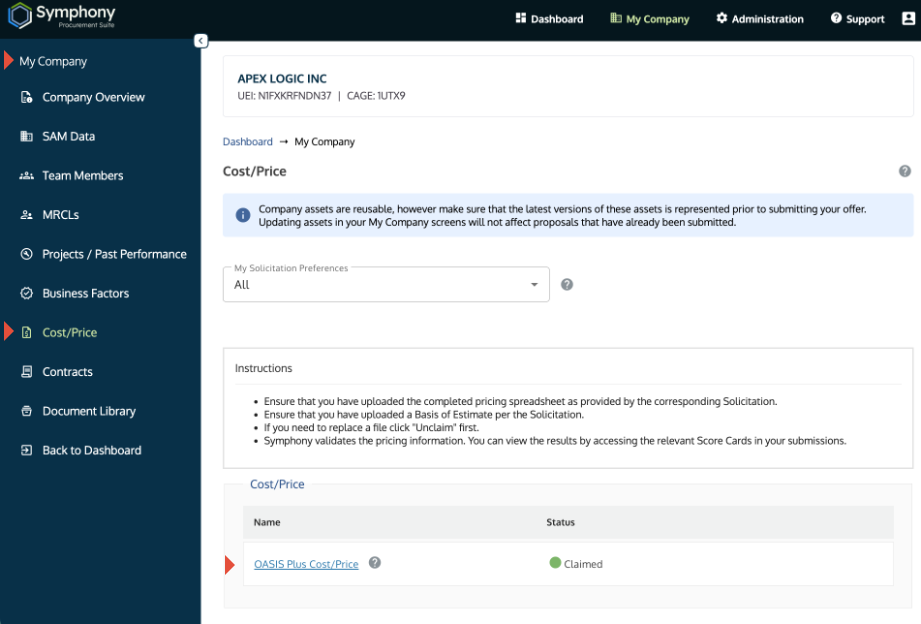
Cost/Price section showing the form upload link.
4. Review and Certify
Use the system validation tools to check for errors before the final click. Reference OASIS+ QRG: Errors & Warnings.
- Check Live Score: Open the Scorecard tab to see your current Live Score.
- Resolve Alerts: Review all validation messages to ensure your bid is compliant. Symphony’s validation engine monitors your bid’s health, but you must take action within the proposal to refresh the alerts.
- Add/Update Assets: Alerts and Live Scores may only refresh when you add or update an asset inside the proposal submission.
- Refresh Action: If you fix a company-level business factor, you must navigate back into a project or element within the proposal and click Save and Continue to trigger the system to re-scan your compliance.
- Add/Update Assets: Alerts and Live Scores may only refresh when you add or update an asset inside the proposal submission.
- Understand the One-Time Submission: Symphony captures all data for a solicitation at a single point in time. It does not support staggered or partial domain submissions.
- The System Capture Rule: When you click Submit Proposal, the system captures every domain currently marked as “Ready” or “In Progress” for that solicitation. You cannot select individual domains to submit while leaving others out.
- Open Solicitation Process: Because the OASIS+ solicitation is Continuous Open, the portal remains accessible for future submissions.
- Post-Submission Actions: Once your current submission is processed by the government, you may submit additional domains or provide corrected proposals in subsequent submission windows. Contact the Help Desk to have updates enabled.
- The System Capture Rule: When you click Submit Proposal, the system captures every domain currently marked as “Ready” or “In Progress” for that solicitation. You cannot select individual domains to submit while leaving others out.
Important: Clicking 'Submit' is the final action and will send one proposal for multiple domains. Symphony does not send an email confirmation. Your confirmation is the 'Submitted' status and timestamp appearing on your Dashboard. Use the Submitted (view) link for the Domain to print/save a copy of the proposal.5. Modifying Your Proposal
Administrators and OMPMs can manage a submitted bid prior to award:
- Modify Proposal: Reverts your submitted proposal to a draft state for edits. Available prior to evaluation.
Important: To make changes to a rejected proposal or add a domain to a Continuous Open award, submit a ticket to the Help Desk for assistance.
Troubleshooting
| Issue | Fix |
| Live Score is lower than expected. | Crosswalk Audit: Check the J.P-1 and the Master Crosswalk. Ensure you haven't claimed a factor (like a certain certification) that is ineligible for the specific domain you are in. |
| I fixed an error but the alert is still there. | You must trigger a refresh. Navigate to any element inside the proposal and click Save and Continue to force a validation update. |
| Pricing file shows a validation error. | Template Integrity: Ensure the file is a .xlsx and that you did not remove any template rows. |
| Warning: Price exceeds maximum. | This is an advisory only. |
| Cannot assign proposal Points of Contact. | Verify the person is an active, registered user in Symphony. |
| Missing mandatory forms. | Check Location: Upload the SF-33 or SF-30 to the Submission Documents tab on the Solicitation Details/Domain Overview Dashboard. |
| I can't submit. | Role Check: Verify you have Admin or OMPM permissions. Standard users can build a proposal but cannot submit it. Pro-Tip: Check for Red Alerts in the Scorecard before submission. See OASIS+ Quick Reference Guide: Errors & Warnings. |
Related Articles / Links
- Master OASIS+ RFP to Symphony Crosswalk: Final Audit Tool. Use this to verify your Live Score before submission.
- Part 1: Set Up Your OASIS+ Assets—Managing your "My Company" foundation.
- Part 2: Score and Verify Your Projects—Project creation and J.P-3 requirements.
- OASIS+ Post-Award and Contract Management—Guide to post-submission rules
- Submit Documents and Understand Security—Guide to file type constraints
Was this article helpful?
That’s Great!
Thank you for your feedback
Sorry! We couldn't be helpful
Thank you for your feedback
Feedback sent
We appreciate your effort and will try to fix the article