Purpose: This guide helps you map projects to OASIS+ scoring criteria. You will learn to link assets and complete project verification.
The OASIS+ Submission Series. Follow these steps in order to submit a compliant proposal:
- Part 1: Set Up Your OASIS+ Assets
- Part 2: Score and Verify Your Projects (Current)
- Part 3: Finalize and Submit Your Proposal
Table of Contents
Before You Start
Build your project templates in My Company before adding them to a proposal.
- Mapping Tool: Keep the Master OASIS+ RFP to Symphony Crosswalk open while scoring. It provides a field-by-field map that shows exactly which RFP section (like L.5.2.2) corresponds to the "Technical Performance" questions in Symphony.
- Verification: Confirm your client contact can sign the J.P-3 form.
- Limits: You are limited to five Qualifying Projects (QPs) in most Domain submissions.
- Visibility: On the Main Dashboard, Symphony may default to your Favorites view. If a solicitation is missing or displaying incorrect data, click the Show All button to display every available OASIS+ RFP.
Steps
1. Define Project Eligibility
Use the My Company template to ensure projects meet scale and relevance standards. Ensure your project was active in the last 5 years.
- Create Project: In My Company, define your project's Contract Type.
- Verify Relevance: Use NAICS and PSC codes to determine relevance to your Domain.
- Verify Value: Enter the Period of Performance (POP) and Total Contract Value (TCV).
- Enter Management Data: Quantify subcontractors in the Teaming question to claim Management & Staffing points.
- Review Project AAV: Ensure the Average Annual Value (AAV) meets the Domain Matrix threshold.
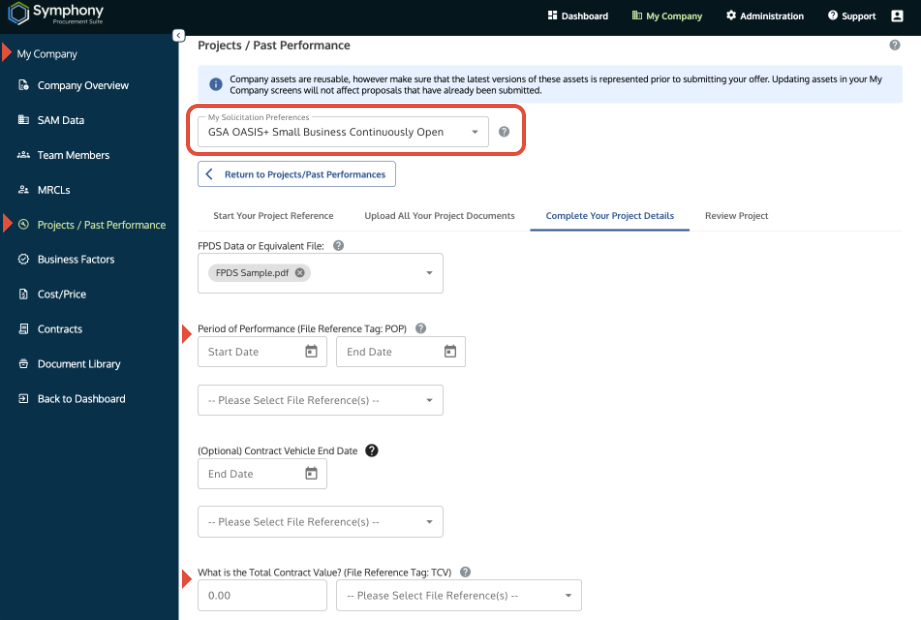
Project Details screen showing an OASIS+ Solicitation Preference and input fields for TCV and Period of Performance (POP).
Critical: Solicitation Preference: In My Company, you must select ANY OASIS+ Continuous Open solicitation from the preference dropdown. Because the data fields are standardized, your choice will work across all 6 Continuous Open RFPs.
- The Issue: If you see "adjectival" ratings (like Positive or Neutral) instead of numeric ratings, you are seeing the Alliant 3 rules.
- The Fix: Setting the preference to OASIS+ "activates" the numeric rating system and specific data fields required for this RFP.
2. Claim Points
Go to your Domain Submission and use the left menu to access the Projects section to claim core point factors.
- Access Proposal: Navigate to your specific Domain Submission within a desired Solicitation.
- Click Start Domain Submission and navigate to the Projects section using the left menu.
- Add Project: Select your project from My Company and add it to the proposal.
- Claim QP/FEP: Click Begin next to the Project title. On the Performance Factor screen, formally claim the project as a Qualifying Project (QP) or Federal Experience Project (FEP). Claim additional factors as needed.
- Accuracy Check: Refer to the J.P-1 and the Crosswalk to confirm your project’s NAICS, Value, and Complexity meet the requirements for the specific Domain you are pursuing.
- Scoring Requirement: The "Location in File" field is the technical link between the claim and the file.
- Accuracy Check: Refer to the J.P-1 and the Crosswalk to confirm your project’s NAICS, Value, and Complexity meet the requirements for the specific Domain you are pursuing.
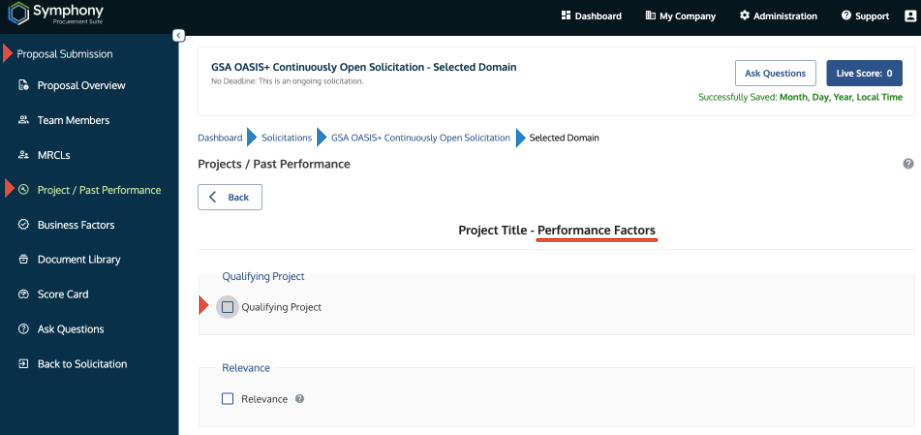
The Performance Factors screen showing the Qualifying Project (QP) checkbox highlighted.
3. Generate Verification Form
Obtain the required client signature for your project. The J.P-3 Verification Form can be generated at any time once the project is linked to the submission.
- Access Project View: Click the Project Title link within your domain submission.
- Generate Form: Click Generate Project Verification Form to create the J.P-3 document.
- Obtain Signature: Send the system-generated J.P-3 form to your client contact.
- Re-upload: Upload the signed J.P-3 to My Company → Projects/Past Performance before you submit.
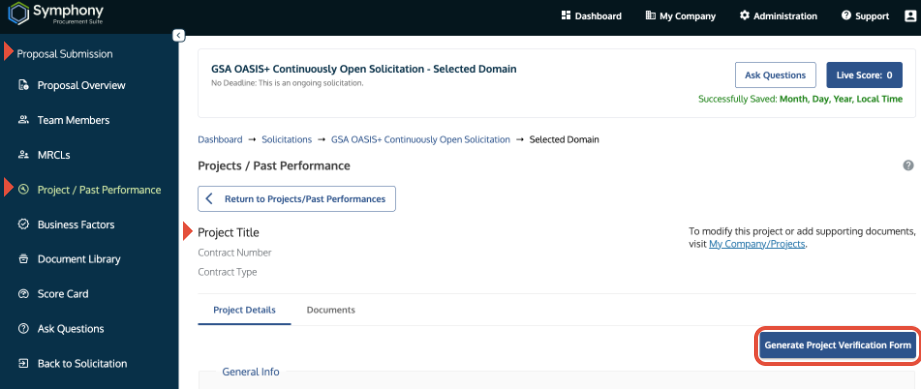
Project Detail view with the Generate Project Verification Form button highlighted.
4. Tag Documents for Proof
Use document tags to provide evidence for every point you claim.
- Tag Documents: Prior to uploading, add keyword reference tags to your supporting PDF files.
- Claim Credit: Enter the exact tag keyword into the Location in the File field.
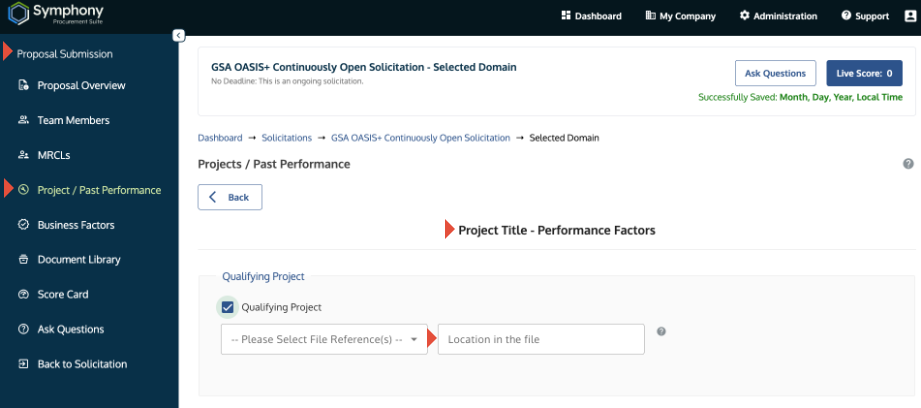
The Performance Factors section showing the Location in the File input field.
Troubleshooting
| Issue | Fix |
| Seeing adjectival ratings (Alliant 3 style) or missing past performance points. | Set Preference: Go to My Company → Projects, and set the Solicitation Preference to any OASIS+ solicitation. This will unlock numeric ratings. |
| Project is not counting toward your score. | Check for scorecard messages relating to project eligibility. Verify the Performance Factor claims. |
| Project value error message. | Verify that the Average Annual Value, not the Total Contract Value, meets solicitation and domain minimum. |
| Scale points exceed the maximum. | This message is only advisory and no action is needed; the system will cap the points automatically to match the J.P-1. |
| Small Business Subcontracting Plan message appears. | For Small Business offerors, ignore this message. It is there only for OTSB (Other Than Small Business) organizations and does not apply to Small Business applicants. |
| You cannot use a CPARS report. | Review RFP section L.5.6.2 for requirements when CPARS is not available. |
| The system displays an invalid score error. | Review the J.P-1 Matrix and scorecard error messages; you may have claimed too many of a project type. |
Related Articles / Links
- Master OASIS+ RFP to Symphony Crosswalk: Start here. This is the primary map for matching your project evidence to Symphony scoring fields.
- Part 1: Set Up Your OASIS+ Assets—Guide to eligibility and configuring assets.
- Manage Your Company's Projects and Tagging—Detailed guide to the document tagging process.
- Part 3: Finalize and Submit Your Proposal—Guide to finalizing and submitting your offer.
Was this article helpful?
That’s Great!
Thank you for your feedback
Sorry! We couldn't be helpful
Thank you for your feedback
Feedback sent
We appreciate your effort and will try to fix the article