Purpose: Use this table to map requirements from RFP Sections L & M and the J.P-1 Matrix to the exact fields in Symphony.
The OASIS+ Submission Series.
- Part 1: Set Up Your OASIS+ Assets
- Part 2: Score and Verify Your Projects
- Part 3: Finalize and Submit Your Proposal
Table of Contents
1. Administrative & Mandatory Requirements
2. Qualifying Projects (QP) Scoring Factors
3. Federal Prime Experience (FEP) Scoring
4. Systems, Certifications, and Clearances
Part 1. Score Optimization
- Solicitation Preference: Pick any OASIS+ Continuous Open solicitation. These six options share the same rules, so any choice will work for your company library. Your selection does not limit you to proposing only under that OASIS+ solicitation.
- Location in File: For EVERY point claimed in the Performance Factors section, you must enter the exact keyword tag or page reference in the Location in File field or evaluators may not count the points.
- Non-Blocking Logic: While Symphony tracks the minimum threshold, it does not hard-block a submission that is below the threshold. The responsibility for verifying point eligibility against the RFP rests with the user and the human evaluators.
- Automatic Relevance: Check your project against Attachment J.P-4; if your NAICS/PSC matches, relevance points are validated automatically in the portal.
1. Administrative & Mandatory Requirements
These factors do not always carry points but are mandatory for a compliant proposal.
Table 1. Overall Requirements
| RFP Section | Requirement | Symphony Location | Logic / Key Action |
| SF-33 | Solicitation Offer | Solicitation Details → Submission Documents | Upload signed SF33/30 and Continuation Pages for each solicitation. |
| L.3.4 | Amendment 0008 | N/A | No Business Factor exists; the entire submission is a response to this amendment. |
| Amendment 0009 Acknowledgment | My Company → Business Factors (Under the specific RFP) | A signed copy of the SF-30 form corresponding to that exact RFP pool. Deadline: July 15, 2026 for pre-existing offerors. | |
| Points of Contact | CM, PM, and AN Roles | Solicitation Details → Domain Overview | Assign registered users for each targeted solicitation. |
| L.5.1.3 | Teaming Agreement (CTA/LOC) | My Company → Team Members → Documents | Upload CTA or LOC for each partner to support the arrangement. |
| L.5.1.4 | Meaningful Relationship Commitment Letters | My Company → MRCLs → Documents | Upload supporting documents and a statement of commitment for each entity. |
| L.5.1.5 | Representations & Certs | My Company → Business Factors → and Team Members → Business Factors | Mandatory: Claim "OASIS+ Representations and Certifications and Company Size" for Prime AND every team member in the Certifications section. |
| L.5.2.2.1 | C-SCRM Plan (J-3) | My Company → Business Factors → Clearances | Claim Cybersecurity and Supply Chain Risk Management (C-SCRM) and upload your plan. Required for ALL offerors. |
| L.5.7 | Cost/Price | My Company → Cost/Price | This must be claimed to pass the responsibility review. It is not required for contractors seeking a Domain Modification (H.11.3). |
| L.5.8.1 | Professional Employee Compensation Plan | My Company → Business Factors → Human Resources | This must be claimed in My Company → Business Factors to pass the responsibility review. |
| L.5.8.2 | Uncompensated Overtime Policy | My Company → Business Factors → Human Resources | This is a required technical claim in Business Factors. |
| L.5.8.3 | Financial Resources | My Company → Business Factors → Financial Documents | Mandatory PDF upload in Business Factors to avoid a "Red Alert" or administrative rejection. |
| L.5.8.5 (UNR) | Subcontracting Plan | My Company → Business Factors → Subcontracting | Subcontracting Plans are required for OTSBs ONLY. |
| L.5.9 | Response to Debrief | Solicitation Details → Submission Documents | Relates to Rejection of Previous Offer. |
| M.2.1 | Scored Credits | Solicitation → Live Score | Symphony calculates your score based on the J.P-1 Matrix caps (e.g., 5-credit limit for Integrated Exp.). Project scores only calculate once the Project is linked and the corresponding Performance Factor checkbox is selected inside the submission. |
2. Qualifying Projects (QP) Scoring Factors
The backbone of your score. Users can submit up to 5 QPs per domain (4 for Enterprise).
Table 2. Qualifying Project Elements
| RFP Section | J.P-1 Factor | Symphony Location | Logic / Key Action |
| L.5.2.3.1 | QP - Relevance | Projects → Performance Factors | Select Relevant + Qualifying. Claim supported by NAICS/PSC codes. |
| L.5.2.3.2 | QP - Scale | Projects → Project Details | Based on Average Annual Value (AAV) ($250K+ SB / SE and $1M+ UR) or FTEs. |
| L.5.2.3.3 | QP - Integrated Experience | Projects → Performance Factors | Claim for projects spanning multiple functional areas or 10+ Labor Categories (LCATs). |
| L.5.2.3.4 | QP - Management & Staffing | Projects → Project Details and/or Performance Factors | Claim for managing 3+ subcontractors (project level) or providing surge support / personnel with security clearances (domain level). |
| L.5.2.3.5 | QP - Specialized Functional Experience | Projects → Performance Factors when the correct Domain is selected (e.g., Intelligence, R&D, Environmental). | Check the specialized experience box that matches your Domain (e.g., Intelligence, R&D). |
| L.5.2.3.6 | QP - Multiple/ OCONUS Locations | Projects → Project Details | Quantify locations in the project details to trigger these credits. |
| L.5.6 | Past Performance Rating | Projects → OASIS+ Continuous Open Solicitation Preference → Project Details and Performance Factors | Claim for Relevant QPs with a CPARS average >3.0. |
3. Federal Prime Experience (FEP) Scoring
Additional credits for corporate-level federal contracting experience.
Table 3. Federal Experience Project Elements
| RFP Section | J.P-1 Factor | Symphony Location | Logic / Key Action |
| L.5.3.1 | FEP - Multiple Award Env. | Projects → Performance Factors | Select Federal + Competitive for task orders issued under MA-IDIQ, MA-BOA, MAS or MA-BPA contracts. |
| L.5.3.2 | FEP - Federal Agencies | Projects → Performance Factors | Select Federal. Points update automatically as you add projects from 3+ distinct federal agencies. |
| L.5.3.3 | FEP - Cost Reimbursement | Projects → Project Details AND Performance Factors | Claim in the project details and select Federal for points for experience on Cost-Plus or CR type contracts. |
| L.5.2.3.5 | Advanced R&D | Projects → Performance Factors | Select Federal + Advanced R&D type for your contract. |
| L.5.6 | Small Business Utilization | Projects → Project Details AND Performance Factors | Past Performance points for Unrestricted offerors. Claim SB Utilization credit for meeting SB subcontracting goals on federal prime contracts. This credit is only valid for Federal Prime contracts (FEPs) and cannot be claimed on commercial projects or subcontracts. |
4. Systems, Certifications, and Clearances
Business Factor points claimed at the company level.
Table 4. Business Factors for additional scores.
| RFP Section | J.P-1 Factor | Symphony Location | Logic / Key Action |
| L.5.4.1 | Accounting System | My Company → Business Factors → Systems | The Adequate Accounting System must be DCAA/DCMA approved for Cost-Reimbursement eligibility. |
| L.5.4.2 | Forward Pricing Rate Agreements | My Company → Business Factors → Systems | Unrestricted factor for Approved Rates (Forward Pricing/Billing Rates). |
| L.5.4.3 | Purchasing System | My Company → Business Factors → Systems | Claim credits for a Government-approved Purchasing system. |
| L.5.4.4 | Estimating System | My Company → Business Factors → Systems | Claim credits for a Government-approved Estimating system. |
| L.5.4.5 | EVMS | My Company → Business Factors → Systems | Unrestricted factor for an acceptable Earned Value Management System. |
| L.5.4.6 | MMAS | My Company → Business Factors → Systems | Unrestricted factor for Material Management and Accounting Systems. |
| L.5.4.7 | Property Management System | My Company → Business Factors → Systems | Unrestricted factor for Government Property Management System credit. |
| L.5.4.8 | Facility Clearance (FCL) | My Company → Business Factors → Clearances | Points for Secret or Top Secret clearances verified in NISS. |
| L.5.5.1 | CMMI (Level 2+) | My Company → Business Factors → Certifications | Points for Maturity Level 2 or 3 in Services or Development. |
| L.5.5.2 | ISO 27001 | My Company → Business Factors → Certifications | Points for ISO/IEC 27001:2022 certified Information Security Management. |
| L.5.5.3 | ISO 9001 | My Company → Business Factors → Certifications | Points for ISO 9001:2015 certified Quality Management systems. |
| L.5.5.4 | ISO 22301 | My Company → Business Factors → Certifications | Points for certified Business Continuity systems. |
| L.5.5.5 | ISO 21508 | My Company → Business Factors → Certifications | Points for certified Earned Value Management systems. |
| L.5.5.6 | ISO 28001 | My Company → Business Factors → Certifications | Points for ISO 28001:2007 certified Supply Chain Management systems. |
| L.5.5.8 | FedRAMP/Agency ATO | My Company → Business Factors → Systems | Unrestricted claim for FedRAMP/ Agency Authorization to Operate (ATO). |
| L.5.5.9 | CARF Accreditation | My Company → Business Factors → Certifications | Points for being certified by the Commission on Accreditation of Rehabilitation Facilities (CARF Accreditation). |
| L.5.5.10 | Council on Accreditation (COA) | My Company → Business Factors → Certifications | Points for being certified by the Council on Accreditation (COA). |
| L.5.5.11 | ISO 30401 | My Company → Business Factors → Certifications | Points for a certified Knowledge Management System. |
| L.5.5.12 | ISO 30414 | My Company → Business Factors → Certifications | Points for an ISO 30414:2025 certified Human Resource Management system. |
| L.5.5.13 | CMMC | My Company → Business Factors → Certifications | Cybersecurity Maturity Model Certification. Points for C3PAO Level 2 or DIBCAC Level 3 certified. |
Important: OASIS+ Continuous Open no longer uses any Business Factors from the Other Documents section.
Note: For Team Member's Business Factors and Documents, you must also formally add the team member to the Teaming section inside the specific domain proposal for their assets to count toward the score and offer.Part 2. Key Reminders
1. Review Messages
Symphony’s validation engine uses colors to catch your attention, but it does not hard-block your submission. See OASIS+ Quick Reference Guide: Errors & Warnings.
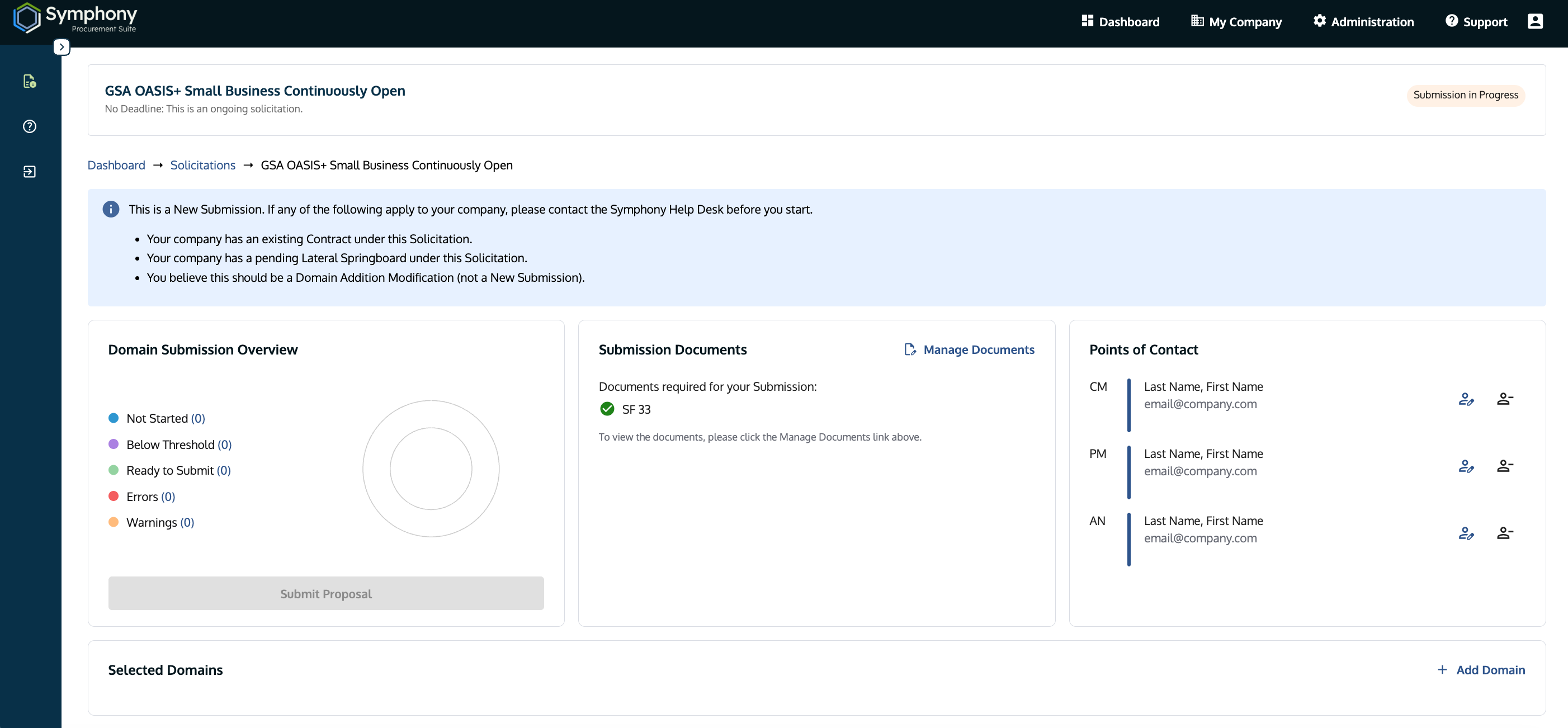
Solicitation Details with messaging for new offerors.

Domain Enhancement messaging for OASIS+ Contract Holders.
Domain Submission Overview Legend
| Term | Definition |
| Not Started | Number of domains added. Symphony displays the Start Submission button. |
| Below Threshold | Number of domains with no errors or warnings below the qualifying threshold. |
| Ready to Submit | Number of domains with no errors or warnings that meet the threshold. |
| Errors | Number of domains with red alerts. These do not prevent submission. |
| Warnings | Number of domains with yellow alerts. These are for information only. |
- Red Alerts & Orange Warnings: Both are advisory.
- Logic: Symphony does not block submission because the RFP requirements (managed by human evaluators) supersede portal validations. The government will validate all claims and alerts.
- Beware: While the portal won't stop you from clicking "Submit" with a Red Alert active, doing so may lead to immediate disqualification if a mandatory requirement is truly missing.
Note: Fixing a factor in "My Company" may not automatically update the Score Card; you must perform a "Save and Continue" action within the submission to trigger a re-scan.
2. Submit Your Proposal
- Permissions: The Submit Proposal button is only visible to users with Administrator or Open Market Proposal Manager (OMPM) roles.
- Acknowledge & Sign: Certify your information is accurate and click Submit Proposal.
- Confirmation: Symphony does not send emails. Your dashboard status will change to Submitted with a timestamp.
- Modifying Submissions:
- Pre-Evaluation: Use Modify Proposal to return your bid to draft status for edits. Available before evaluation starts.
- Post-Evaluation / Rejected Proposals / New Domains: Contact the Help Desk for assistance.
Troubleshooting
| Issue | Logic / Fix |
| I fixed an asset but the alert is still red. | Alerts refresh when an action occurs inside the proposal. After fixing a business factor in "My Company," navigate into a project in your bid and click Save and Continue to trigger a re-scan. |
| I have multiple set-asides (e.g., 8(a), WOSB). | Symphony allows you to submit a single proposal for multiple domains under one solicitation, but ensure you follow the J.P-1 rules for each specific pool you target. |
| "Submit Proposal" button is missing. | Role Check: Verify you have Admin or OMPM permissions; standard users cannot submit. |
| I want to submit more domains later. | Open Solicitation Rules: You can only submit once per session. However, because this is an Open Solicitation, you can add more domains or resubmit corrected proposals in future windows after your current submission is processed. |
| No email confirmation received. | Dashboard Verification: Symphony does not send email confirmations. Your proof is the "Submitted" status and timestamp on your Dashboard |
Related Articles / Links
- GSA OASIS+ Official Website
- Part 1: Set Up Your OASIS+ Assets—Guide to configuring your My Company assets
- Part 2: Score and Verify Your Projects—Guide to project creation and verification forms
- Submit Documents and Understand Security—Guide to file type constraints
Was this article helpful?
That’s Great!
Thank you for your feedback
Sorry! We couldn't be helpful
Thank you for your feedback
Feedback sent
We appreciate your effort and will try to fix the article