Purpose: This guide is the first in a three-part series designed to ensure proposal compliance. It helps you set up your company profile and teaming strategy.
Note: Use the correct filters and upload locations to ensure your data is visible to evaluators.
The OASIS+ Submission Series must be followed in order to ensure your proposal is compliant:
- Part 1: Set Up Your OASIS+ Assets (Current)
- Part 2: Score and Verify Your Projects
- Part 3: Finalize and Submit Your Proposal
3. Set Your Solicitation Preference ⚠️
Before You Start
- Active SAM.gov Record: Your System for Award Management (SAM) registration for your company and all partners must be current. Have the correct UEI and CAGE code ready.
- Portal Access: At least one account with admin rights for the OASIS+ Submission Portal (OSP) is required.
- Manual Data Sync: Symphony does not automatically refresh data from SAM.gov. You must request a manual refresh through the Help Desk if your information changes.
Steps
1. Confirm Your Domain
Identify your set-aside (SB/SE or UR) and select your Domain. Review the Domain Qualification Matrix (J.P-1) to ensure you meet the minimum point thresholds.
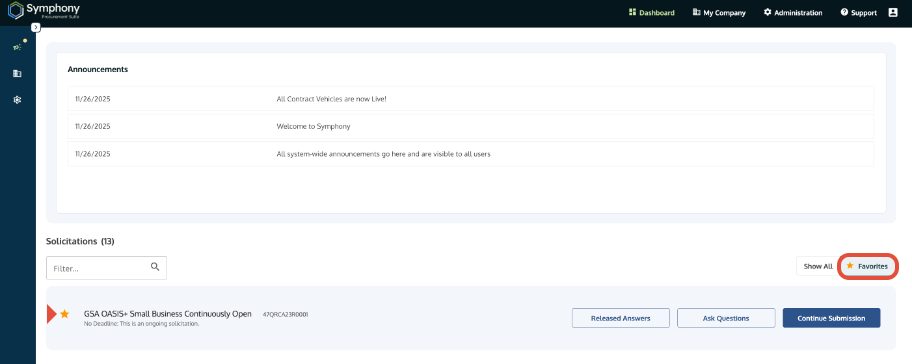 Symphony Dashboard highlighting the OASIS+ Favorites button for saved solicitations.
Pro-Tip: Show All Solicitations—If you cannot see the solicitation you need, click the Show All button on the Main Dashboard to display every available OASIS+ RFP. The Star icon allows you to mark the solicitation(s) as "favorite". Favorites allow you to save the solicitation(s) to a filtered dashboard view for quick access.
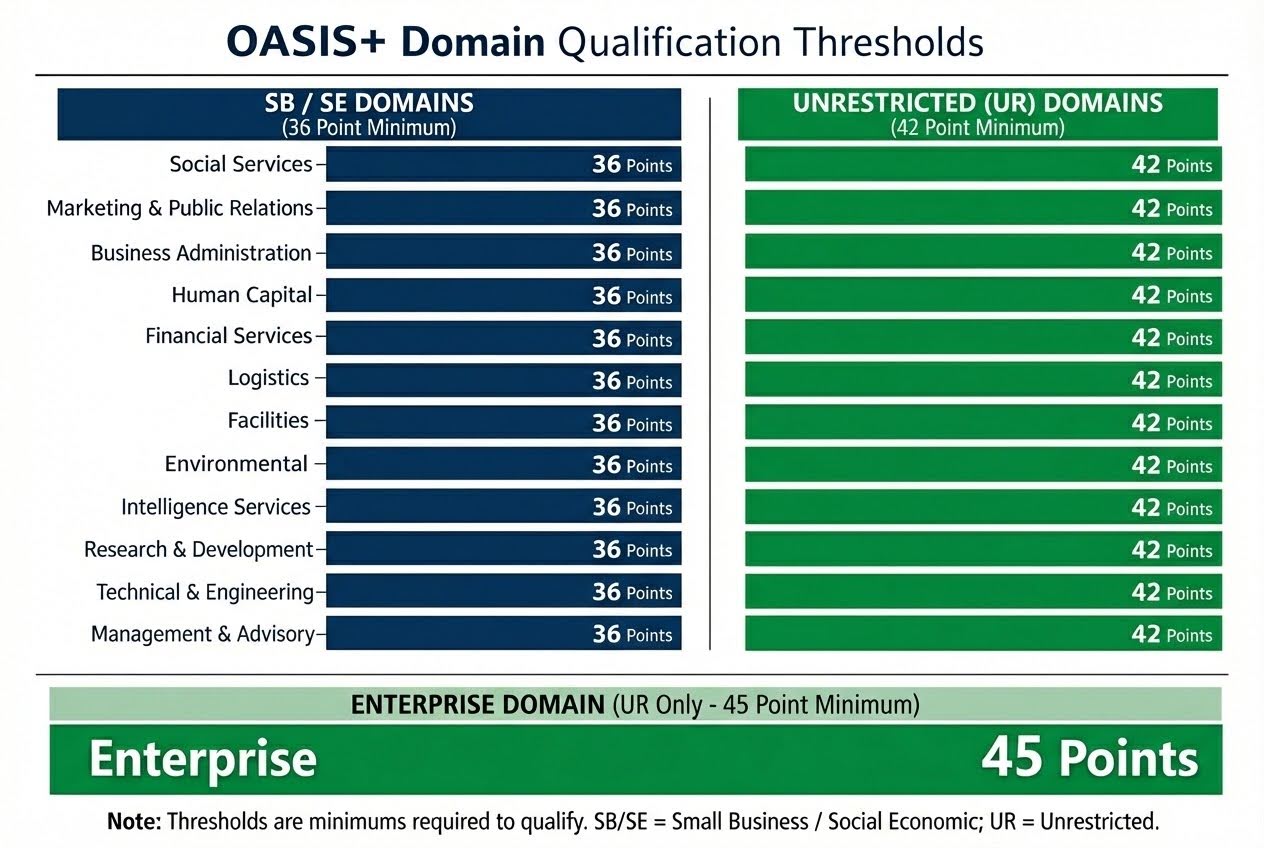
Chart highlighting the OASIS+ Domains and the two set-aside categories (SB/SE and UR).
2. Link Symphony to SAM.gov
Sync your profile by entering your UEI during registration. Verify your Legal Business Name, Address, and Socioeconomic Status in the My Company → SAM Data section. Reference: Understand Your SAM and Symphony Access.
3. Set Your Solicitation Preference ⚠️
Before adding data, you must tell the system which RFP rules to follow.
- Action: In the My Company section, find the Solicitation Preference dropdown.
- Selection: Pick any OASIS+ Continuous Open solicitation. These six options share the same rules, so any choice will work for your company library. Your selection does not limit you to proposing only under that OASIS+ solicitation.
- Why it matters: This filter activates the OASIS Plus-specific data fields. Without this, you may be looking at generic fields that do not match the Qualifications Matrix.
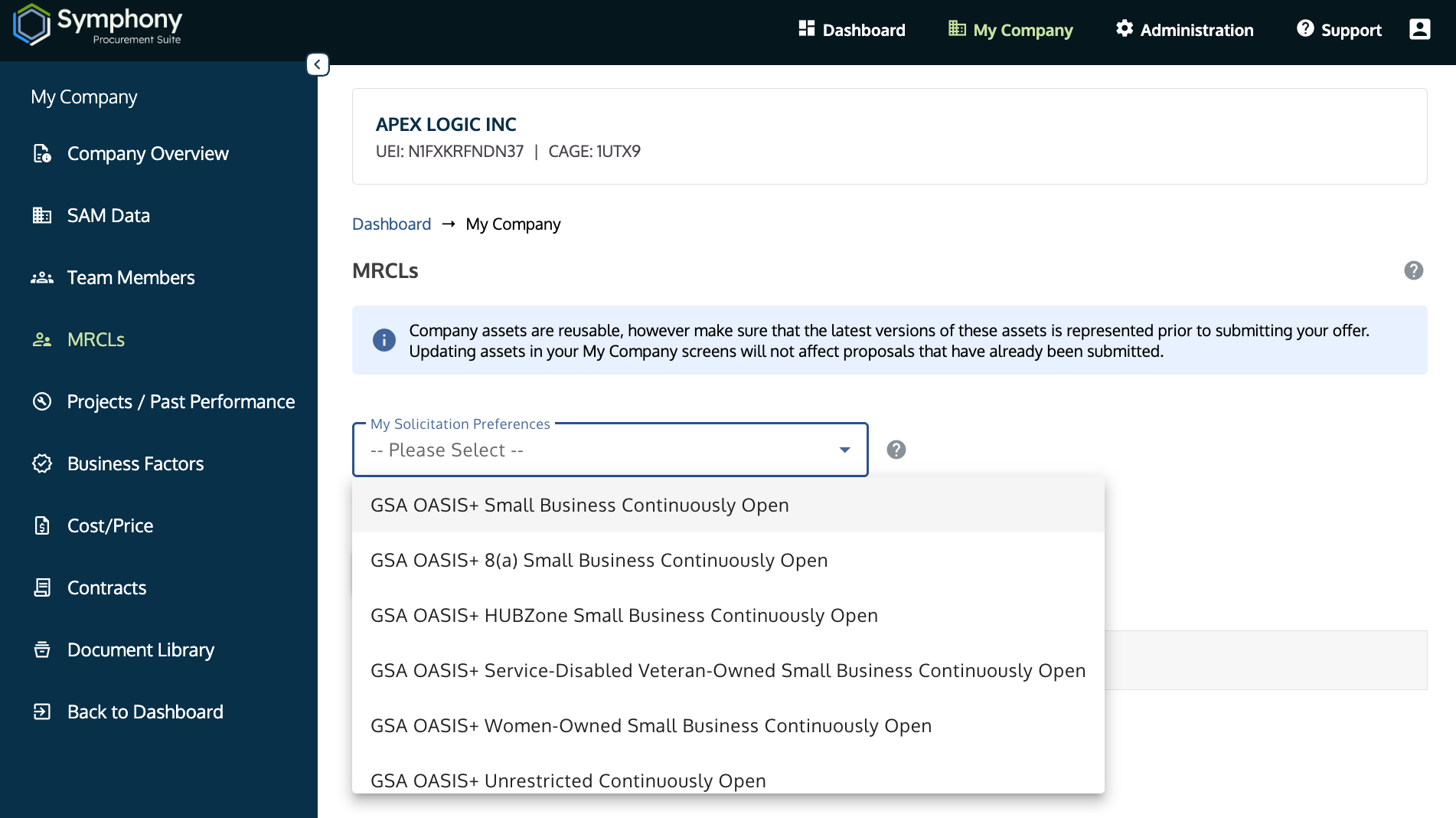
Meaningful Relationship Commitment Letters (MRCLs) in the My Company component showing all the OASIS+ Continuous Open Solicitations in the Preference dropdown menu.
4. Set Your Teaming Strategy
Adding a partner requires two steps. Reference: Manage Team Members and MRCLs.
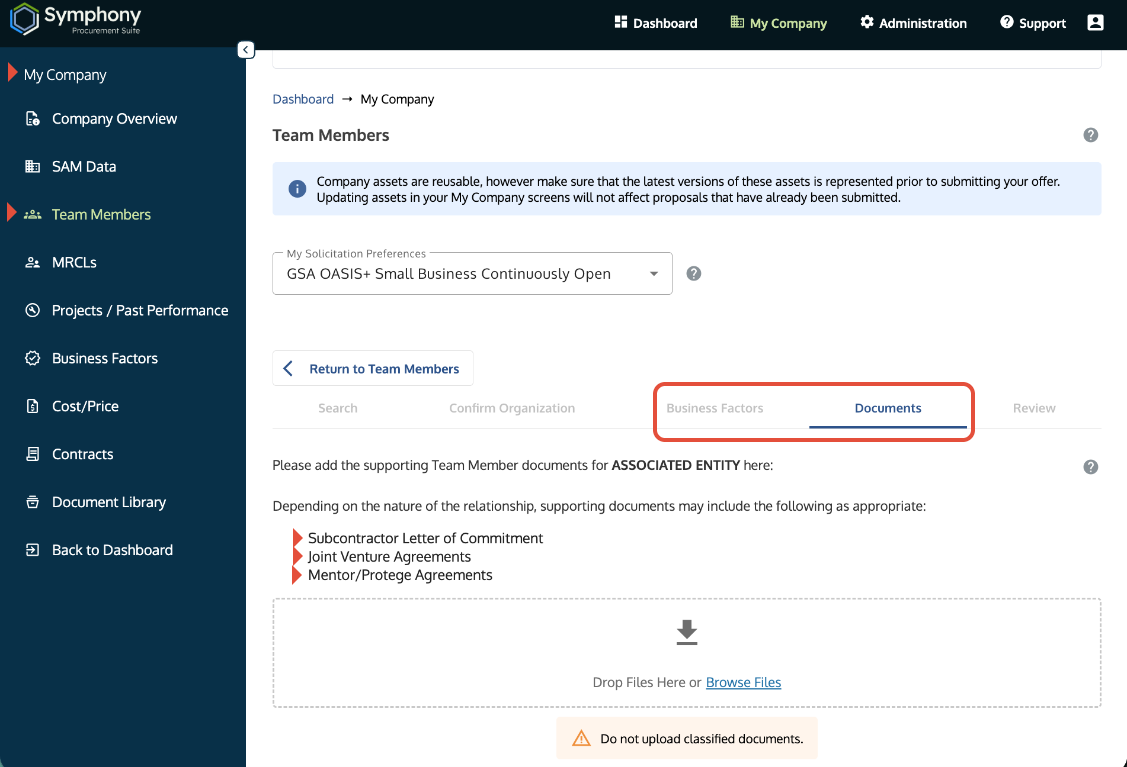 Team Member screen showing the Business Factor and Documents tabs.
| Content Type | Correct Location | Why? |
| Certifications/Systems | Business Factors tab | For claim points (CMMI, ISO, etc.). |
| Teaming Agreements | Documents tab | Letters of Commitment, JV Agreements, and CTA disclosures must go here. |
Step A (Company Level): Set up your team structure in the portal before entering project data.
- Upload Details: Provide Section K details and SAM.gov Reps/Certs for each JV member in their "OASIS+ Representations and Certifications and Company Size" Business Factor.
- Attach Disclosures: Upload CTA disclosures and Letters of Commitment for all first-tier subcontractors in the Team Members Documents tab. Note the Teaming folder name once the files are uploaded.
Step B (Proposal Level): Go to your specific Domain Submission and formally add the team member to that specific proposal. Points will not calculate until Step B is completed.
5. Claim Your Business Assets
Go to My Company → Business Factors. Upload your C-SCRM Plan (J-3), financial resources, and relevant systems/certifications. All factors claimed here carry forward to your proposal. Use "OASIS+ Representations and Certifications and Company Size" for any Continuous Open RFP. Reference: Manage Your Business Factors.
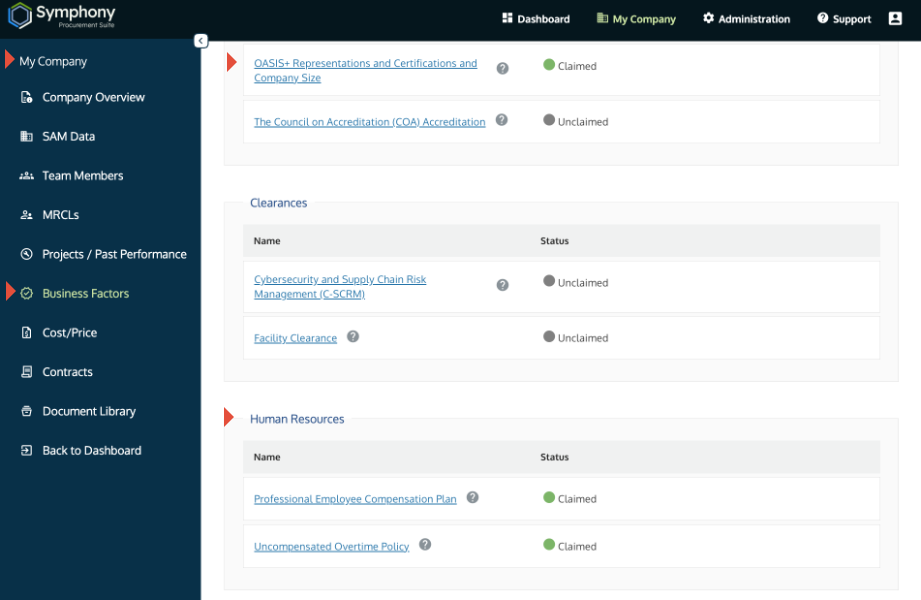 Business Factors screen showing the OASIS+ Reps & Certs and Human Resources options claimed for the Prime Offeror.
Pro-Tip: Not sure which document goes where? Check the Symphony Crosswalk for a field-by-field map of the RFP requirements.
Troubleshooting
| Issue | Fix |
| I can't see all the solicitations. | Show All: You likely have the Favorites view active. Toggle the button to Show All to reveal every available OASIS+ RFP. |
| Team member points aren't showing. | Add to Proposal: Adding a partner to your "My Company" library is only Step A. You must also formally add them to the Teaming section inside your specific domain proposal (Step B). |
| Can't find the Teaming Agreement. | Upload Location: Ensure the file is in the partner's Documents tab. If you uploaded it as a "Business Factor," it will not satisfy the teaming requirement. |
| SAM.gov data is wrong. | Manual Refresh: Symphony does not auto-sync with SAM.gov. If your status changed, you must Submit a Ticket to request a manual data refresh. |
| Document retention and management. | Original Integrity: Current contract holders can safely keep or remove the documents from My Company. The original submission will still retain the documents. |
Related Articles / Links
- Master OASIS+ RFP to Symphony Crosswalk: Use this guide to match specific RFP requirements (like J.P-1) to the correct data fields in Symphony.
- Score and Verify Your OASIS+ Projects: Part 2 of this series—how to submit projects and J.P-3 forms.
- Finalize and Submit Your OASIS+ Proposal: Part 3 of this series—how to finalize pricing and proposal contacts.
- Understanding Your SAM Connection—Guide to data pulled from SAM.gov.
- Submit Documents and Understand Security—Guide to acceptable document sizes and types.
- GSA OASIS+ Official Website
Was this article helpful?
That’s Great!
Thank you for your feedback
Sorry! We couldn't be helpful
Thank you for your feedback
Feedback sent
We appreciate your effort and will try to fix the article