Purpose: This guide walks you through every step of the proposal process, from finding the solicitation and asking questions to assembling the final bid and certifying the submission.
Table of Contents
1. Find the Solicitation and Ask Questions
2. Select Assets and Assign Proposal Contacts
3. Claim Performance Factors ⚠️
4. Upload Documents and Review the Proposal
5. Submit and Modify the Proposal
Before You Start
Make sure you know the following essential facts before you begin assembling your proposal:
- Proposal assembly reuses assets such as Projects and Business Factors stored in the My Company component.
- The system timeout is set to 15 minutes due to security requirements; save your work often.
Important: The Live Score is only an advisory and does not prevent submission if errors exist.
Steps
1. Find the Solicitation and Ask Questions
Use the Solicitations tab to monitor opportunities and ask questions before the deadline.
- Go to the Solicitations tab on your dashboard.
- Review the Question and Answer (Q&A) deadline and the solicitation deadline.
- If Q&A is available, click the solicitation link and go to the Ask Questions tab.
- Draft your questions and click Save and Add to the list.
- Submit the finalized list of questions. You cannot recall or edit questions after submission.
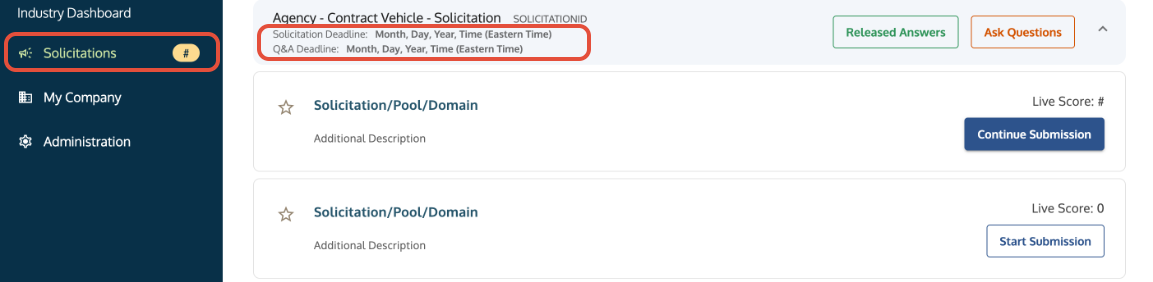
Solicitations tab showing an open RFP and highlighted deadlines for submission and Q&A.
2. Select Assets and Assign Proposal Contacts
Start the proposal, pull assets from My Company, and assign the proposal-specific contacts.
- Click the Begin Submission button to start the proposal draft.
- On the Assets tab, select the specific Projects, Team Members, and Meaningful Relationship Commitment Letters (MRCLs) you want to include. Business factors and Cost/Price are automatically added.
- On the Proposal Contacts tab, assign Proposal Contacts. These contacts will answer questions during evaluation and manage the awarded contract.
Note: These contacts must be active, registered users of your company in Symphony.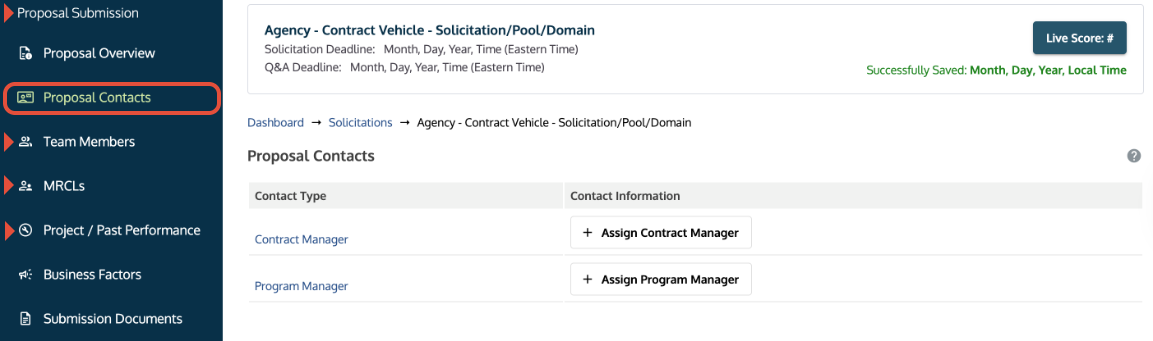
Proposal Assembly screen where users select assets and assign proposal contacts.
3. Claim Performance Factors ⚠️
You must now navigate the tabs to claim the final scoring points.
- Navigate to the Projects section (or the equivalent scoring section) within the submission.
- Claim your Performance Factors (e.g., qualifying past performance, small business status, technical scores) by entering required data or selecting the claims.
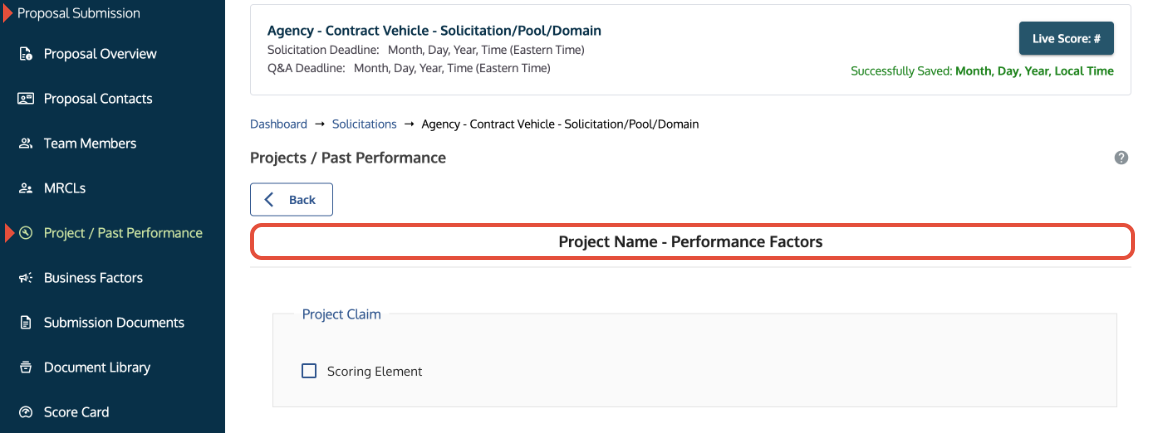
Submission screen showing the Performance Factors section where scoring claims are made.
4. Upload Documents and Review the Proposal
Finalize your documents and use the system's review tool to check for errors.
- On the Submission Documents tab, upload all necessary submission files. Files must be under 20MB in most cases.
- Go to the Review tab to see your Live Score. This summary verifies if required fields are complete.
- Review all files to confirm the correct documents were uploaded.
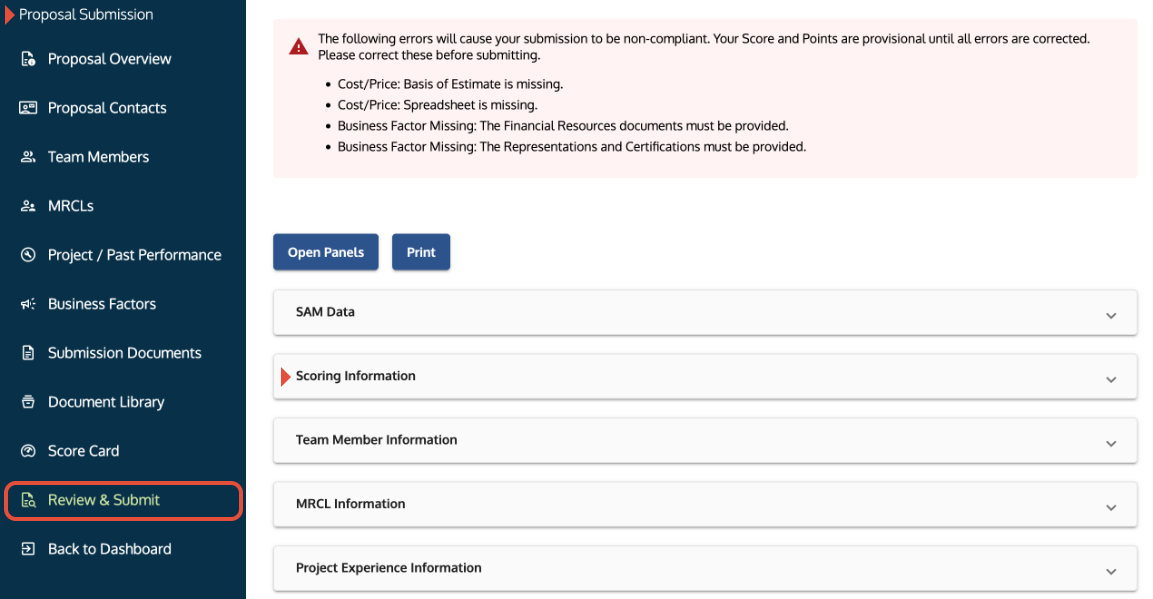
Review tab showing the Live Score summary and messages indicating missing data.
5. Submit and Modify the Proposal
Final submission requires certification. You can retract the proposal for modification only before the deadline.
- On the Review & Submit tab, Certify the submission and click Submit Proposal.
- See Understand Your Account Roles and Permissions to find out who can perform this task.
Retract for Edits:
- To make edits before the deadline, click Retract Submission on the proposal's main page.
- After retracting, make your edits, and resubmit the proposal. Only the last submission received before the deadline will be considered.
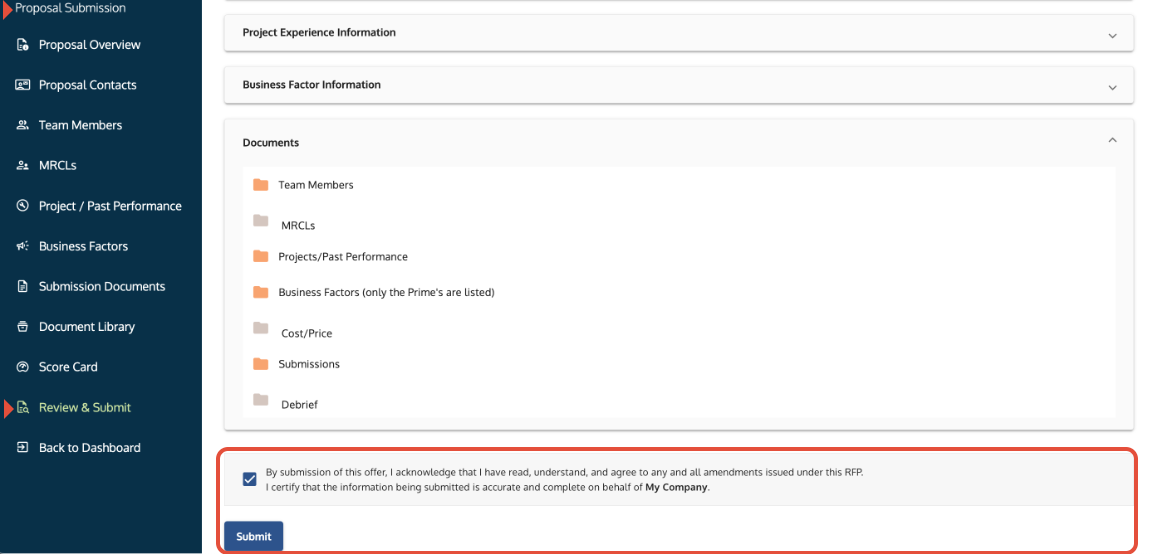
Review & Submit tab where users certify and click Submit to finalize submission.
Troubleshooting
Issue | Fix |
Submission document is incorrect or needs replacement. | You must Retract the Submission, upload the correct document, and Resubmit the proposal before the deadline. You cannot delete files from a submitted proposal. |
The Live Score shows errors but allows submission. | The Live Score is only an advisory. Error messages will not prevent submission. You must decide whether to submit despite the advisory. |
You cannot assign a Proposal Contact. | The person must be an active, registered user in Symphony. |
You started a proposal in error and need to cancel it. | You cannot cancel a draft proposal. If you do not certify and submit, the government will not receive the proposal. |
You are getting an error uploading a document. | Check that the file name is under 250 characters, the file is under 20MB, and that it is not password-protected or encrypted. |
Related Articles / Links
- Manage Your Company's Projects and Tagging—Guide to preparing your project and past performance data
- Manage Your Business Factors—Guide to claiming certifications and capabilities
- Submit Documents and Understand Security—Guide on document restrictions
- Manage Post-Submission Communications and Results—Guide for post-submission inquiries
- Understand Your Account Roles and Permissions—Guide for Administrators on how to remove an old email address
- Submit a Ticket to the Symphony Help Desk—For technical issues
Was this article helpful?
That’s Great!
Thank you for your feedback
Sorry! We couldn't be helpful
Thank you for your feedback
Feedback sent
We appreciate your effort and will try to fix the article