Purpose: This guide outlines the platform's security compliance. It also provides the mandatory technical rules for preparing and uploading all file submissions.
Table of Contents
1. Prepare Documents for Upload
2. Review Supported Security Classifications
3. Review Platform Security and Compliance
Before You Start
Understand the following technical and regulatory constraints regarding document uploads:
- Platform vs. Requirement: Symphony is a secure document delivery system. While the platform enforces technical limits (like file size and type), it cannot validate the content of your files. You are responsible for ensuring your documents meet the specific criteria outlined in the government's RFP.
- Finality of Uploads: Symphony support cannot modify, replace, or "fix" a document once it has been included in a submitted proposal. If you discover an error in your uploaded evidence after submission, you must follow the solicitation's instructions for retraction or amendment.
Make sure you know the following mandatory rules and technical limits for all file uploads:
- Tagging Prerequisite: Tag all evidence documents (PDFs) before uploading them to Symphony. Tagging must be done outside of Symphony. See the Past Performance: Adding Projects, Experience, and Performance Data guide for full instructions.
- File size threshold: Files must be under 20MB (unless specified otherwise by the solicitation). Optimize large scanned PDFs prior to upload.
- File names cannot exceed 250 characters.
- Prohibited: Classified or encrypted documents are strictly prohibited.
Note on Agency-Approved Password-Protected Files: If the requesting agency explicitly allows password protection for a document, ensure you follow the solicitation's exact submission instructions or contact Support if the automated scanner flags the file during upload.
Document Status Color Key
The file folder icons use color-coding to indicate their current status.
| Folder Color | Status | Meaning |
| Orange | Documents Present | The folder contains one or more uploaded files. |
| Gray | Empty | The folder is currently empty; no files have been uploaded. |
| White | Open/Active View | The folder is currently open or selected by the user. |
Steps
1. Prepare Documents for Upload
You must follow specific technical and formatting rules before uploading files to the system.
- Files must be uploaded in Portable Document Format (.pdf) or the specific file type requested by the solicitation.
- Important: PDF Portfolios cannot be processed by evaluators or automated system scanners. You should merge pages into a single, standard PDF using Combine Files or Insert Pages.
- Important: PDF Portfolios cannot be processed by evaluators or automated system scanners. You should merge pages into a single, standard PDF using Combine Files or Insert Pages.
- Do not combine multiple files into a "zip" folder. Files must be uploaded individually to ensure evaluators can access and review each document’s tags and metadata correctly.
- Files must be uploaded directly from your computer. Drag-and-drop from cloud storage (like SharePoint or Google Drive) is not supported.
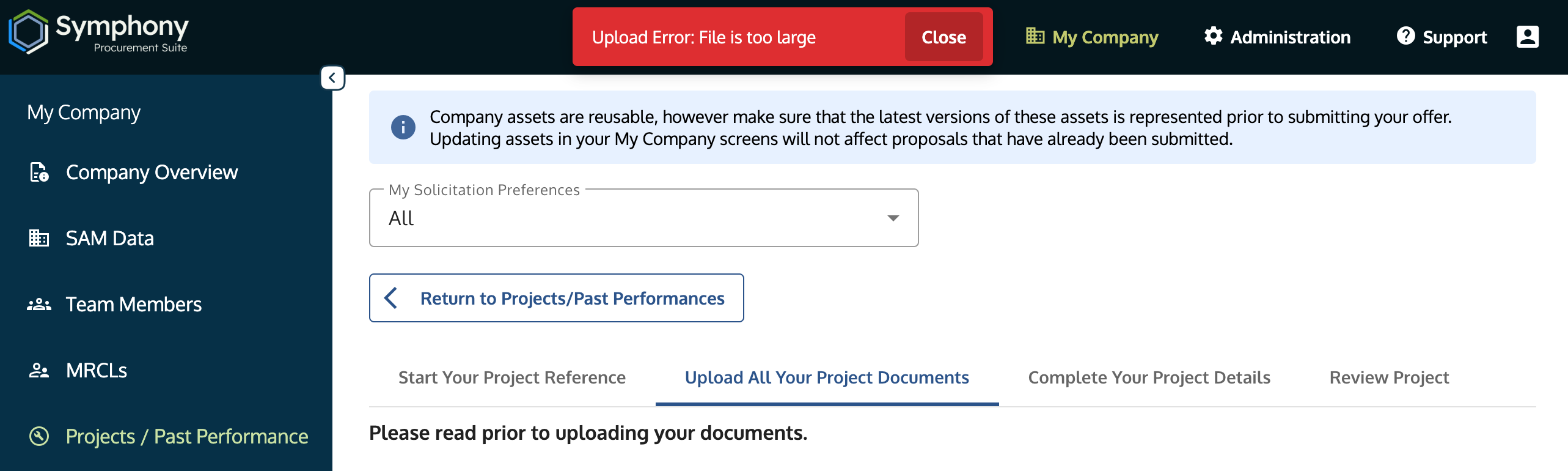
Document upload window showing a file attachment and a size limit warning.
2. Review Supported Security Classifications
The system handles sensitive government data and restricts certain file types.
- Supported Documents: You may submit documents marked as:
- CUI (Controlled Unclassified Information)
- FOUO (For Official Use Only)
- SBU (Sensitive but Unclassified)
- Prohibited Documents: Classified or encrypted documents are not permitted.
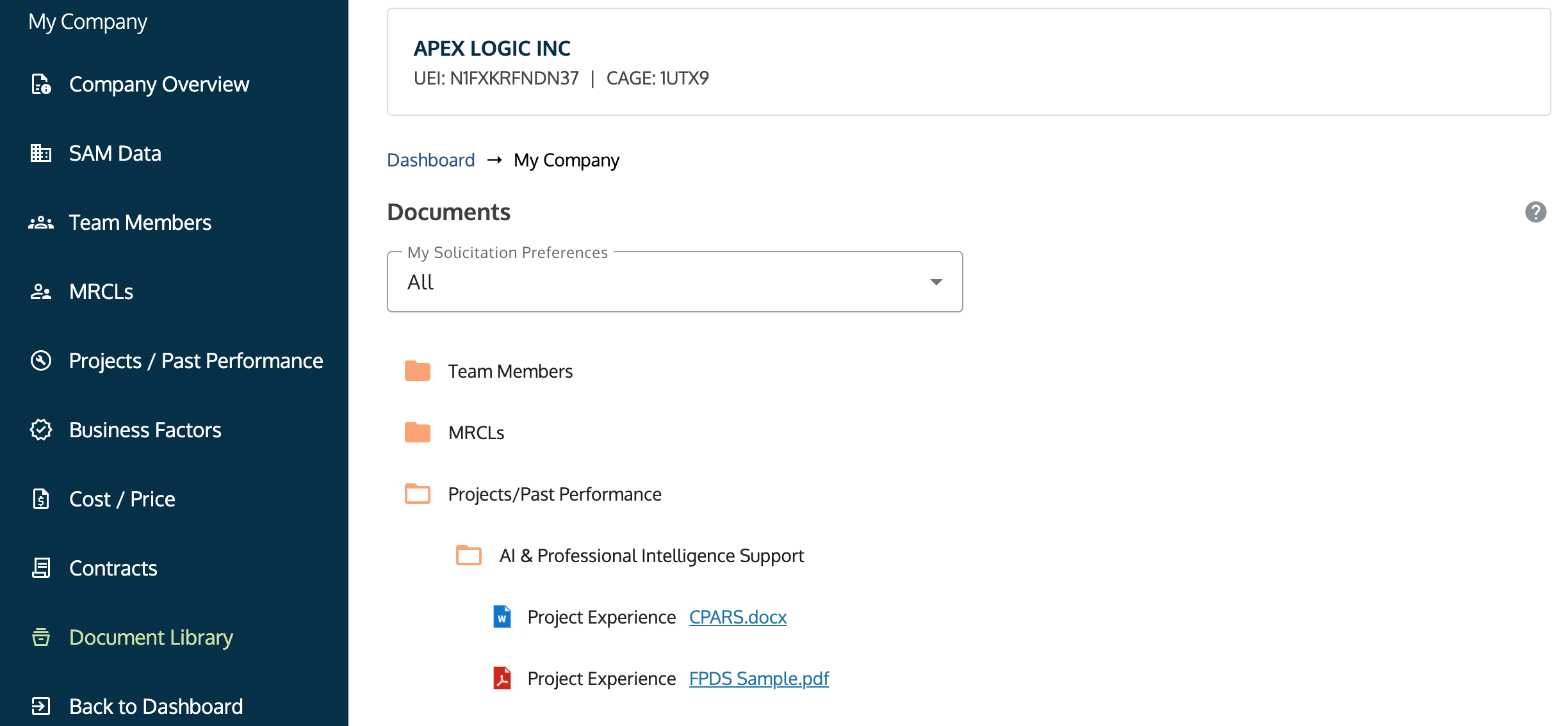
Document library view showing read-only files.
3. Review Platform Security and Compliance
Symphony follows federal security standards to protect and manage your data.
- The platform is hosted on cloud.gov with a Federal Information Security Modernization Act (FISMA) Moderate ATO (Authorization to Operate).
- All data is protected by encryption in transit and at rest.
- Every file uploaded to Symphony undergoes automated malware and virus scanning. Files flagged by the system will be blocked immediately to protect the government environment.
Compliance visualization showing the text 'FISMA Moderate ATO' and data protected by encryption on a cloud server.
Troubleshooting
Issue | Fix |
File attachment fails to upload. | Check the file size (must be under 20MB) and ensure the file name is under 250 characters. |
| Text form fields, draft boxes, or file uploads fail or throw errors after copying/pasting from Microsoft Word. | Paste the text into a plain-text editor (like Notepad on Windows or TextEdit in Plain Text mode on Mac) first. This strips out invisible formatting, smart quotes, and non-standard dashes. Then, copy from Notepad into Symphony. |
You receive an encryption error message. | You must ensure the file is not password-protected or encrypted before uploading. |
You need to upload files from a SharePoint link. | You must download the file to your computer first, and then upload it directly from your local drive. |
You need to see more detail on security protocols. | Contact the GSA National Customer Service Center for assistance. |
| Evaluation Question: "Does this document satisfy RFP Section X?" | Symphony Support cannot answer this. We provide technical assistance for the upload process, but we cannot interpret solicitation requirements or confirm if a document is "compliant" for scoring. |
| DoD/Government network user facing document upload failures. | Typically .mil or network-restricted users should check local firewall/VPN settings or attempt uploads outside strict network proxies if document transfers time out or strip data. |
Related Articles / Links
- Past Performance: Adding Projects, Experience, and Performance Data—Guide on tagging documents before upload
- GSA National Customer Service Center—For detailed security protocol inquiries
- Submit a Ticket to the Symphony Help Desk—For technical issues
Was this article helpful?
That’s Great!
Thank you for your feedback
Sorry! We couldn't be helpful
Thank you for your feedback
Feedback sent
We appreciate your effort and will try to fix the article