Manage Your Business Factors
Purpose: This guide helps you successfully add, edit, or remove Business Factors — additional assets like certifications, systems, or clearances — that you claim for your company to use in proposals.
Table of Contents
Before You Start
Make sure you know the following facts about claiming assets:
- Business Factors are extra assets you claim for the Prime entity.
- Once claimed, Symphony automatically adds them to your proposal.
- Changes made to Business Factors will not affect a proposal that has already been submitted.
Shading on Proposal Overview | Meaning |
No Shading | The factor has not been claimed. |
Full Shading | The Prime Organization is claiming the factor. |
Half Shading | A Team Member claims the factor (Only visible on the Proposal Overview). |
Steps
1. Claim a Business Factor
To add Business Factors, you must certify the claim and provide supporting documents.
- Navigate to My Company and select the Business Factors tab.
- Select the desired Business Factor (e.g. Facility Clearance).
- Complete any required questions and Upload supporting documentation.
- Check the box to certify the claim.
- Click Save and Claim.
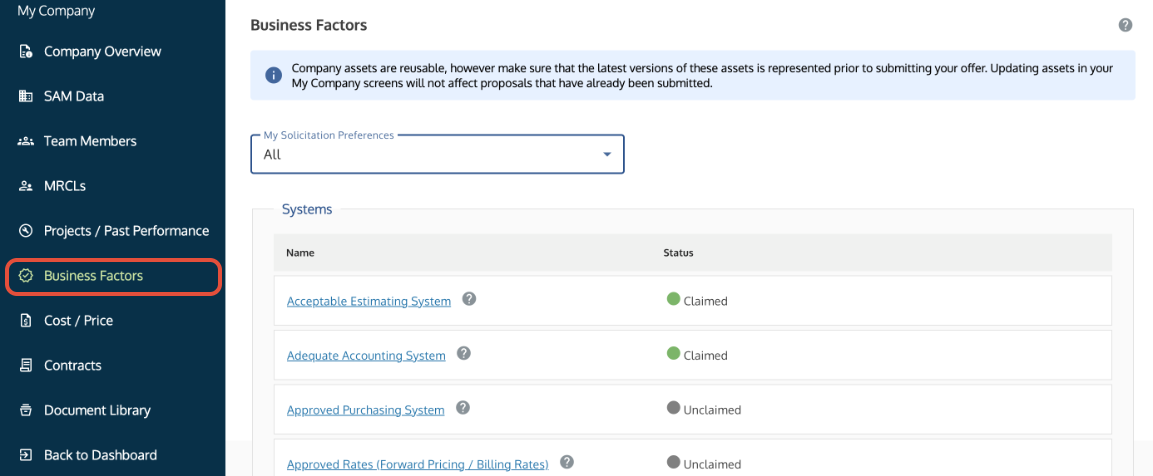 Business Factors tab where users select assets and click Save and Claim.
2. Edit a Business Factor
To make changes to a claimed Business Factor, you must first unlock the claim.
- Navigate to the Business Factors tab.
- Select the Unclaim button to unlock the Business Factor.
- Make the necessary edits (adding new documents or changing responses).
- Re-certify the claim and save the changes.
Note: If you use the Close button instead of saving and certifying, the documents will be saved, but the Business Factor will remain unclaimed.
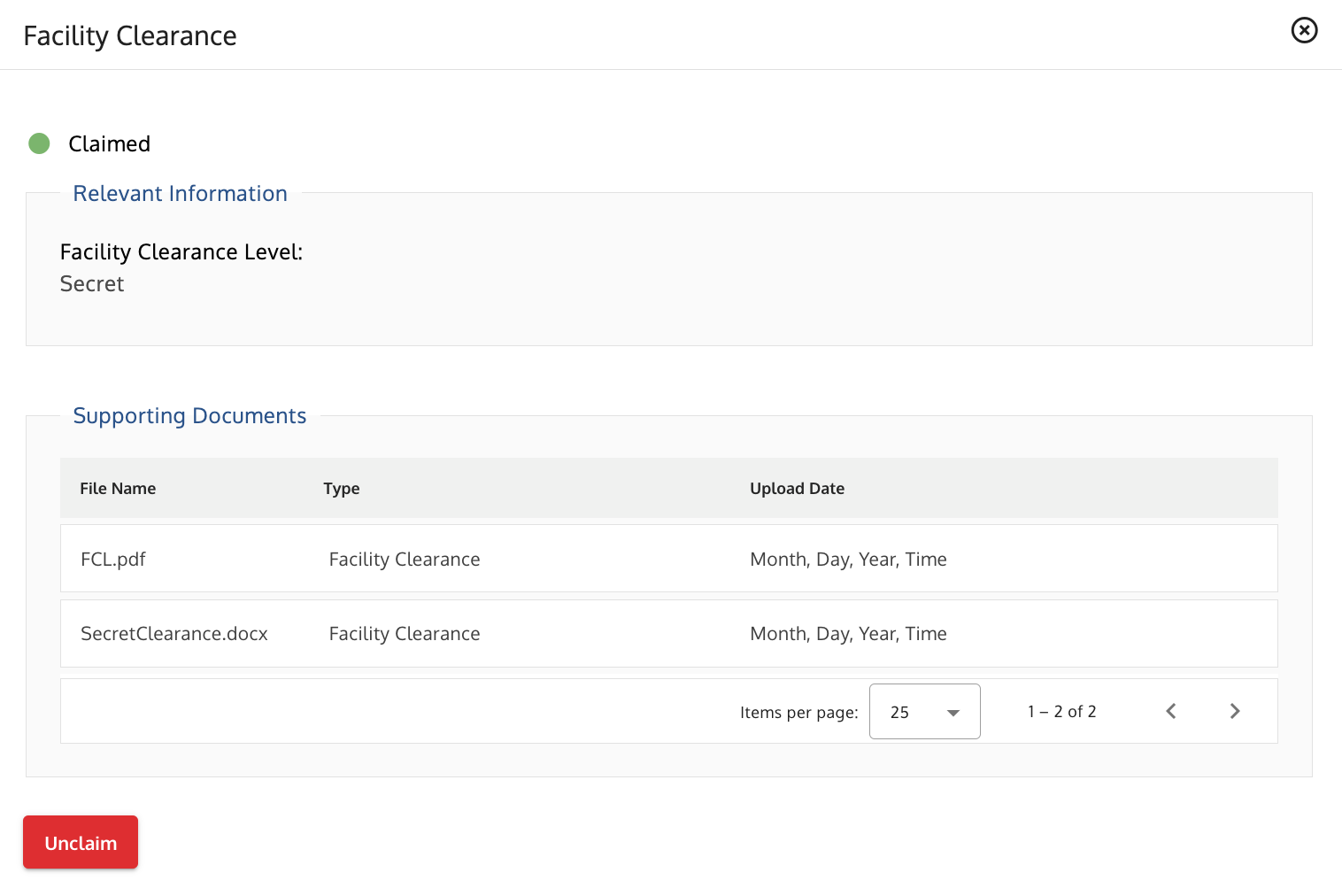 Business Factor screen where users click Unclaim to edit a claimed factor.
3. Delete a Business Factor
To remove a Business Factor, you must unclaim it and delete the related documents.
- Navigate to the Business Factors tab.
- Use the Unclaim button to remove the claim.
- Delete any documents that do not apply.
- Select the Close button to leave the Business Factor permanently unclaimed.
Note: If you delete a Business Factor, it will only affect unsubmitted proposals.
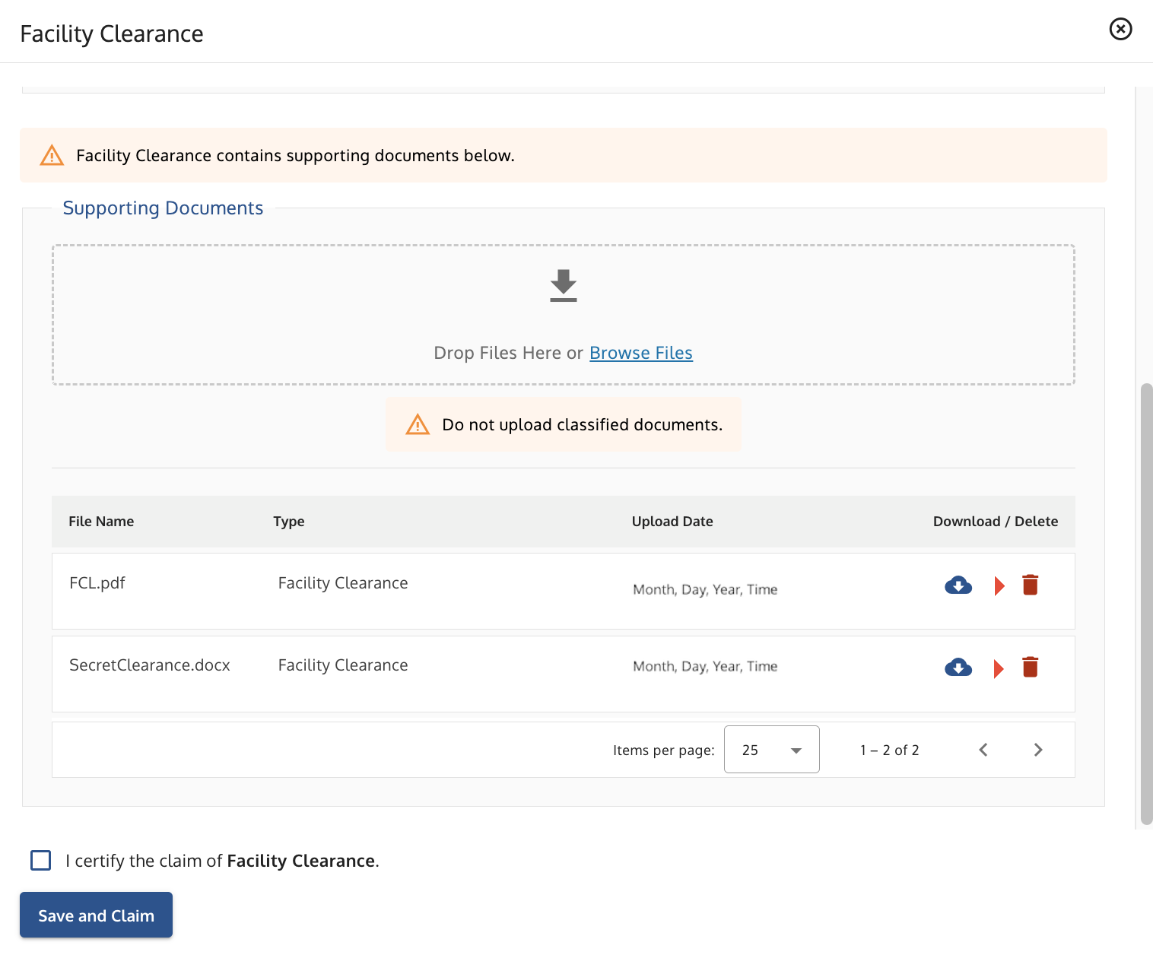 Business Factor screen showing the red delete icon next to an uploaded document.
Troubleshooting
Issue | Fix |
| Your claimed factor is not appearing on the Company Overview. | This is correct. Team Members' Business Factors will not display on your Company Overview. They only appear as half-shaded circles on the Proposal Overview screen. |
You need to update a factor for a submitted proposal. | Business factors in submitted proposals cannot be unclaimed or changed. Any changes you make will only apply to unsubmitted proposals. |
| The Business Factor was claimed incorrectly. | Use the Unclaim button, remove the incorrect claim/documents, and re-certify the claim with the correct information. |
Related Articles / Links
- Use the My Company Component—General guide to the central hub
- Manage Team Members and MRCLs—Guide on how team members claim factors
- Submit Documents and Understand Security—Guide on document restrictions
Was this article helpful?
That’s Great!
Thank you for your feedback
Sorry! We couldn't be helpful
Thank you for your feedback
Feedback sent
We appreciate your effort and will try to fix the article